albtechportal

  • Subscribe to our RSS feed.
  • Twitter
  • StumbleUpon
  • Reddit
  • Facebook
  • Digg

Wednesday, 4 September 2013

15 essential open source tools for Windows admins

Posted on 15:56 by Unknown

Microsoft offers great tools for enhancing your server-side experience, but open source has impressive options as well 

You might imagine that the best place to go for improving your Microsoft server-side experience is to the mothership itself. In many cases, you would be right. But the truth is there are a meaningful number of open source tools that go above and beyond what Microsoft has to offer in support of Windows Server, Exchange, SQL, and SharePoint. Many of these alternatives provide -- for free -- more powerful capabilities than what you'd get with third-party retail products.
Microsoft itself has acknowledged this fact, facilitating the availability of open source tools for Microsoft admins through its CodePlex site. Microsoft, too, can be relied on for a few clear winners when it comes to free tools.
[ Check out InfoWorld's roundup of the best free server tools Microsoft has to offer. | Get all the details you need on deploying and using Windows 7 in the InfoWorld editors' 21-page Windows 7 Deep Dive PDF special report. | Stay abreast of key Microsoft technologies in our Technology: Microsoft newsletter. ]
All in all, it's never been a better time to experiment with open source tools in your Microsoft environment. From networking troubleshooting to security to performance analysis, we've compiled a list of the top open source tools for your Windows-based systems. Don't see a favorite? Feel free to highlight it in the comments below.
Essential open source Windows admin tool No. 1: Wireshark
Network troubleshooting is a real art, one that requires solid training and years of hands-on experience. But a tool like Wireshark helps ease traffic analysis, thanks to many powerful features. Just one look at this free software-based protocol analyzer's color-coding features and you'll see how its superior usability makes Wireshark a worthwhile tool for any Microsoft shop.
Download: www.wireshark.org
Essential open source Windows admin tool No. 2: AMANDA
Admins looking to ease the pain of backing up Windows-based systems should check out AMANDA, aka Advanced Maryland Automatic Network Disk Archiver. AMANDA provides the ability for an administrator to set up a single master backup server that can support both Windows desktops and servers over the network to a variety of media, including tape drives, disks, or optical media.
ZMANDA maintains and supports the freely available AMANDA, as well as ZMANDA Recovery Manager for MySQL. It also provides network and cloud backup services that it sells commercially.
Download: www.amanda.org
Essential open source Windows admin tool No. 3: MailArchiva
Email archiving is front and center in Exchange 2010, thanks to the increase in compliance regulation enforcement across the industry. But for those who are not yet using Exchange 2010, MailArchiva provides a worthwhile means for bringing compliance to Exchange 2000/2003 and other mail servers, such as Postfix, Sendmail, Qmail, iMail, and Lotus Notes.
MailArchiva comes in both an open source and an enterprise flavor. To see a list of features and how the two editions vary, browse the MailArchiva site.
Download: www.mailarchiva.com
Essential open source Windows admin tool No. 4: Exchange 2010 RBAC Manager
Exchange 2010 RBAC Manager is a great tool for admins working with role-based access control and Exchange. RBAC Manager (aka RBAC Editor GUI) helps overcome the lack of a GUI tool to work with the new role-based administration side to Exchange, enabling admins to connect, whether or not you're a PowerShell master. The tool is written in C# and uses PowerShell behind the scenes to allow you to create and manage roles in your Exchange 2010 environment.
Download: rbac.codeplex.com
Essential open source Windows admin tool No. 5: Core Configurator 2.0 for Server Core
Offering a command-line version of Windows Server 2008 and Windows Server 2008 R2 at installation was a great idea. With its light footprint, it allows a small attack surface as well. The only problem? It required administrators to crack open command-line books to configure their servers. This free tool provides a GUI method for managing tasks.
Download: coreconfig.codeplex.com
Essential open source Windows admin tool No. 6: AutoSPInstaller for SharePoint 2010
Anyone who has ever installed SharePoint knows that the SQL databases created are a mess in terms of naming, resulting in large GUID databases titles that are completely inconsistent. In contrast, AutoSPInstaller utilizes a variety of scripts to install SharePoint and makes sure database names remain clean in the process.

Download: autospinstaller.codeplex.com
Essential open source Windows admin tool No. 7: OCS Inventory
If you need a cool tool for locating all the devices connected to your network and what software and hardware you have installed on your systems, then OCS-NG is the one for you. It requires you install the OCS client inventory agent on your systems; you can then pull all that information into a repository that's easy to visualize and search.
Download: launchpad.net/ocsinventory
Essential open source Windows admin tool No. 8: UltraDefrag
UltraDefrag is a tool for Windows that can defrag system files, registry hives, and the paging file. It's continually updated to ensure improvements in performance.
UltraDefrag is fully compatible with Windows NT 4.0, Windows 2000, Windows XP, Windows Server 2003, Windows Vista, Windows Server 2008, Windows 7, and all of the 64-bit editions of Windows. It's a valuable addition to any Windows environment.
Download: ultradefrag.sourceforge.net
Essential open source Windows admin tool No. 9: Nmap for Windows
Originally a Unix-only tool, Nmap for Windows has been an important security resource for Windows shops for more than 10 years. This security scanner and network mapper can also be used to perform network inventory, manage service upgrade schedules, and monitor host or service uptime. It supports Windows 7, Windows Server 2008 and 2003, Windows Vista, and Windows XP SP1 and later.
Download: nmap.org/book/inst-windows.html
Essential open source Windows admin tool No. 10: Zenmap
Zenmap is a cool tool for mapping a topology of devices connected to your network. This security scanner works off of Nmap, providing an interactive, animated visualization of hosts on a network, configured in rings. Click on a host and it moves to the center of your network topology, giving you the ability to easily trace the host's various connections. With Zenmap, information regarding potential vulnerabilities becomes that much easier to pinpoint, ensuring your firewalls and routers are working correctly.
Download: nmap.org/zenmap
Essential open source Windows admin tool No. 11: PowerGUI
It's no secret that PowerShell is taking the Windows world by storm. It feels like a retro pleasure for many long-term admins who remember the command-line days. But for others, banging on the command line to administer systems can be a pain.
Those looking for a more graphical means of tapping into PowerShell should check out PowerGUI, a free graphical user interface and script editor for PowerShell. More valuable perhaps is the community built around PowerGUI, with its vast store of contributed scripts and libraries for administering your fleet.
Download: powergui.org
Essential open source Windows admin tool No. 12: Performance Analysis of Logs (PAL) Tool
If you've ever had a performance problem but had no idea what metrics to collect or even how to analyze the compiled data, PAL is your friend. This open source tool helps read performance monitor counter logs and analyzes them for you, using built-in thresholds that relate to the majority of your Windows products, including Exchange, SharePoint, Active Directory, and more.

PAL has been tested on Windows 7 but should also run on Windows XP, Windows Server 2003, Windows Vista, Windows Server 2008, and Windows Server 2008 R2.
Download: pal.codeplex.com
Essential open source Windows admin tool No. 13: ClamWin Antivirus
This open source antivirus solution is a valuable tool for security-minded admins. ClamWin supports Windows 7, Windows Vista, Windows XP, Windows Me, and Windows 2000/98 systems, as well as Windows Server 2008 and Windows Server 2003.
The tool includes a scanning scheduler that you can use to configure appropriate scan times but does not come with an on-access real-time scanner. It also has the ability to integrate into Windows Explorer and Outlook for easy scanning.
Although it may not work as well as a commercial real-time option for virus scanning, ClamWin is certainly a worthwhile tool, especially for shops seeking a free solution.
Download: www.clamwin.com
Essential open source Windows admin tool No. 14: Virtual Router
Virtual Router is a nifty tool that turns any Windows 7 or Windows Server 2008 R2 system into a Wi-Fi hotspot.
Using Virtual Router, users can wirelessly share any Internet connection (Wi-Fi, LAN, cable modem, dial-up, cellular, and so on) with any Wi-Fi-enabled device. Laptops, smartphones, netbooks, wireless printers -- all can connect to Virtual Router just as they would any other access point, and the connection is completely secured using WPA2, the most secure wireless encryption.
Download: virtualrouter.codeplex.com
Essential open source Windows admin tool No. 15: VirtualBox
VirtualBox is a must-have open source virtualization solution for any admin seeking to run guest OSes on Windows, Linux, Macintosh, or Solaris machines.
Using VirtualBox, admins can run virtual instances of a wide array of operating systems, including Windows, Linux, OpenSolaris, OS/2, OpenBSD, and even DOS. To learn more about the extent to which VirtualBox supports various operating systems as virtual machines, check out VirtualBox's guest OS wiki.
Download: www.virtualbox.org

Read More
Posted in Microsoft, Software | No comments

Web technology: 5 things to watch in 2013

Posted on 15:53 by Unknown
Don't expect a resolution to the Web standards fracas next year, but high-res images will happen, and new browsers might carve out a niche.
The evolution of the Web is a messy process.
We do so much with the Web today that it's easy to take it for granted. Banking, social networking, word processing, travel planning, education, shopping -- the Web is reaching to new domains and tightening its grip where it's already used. To match that expansion, the Web is evolving.
But the Web is built by countless individuals -- browser engineers who enable new technology, Web developers who bring that technology online, and standards group members who iron out compatibility wrinkles. With so many constituents, it's no wonder there's so much craziness in charting the Web's future.
The new year will bring new chaos on the Web, and things will be sorted out in only some areas. Here's a look at what'll settle down in 2013 -- and what won't.
Alternabrowsers
iOS comes with Safari. Windows Phone comes with Internet Explorer. Android comes with its own browser and, for Android 4.x users, Chrome. It's a very different way of doing things compared to the browser free-for-all in the PC market.
In 2013, though, there's a chance people will exercise choice where they can and reject a future where browsers end up being effectively locked to the mobile OS.
The forces for lock-in are strong, if for no other reason that it's just simpler to use a smartphone's built-in browser. But don't forget -- there was a day when IE ruled the desktop browser world. In 2012, programmers laid the groundwork for big-name alternabrowsers.
Today, the companies that control the mobile operating systems -- Apple and Google -- lead the race for mobile browser usage.
(Credit: data from Net Applications; chart by Stephen Shankland/CNET)
We saw the arrival of Chrome on iOS and the reboot of Firefox on Android. iOS and Windows Phone place restrictions on third-party browsers, but Android is open, and other browsers there include Dolphin, Opera Mini, Opera Mobile, and UC Browser.
The restriction on iOS is that third-party browsers must use an Apple-supplied version of the WebKit browser engine that's more secure but slower than the version Safari uses. Windows Phone and Windows RT have related restrictions.
On personal computers, it's completely ordinary to switch to other browsers depending on security, performance, features. In the mobile world, that's not the case.
But the alternative browsers -- especially when companies like Google put marketing muscle and brand equity behind them -- could convince people that maybe they should venture farther afield. With Android spreading into more hands than iOS, it's possible the openness of the PC industry could
Oh, one more thing -- don't be surprised to see a Mozilla browser on iOS, too.
Firefox OS makes a peep
Mozilla announced some early progress with Firefox OS in 2012 -- though it failed to deliver it during the year as it had planned. Expect the browser-based operating system, which runs Web apps and is geared for budget smartphones, in early 2013.
Firefox is barred from iOS and Windows RT, and it is a rarity on Android. Without a presence in the mobile market, Mozilla can't use its browser as leverage to pursue its goal of an open Internet. Firefox OS, geared for smartphones and running browser-based apps, is Mozilla's answer. With it, Mozilla hopes to break the ecosystem lock that is settling people into the phone-OS-app store-cloud service silos from Apple, Google, Microsoft, and Amazon.
The first big Firefox OS partner is Telefonica, which plans to offer phones in Latin America with the operating system as a cheaper smartphones alternative.
"Mozilla's prediction is that in 2013, the Web will emerge as a viable mobile platform and a third, alternative option to closed, proprietary walled gardens," said Jay Sullivan, Mozilla's vice president of products. Firefox and Firefox OS obviously are key parts of Mozilla's effort to make that happen
Firefox OS won't be an easy sell since inexpensive Android phones are common and iPhones continue to spread. But carriers can't be happy ceding power to Google and Apple. And Mozilla doesn't need to have 40 percent market share to claim victory: as long as its foothold is big enough to keep Web programmers from coding mobile sites only for the big boys.
Web standards divisiveness persists
Those hoping the end of a rift in Web standards governance most likely will have to keep on waiting.

The new frontier of emerging Web standards is populated by a hodge-podge of acronyms.
(Credit: Bruce Lawson) 
 
The World Wide Web Consortium long has played a central role in revising the standards out of which the Web is built, but a decade ago it chose to push a standard called XHTML that wasn't compatible with HTML. The browser makers, it turned out, had veto power, and largely ignored XHTML in favor of advancing HTML on their own through a group called WHATWG. This split persists -- and it's not going away.
The W3C is enthusiastic about HTML and related Web standards such as CSS for formatting. But even as it's ramped up its efforts, with plans to finish HTML5 standardization in 2014, the WHATWG has moved to a "living document" model that constantly updates HTML.
W3C CEO Jeff Jaffe has been trying to speed up Web standardization, with some success, and the W3C has remained relevant when it comes to CSS and some other work. But it has yet to fully regain its status with HTML itself, despite new members, new editors, and new energy. In fact, the cultural gulf in some ways appears to be widening. Even as the W3C's formal committee machinations expand with new members, the WHATWG's HTML editor, Ian Hickson, is moving the other direction. He said in a Google+ post:
Consensus (also known as "design by committee") is a terrible way to design a language or platform. Committee design dilutes responsibility and blame (everyone just starts saying things like "yeah, I didn't like it, but we had to do that to get consensus") while letting everyone take credit for everything (since their ok is necessary to get consensus), which makes it an attractive proposition for people who want to further their careers without really doing any work...
You end up with a technology that doesn't know what it is and doesn't do anything well.
Web standards continue to evolve, but at least regarding HTML itself, it doesn't look like either side will agree the other has the superior process.
High-res images on the Web
Apple's Retina displays -- the high-resolution screens used in iPhones, iPads, and MacBooks -- enable a new level of crispness and clarity in images and text. Software makers have been gradually updating their programs with new icons, graphic elements, and abilities to take advantage of the displays. It's been work, but not exactly a major re-engineering effort.

The W3C's new HTML5 logo stands for more than just the HTML5 standard.
(Credit: W3C) 
 
But Retina on the Web is a very different matter. First of all, nobody likes slow-loading pages, and Retina imagery has four times the pixels as conventional imagery. Worse, more of the Web is moving toward mobile devices that have an even harder time managing big images and whose data usage is pricey, and you especially don't want mobile users downloading multiple versions of the same image when they don't need to.
At the same time, mobile devices are often held closer to the eye than PCs but using physically smaller screens with higher pixel densities. That means old assumptions no longer are valid about how many pixels wide a graphic should be. The technology to fix this has the label "responsive images."
Standards to the rescue! But uh-oh: Two camps each favor their own approach -- one called the srcset attribute, the other known as the picture element.
Resolution probably will come in 2013, though.
There have been emotional differences of opinion, but Robin Berjon, one of the five new HTML editors at the W3C, sees discussions as fruitful now. He said in a blog post:
We have two proposals for responsive images, the srcset attribute and the picture element. Both have now reached the level of maturity at which they can be most usefully compared, and this discussion is about to go through a new chapter.
Browser makers and Web developers are actively moving to high-resolution graphics and videos on Retina-capable devices, so regardless of what happens in standards groups, the responsive images issue will be fixed. After all, high-resolution displays are increasingly common, mobile devices are increasingly important, and nobody likes looking at pixelated, mushy images when they don't have to.
Web bloat
The good news is the Web is getting steadily more sophisticated, powerful, and useful. The bad news is there's a price to pay for those advantages. Unfortunately for those who have capped data plans or who live in rural areas with subpar broadband, that increase in Web sophistication means Web pages get bigger and take longer to fetch.
The HTTP Archive's records show a steady increase in the size of Web pages over the last two years.
(Credit: HTTP Archive)
There's an old adage in the computing industry that the new horsepower that chips deliver is immediately squandered by new software features, so computers don't actually appear to get faster. There's a corollary in the Web world: As broadband spreads and speeds up, as faster LTE supplants 3G, so Web pages sponge up the extra network capacity.
The HTTP archive keeps tabs on the state of the Web, and it shows just how things are ballooning in its sample of tens of thousands of Web pages.
From December 16, 2010 to December 15, 2012, the average Web page increased in size from 726KB to 1,286KB. The amount of JavaScript increased from 115KB to 211KB. And the images ballooned from 430KB to 793KB.
An optimist can find good news here, too. Google has an entire team devoted to making the Web faster, introducing new technology such as SPDY to speed up servers and browsers. Browser makers obsessively test new versions to try to catch any regressions that would slow things down. New standards make it easier for Web developers to time exactly how fast their pages actually load.
Read More
Posted in TechNews, Webdesign | No comments

Exploring TCP/IP Routers

Posted on 15:49 by Unknown
Routers connect networks. Routers range from someone's desktop PC running Internet sharing software to multimillion-dollar systems of specialized hardware and software. In the original work on TCP/TP, the designers wanted to be able to move data across a network even if parts of the network became disrupted. For example, if a network link were taken out by enemy attack, the traffic on that link would automatically reroute to a different link. This reliable scheme is called dynamic rerouting. Your system doesn't have to be a victim of an enemy attack for dynamic rerouting to be valuable. If a forklift cuts a cable in a warehouse, for example, dynamic rerouting means that inventory data can still be sent across a network via a different route.
(In network parlance, you can pronounce router either rowter or rooter. Just pick a side and join the battle. People pronounce it both ways and some are willing to fight for their choice.)
A router extends a LAN by linking two or more network segments that may or may not use the same media type. The router permits each connected network to maintain its independent identity and address. Figure 1 shows a small intranet consisting of two subnets. The router connects the subnets and connects the entire intranet to the Internet.

Figure 1: This router connects the subnets to each other and the intranet to the Internet.
When someone at address 130.103.2.1 sends e-mail to 130.103.2.4, the router is smart enough to see that the message is staying on the same subnet. There is no need to investigate any routes to the other subnet or to the Internet. When 130.103.2.1 sends e-mail to 130.103.1.4, however, the router forwards the message to the other subnet. When someone from anywhere within the intranet sends a message outside the 130.103 intranet, the router forwards the message out to the Internet.
What makes routers special is that they're intelligent enough to understand IP addresses. In fact, the decisions the router makes about directing the packets of your data are based on the network portion of the IP address. A router contains a network interface card for each segment of the network that it connects. Each network interface card has a different IP address because the router itself is a member of each network. The router gets most of its intelligence from routing tables. Routing tables are stored on the router and contain information about the following:
  • Paths (routes) to particular networks
  • How to handle special kinds of traffic
  • Priorities for certain connections
On big fancy routers, routing tables also store statistics on which routes are fastest and shortest.

Understanding how routers work

Routers work at the Internet, data link, and physical layers of the TCP/IP structure. A router resembles an octopus whose tentacles represent all of your cabling types. Routers are aware of the multiple paths that your data packets can take across the network to their final destination. The router knows about other routers on the network and can choose the most efficient path for the data to follow. This efficient path may change as network devices change and as traffic comes and goes.
For example, on Monday, the most efficient path may be from network A to network C to network B. On Tuesday, however, the most efficient path may be from network A to network D to network B because network C is broken. Because the router knows about any problems on the network path, it can detour your data when necessary. Not only are routers intelligent, they talk to each other and share knowledge, especially traffic reports: "Route A is jammed right now. Take route B instead. Route C has disappeared."
Routers use a routing protocol to find out information about the entire network and to determine the optimal path for sending a packet on to its destination. What's optimal? Is it the shortest path (fewest hops from one host to another)? Or the fastest path (more hops on speedier links)? Or the least congested path?
Suppose you want to go from Boston to New York City (NYC) to visit the Empire State Building. Your top three choices are probably these:
  • Drive to NYC on Interstate 95 and use a city map to find the Empire State Building.
  • Drive to Boston's Logan Airport. Fly to JFK Airport in NYC. Take a taxi to the Empire State Building.
  • Drive to Boston's South Station. Take a train to Penn Station in NYC. Take the subway to the Empire State Building.
Which way do you think will get you there fastest? If you've never driven to Logan Airport during rush hour and through construction, you would guess that flying from Logan to JFK is the fastest route. However, depending on city traffic, flying may actually be the slowest way.
The shortest way isn't always the fastest way. Nor is the most direct route always the fastest way. And if you never go to New York City even once in your life, these facts are rules to live by on the network, as well.
Routers use packet switching to move messages from one place to another on a network. Messages are divided into packets before they move out onto a network. During transmission, each packet is independent of the others. In fact, each packet in a message could take a different route to the destination. That's packet switching; the point is that all the packets in a message get to the destination, not how they get there.

Choosing a router

Depending on the number of machines and networks you need to connect, you may not need special purpose hardware to be your router.
  • A router for a Small Office/Home Office: If several networked computers share a connection to the Internet via cable or DSL, you can use the computer attached to the network device as your router. You need to add some kind of Internet sharing software to this computer. Microsoft's ICS (Internet Connection Sharing) is one example of Internet-sharing software. Software packages are available for other operating systems as well. The routing software checks to see whether packets should stay on the local net or go out to the Internet. Because the routing software doesn't work too hard, it doesn't disturb other programs that are running on the computer.
    Be sure to protect your Internet connection with a firewall.
  • For larger companies: Routers that do more than route: Companies that connect their subnets to the Internet need a more powerful, more intelligent router than a small office with a dozen computers. A special purpose router is the solution. A combination router/firewall is a good solution.
  • Really big routers for really big networks: These are the routers that connect the networks of large worldwide corporations. Routers this large and complex handle millions of packets per second and cost millions of U.S. dollars. They form the backbone of the Internet itself.
Read More
Posted in Tutorials | No comments

Best Nexus 7 Accessories

Posted on 15:44 by Unknown
Now that you have a Nexus 7 tablet, it's time to accessorize it with cases, apps, and other useful add-ons.
Google Nexus 7 (2013)
Asus outdid itself with the new Google Nexus 7£167.00 at Amazon, which is leaps and bounds ahead of its still-very-good predecessor. The 7-inch tablet is faster, available in higher capacity versions, and packs a gorgeous, much higher-resolution screen that exceeds 1080p (1,920 by 1,200 pixels). It's also slimmer and more attractive than the previous Nexus 7. Naturally, this means you have to get some new accessories.
Bluetooth accessories and Android apps remain pretty universal, so you can keep your old apps (and get any new ones that are optimized for Android 4.3), keyboards, speakers, and headphones. Cases are a bit trickier, and that's where you might run into some problems when ordering online. When shopping for a new case or cover, look for one that says it's for the "New Nexus 7" or the "2013 Nexus 7." If you get a case made for the first Nexus 7, it won't fit on your new tablet.
Google Nexus 7 Cases
Cases The Nexus 7 doesn't have as many cases as the fashion plate iPad, but there are still plenty of choices for you to protect and accessorize your tablet. Computer Shopper's list of the top 10 cases for the new Nexus 7 run the gamut from simple plastic sleeves to leather-bound folios to Apple Smart Cover-like foldable stands. Highlights include the MoKo Ultra-Slim Lightweight Smart Shell Stand Case (which looks like something made for the iPad), the DODOcase Folio for Nexus 7 (which looks like something made for the cast of Mad Men), and the Waterfield City Slicker Tablet Case (which looks like something made for that guy you keep seeing at Starbucks). Pick your case or cover based on the sort of protection, style, and functionality you want for your tablet.
AppsThe Nexus 7 runs stock Android 4.3, which means it can handle nearly any Android app you can throw at it. Because the Google Play Store is a massive library of software for your tablet, it's hard to pick which apps are optimized for tablets, which apps were recently updated, and which apps are actually good. Our list of The Best Android Apps can help you narrow down your choices, even if there are still a lot from which to pick. Be sure to update all of your Google-specific features and apps (like Google Drive, Google Now, and Google Keep) to make sure all of your personal information and media is available on your tablet instantly.
Bose SoundLInk Mini
Speakers and HeadphonesBecause it uses Bluetooth, the Nexus 7 works with plenty of wireless audio products, including speakers like the Bose SoundLink Mini£169.95 at Amazon and earphones like the Plantronics BackBeat Go 2$79.99 at Amazon. Besides those two Editors' Choice picks, our lists of the best wireless speakers and best wireless headphones include plenty of other solid choices.
Other AccessoriesWith all of the obvious accessories out of the way, there are two more you can pick up that can add a lot of functionailty to your Nexus 7. The Google Chromecast$35.00 at Amazon lets you stream online media from your Nexus 7 to your HDTV, and while it's currently limited in what it supports, its $35 price tag is just right for adding some useful functionality to your tablet. Finally, the Logitech K810 Bluetooth Illuminated Keyboard£126.73 at Amazon lets you use your tablet like a mini-notebook.

Read More
Posted in Mobile, TechNews | No comments

Winners and Losers From Microsoft's Nokia Acquisition

Posted on 15:43 by Unknown

Microsoft Nokia- Winners?

In technology, "winning isn't everything" is less a maxim and more a warning that the end is near. Microsoft and Nokia were both on a losing streak that could have meant mutual obsolescence until yesterday's announcement that the software giant is buying the primary producer of Windows Phone.
Microsoft CEO Steve Ballmer just recently announced his intention to retire within the year, a decision as necessary for public relations reasons as it was for business reasons. During his tenure the value of the company dropped from more than $600 billion to less than $270 billion. Its flagship Windows product and its Office line have both been devalued in the market by free offerings from Google. Even Microsoft's lone bright spot, the Xbox, hasn't helped it much lately. Ahead of the anticipated November release of the Xbox One, gamers attacked the company for its decision to make all use of the system dependent on Internet connectivity and the motion-sensing Kinect. (The massive gamer backlash saw Microsoft cede both.)
For its part, the Finnish phone maker was once the top in the world but while it still has 18 percent of global market share (second only to Samsung), its smartphone market share has declined to about five percent from nearly 40 percent in 2010. It arguably owes some of those woes to Microsoft; in 2011 it resolved to basically shelve its plans for Symbian and make mostly Windows Phones. Since that decision it's lost about 20 percent of smartphone market share. Financially Nokia was on even shakier ground until Microsoft swooped in. Investors have been judging that Nokia was a bad bet for a while and there were serious questions about how much longer it could keep going on its own.
Microsoft needs a new CEO and it needs a way ahead in mobile—both of which Stephen Elop and the company he just stepped away from provide. While both companies are still far from safe, the deal also puts the spotlight on the fates of other companies, notably Windows Phone makers Samsung and HTC—and BlackBerry.
Read More
Posted in TechNews | No comments

Tuesday, 27 August 2013

Will VMware's big gamble on network virtualization pay off?

Posted on 13:50 by Unknown


In unveiling its NSX software this week, VMware is looking to convince its huge base of server virtualization customers to trust it with network virtualization, too, even though many of them  already look to Cisco for their primary network needs.
Martin Casado, CTO for networking and security at VMware, describes NSX as a kind of virtual networking data-plane add-on to what will be an updated version of VMware’s ESX computer virtualization technology that will ship later this year. NSX hasn’t yet been priced out publicly by VMware, but some customers testing it are said to be Citi, eBay and GE Appliances.
Casado says NSX introduces a “new software layer” associated with network virtualization to allow enterprise managers to quickly set up and automate network control and security policy in VMware-centric data centers, including distributed firewalling, in order to “create fairly complex networks on fairly static hardware.”
He says NSX has no impact on routers or switches from vendors such as Cisco or Juniper. “The physical network still stays around,” he notes, but through NSX, VMware introduces a security policy oriented toward applications.
VMware customers will want to adopt NSX because it will support instantaneous Layer 2 and 3 configuration of networks, Casado said during a press conference at the annual VMworld event held in San Francisco this week. “If the hurdle is the network, bringing it up in seven to 49 days, we’ll reduce it to zero,” he says. The argument for using NSX, when it’s available by year end, will be “agility,” he says.
In a video shown to thousands of conference attendees Monday as NSX was introduced, Sri Shivananda, eBay’s vice president at platform, infrastructure and engineering systems, said using NSX virtualization helped simplify infrastructure management of 3,000 virtual machines.
Some analysts think VMware is downplaying how the NSX network virtualization platform will compete against what Cisco is doing in its Open Network Environment (ONE) effort.  “VMware and Cisco are battling,” says Gartner analysts Neil MacDonald, adding VMware is “downplaying the true competition.”
The arrival of NSX by the end of the year may ignite strong debate in the enterprise about adoption of software-defined networks, and the corporate VMware deployment team may find itself arguing with the Cisco networking group there on this topic. “The Cisco people will fight this,” predicts MacDonald. It may well be that small- to mid-sized companies will wonder why they need NSX software-defined networking at all.
Server virtualization has become widespread in the enterprise, and VMware is now holding out a path toward network virtualization and software-defined networks. But MacDonald says because there’s no public pricing yet for NSX, it’s uncertain what the total cost of ownership of adopting VMware’s network virtualization will be.
MacDonald adds that VMware, which is seeing a leveling out of server virtualization adoption, appears to be pushing forward into network virtualization as a means to generate new revenue growth. But the era of SDNs is just beginning and it may take several years for any of this to gain wide-scale acceptance, he points out.
To be sure, VMware and Cisco are cooperating on a number of technical areas associated with new VMware products, such as the early version of the VMware vSAN software-defined storage product -- a “virtual SAN” introduced Monday as well.
VMware storage product manager Alex Jauch spoke at the same VMworld conference session with Cisco product managers Roger Barlow and Kishan Ramaswamy to explain how vSAN can work on top of Cisco’s UCS products, including the Cisco ISR G2 and the UCS E-Series blades, to enable redundancy in storage clusters across the network.
The vSAN offering is currently available free with vSphere 5.5, also announced Monday, and customers can register to get involved in the vSAN beta.

Raghu Raghuram, executive vice president for cloud infrastructure and management at VMware, said in unveiling the company’s software-defined data center strategy that VMware is focused on creating the path that VMware’s many enterprise customers can use to reliably transition into public and hybrid cloud deployments.
To that end, VMware is opening new data centers in Santa Clara, Dallas and Sterling, Va., in addition to its Las Vegas data center for its vCloud Hybrid Service, while making vCHS generally available. In the future, VMware expects to offer “disaster recovery as a service.” In addition, data center and services provider Savvis is also supporting this VMware technology model in its Chicago and New York data centers.

Read More
Posted in TechNews | No comments

Monday, 19 August 2013

How to control your PC with your Android phone

Posted on 15:00 by Unknown
Admit it: You once owned a crazy multifunction remote. It had a black-and-white touchscreen and was supposed to let you control every entertainment device in your house from the comfort of your couch. That was the promise, at least. All it really did was force everything into the wrong aspect ratio and switch the clock on your microwave to Greenwich mean time.
Well, good news: The world is now a better place. Your PC is now the most powerful entertainment device in your home, so it’s time to ditch your outdated remote control in favor of your smartphone.
When you have open platforms on both sides of the equation—your Android phone and your PC, rather than “some Panasonic remote” and “some DVD/HDTV combo thing”—it becomes easy as pie to rig up a super-powerful remote-control solution. A smartphone super-remote isn’t just for people who have home theater PCs, either. With a little networking know-how, you can use your Android phone to wake up a dormant PC when you’re away from home so you can start a torrent, stream media to your phone, or just poke around your PC while you’re out and about.
Whether you want a media remote, a remote desktop client, or a way to stream media from your PC to your phone, this guide will teach you how to get set up with a secure, usable connection on the desktop side and connect with the best apps on the Android side.

Make sure your PC is ready for business

A quick word: These instructions assume that your phone and computer are connecting to the same router, and that you’ve assigned a static IP for your computer on the network so that it gets assigned the same local IP address (192.168.x.x) every time it’s turned on. (Remember that bit of necessary networking know-how I was talking about?)
Every router is different, so it’s impossible to provide specific advice for this step. However, the basic process goes something like this:
1. Look up the hard-wired MAC address for the connection you’re using (wired or wireless) on the machine you’re using. On Windows, you can get this info by opening a command prompt and typing ipconfig -all. On a Linux or Mac OS machine, open Terminal and type ifconfig -a. Scroll down to find your router’s IP configuration info—the MAC address will usually be listed as a Physical Address entry that looks like this: a2:b9:34:54:cc:10.
To find a computer’s MAC address, look for the Physical Address entry after running ‘ipconfig - all’ from the command prompt.
2. Go to your router’s configuration page by opening a browser and typing 192.168.1.1 or 192.168.0.1 into the address bar. If that doesn’t work, consult this list of common router addresses or check the manufacturer’s website. Poke your way around the router configuration page until you find the static IP settings, then input the machine’s MAC address, its name, and the IP address you want it to have henceforth (192.168.1.100 is usually a safe choice). With that out of the way, we’re ready to go.
This article is written primarily with Windows in mind, though all of the remote solutions we’ll be using—except Unified Remote—will also work on a modern version of Linux or Mac OS X.

Unified Remote lets you control your PC with your phone

Simple and slick, Unified Remote is a no-brainer to set up. Just pop over to the Unified Remote website, grab their server application for your PC, and run through the install process. You’ll want to set a good strong password, but otherwise everything’s pretty much good to go by default. If you’re asked to open Windows Firewall for this or any other program presented here, go ahead and say yes. Next, grab the Android app either from the Play Store or by following the download link from the Unified Remote website—which also links to the Windows Phone app, if that’s more your style.
Unified Remote lets you use your phone as a mouse, and it works great.
Launch the mobile app and—if you have the Unified Remote server running on your computer and your network is feeling happy—it’ll try to automatically configure itself; if that doesn’t work out, you’ll have to manually add your server by entering your PC’s IP address.
Once you’re connected, dive into the Remotes section of the app. There are lots of options you can play with in here—the two that I’ve found the most useful are ‘basic input’, which lets you use your phone’s touchscreen as a surprisingly intuitive mouse for the PC, and ‘media’, which provides play/stop/volume keys that are similar to the ones you might have on your physical keyboard.
It’s good stuff, and there’s basically no lag if your network connection is stable. The limitation of Unified Remote is, obviously, that it’s useful only as a literal remote—you must be looking directly at the machine you’re controlling to see the effects of your faux-cursor or media keys.

VLC Remote ’n Stream is the best of both worlds

This app is actually called VLC Direct Pro Free, but I like the ’n because it makes this sound like a discount car wash. If you need one app that can act as both a media remote and a channel for streaming media from your PC to your phone, VLC has the answer—if you already use VLC to handle all of your video-playing needs. And if you don’t, you ought to—VLC is open-source, cross-platform, and one of the best media players around; grab it for free from the VLC website.
Now just launch VLC, open Preferences from the Tools drop-down menu, toggle Simple to All in the bottom right, and in the left-hand menu, expand Interface and click Main interfaces. There should be a Web option—check it. Close the Preferences menu, but leave VLC running for the time being.
 
There are tons of settings to tweak in VLC, but you just need to enable the ‘Web’ interface to start streaming your media to your phone.
Next, grab the VLC Direct Pro Free Android app from the Google Play store. By default, it will try to scan for a open VLC server on the network. Hopefully, it will automatically hook in to your PC—you did leave VLC running, of course—but if it can’t detect your PC, the app will ask you to input an IP address, just as with Unified Remote.
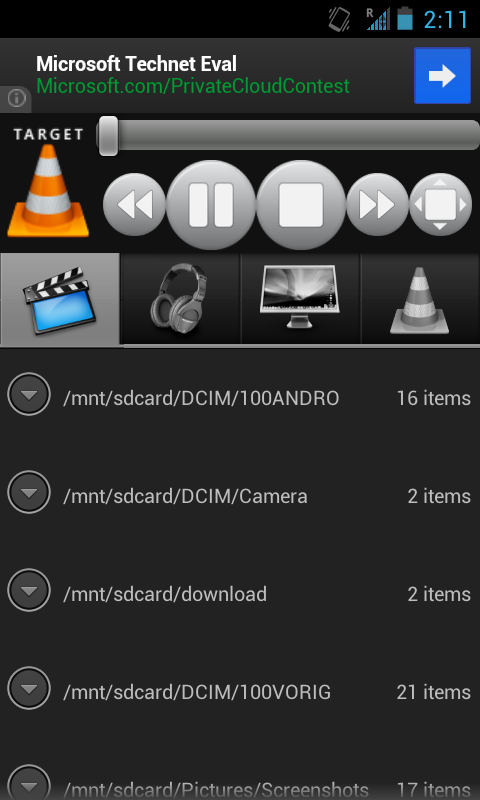
Once you’ve connected, you’ll be greeted with the program’s main interface, which is a little cluttered. The TARGET icon in the top right refers to whether you’re controlling media on your PC (indicated by the traffic cone, the VLC icon) or streaming it to your phone (indicated by the Android icon). The play/pause/stop controls, as well as the volume bar, are at the top right, and the list of files available to you are represented by the four icons arranged horizontally: From left to right, they represent local video on your phone, local audio on your phone, media on your PC, and recent files from your PC. Once you’re playing something on the PC, you’ll get a progress bar at the bottom of the interface that you can use to scrub back and forth through the media. And that’s it!
Well, there are actually three more things you should know about VLC. First, your phone may not be able to play all of the video files that your computer can by default—you’ll want the beta VLC for Android app for that (it integrates pretty well with the app once you associate it with video files by default).
Thing two is that you can actually access this same VLC remote-control interface from another computer on your network via a browser—say, if you’re connected to your media PC from a laptop on the couch. Just go to 192.168.1.100:8080 (if you set a different static IP address, replace it with that one).
Thing three is that you’ll need to have VLC already running on your computer in order to connect to it, and it’s not really your typical background app—you can set it to run at startup, but you’ll occasionally find yourself in the weird situation of having to close and reopen it when you want to switch from watching a given media file directly on your PC to streaming from it. Unfortunately, there isn’t really a good solution here beyond using, say, Unified Remote first to open it up, then jumping in with the VLC remote. The things we’ll do in order to avoid getting up from the couch, huh?

VNC—a.k.a. the cream of the crop

VNC—Virtual Network Computing if you’re feeling fancy—is the best remote media sharing system you’ve probably never heard of. At the most basic level, VNC is an alternative to Unified Remote for when you just want to be able to move a cursor around on the screen—but with a little creativity you can come up with all sorts of other uses. For example, I’ve managed to access my office PC to scan, convert files to PDF, and mail documents while watching a movie on a different computer in another room.
Installing a VNC server on your computer is fairly uncomplicated—Windows users just need to grab the free version of the RealVNC client from the RealVNC website, install it, and set it up on your PC with a good strong password.
The RealVNC server client is free, simple to set up, and relatively lightweight—start it up, and it should just run in the background on your PC.
Ubuntu Linux users must install x11vnc from the Ubuntu Software Center, then open the Startup Applications menu and add this entry: x11vnc -forever -passwd xyzzy -rfbport 5900 -bg, where ‘xyzzy’ is your chosen password.
You’re good to go on the PC side! Now you just need to get a VNC app for your phone. There are lots of Android VNC apps of varying quality, but my favorite one by far is Free bVNC. The configuration page isn’t anything special, but that’s okay because all you need to do is input your PC’s name, IP address, and chosen password, then hit Connect. You may then want to hit the menu key and change the input mode to simulated touchpad (I find it more intuitive), but otherwise, that’s that!
Set up a VNC server and use a free VNC client on your Android tablet so you can access your PC from anywhere.
Now you can use your phone to manipulate your PC from anywhere, though you’ll probably want to do restrict yourself to accessing your PC while your phone is connected to your home network, since streaming a high-res PC desktop requires a significant chunk of bandwidth. Accessing your PC remotely via a 3G or 4G cellular connection can be spotty, but VNC’s performance is excellent if you’re on a solid network—I have a combined desktop resolution of 3360 by 1050, and a wireless network that runs about 150 megabits per second, and I get around 10-20 frames per second while remotely using my PC on my phone while I’m in the garage. It’s not quite seamless, but it’s more than fast enough for most tasks.

Wake-on-LAN powers up your PC from anywhere

If you’re interested in managing torrents or streaming media from your PC, but you’ve got it configured to sleep when idle and you’re either out of the house or too lazy to go into the other room to wake it up, I’m about to blow your mind. Most machines have—and have had for years—a feature called Wake-on-LAN that allows their network card to stay awake while the rest of the machine sleeps, and to switch the PC on when it receives a network message.
Sadly, this is another one of those situations where I can’t give specific instructions, because everyone’s PC is different: if you’re using a network card that’s right on the motherboard, you’ll want to check your BIOS for Wake-on-Lan settings, or else check the Advanced Settings of your network card in Device Manager.
Configuring your network adapter to wake your PC when a "magic packet" is received allows you to wake up your PC at any time by sending it a special signal from another PC or—in this guide—your phone.
On just about any network adapter—except wireless USB adapters—you should be able to find something labeled ‘Wake-on-LAN’ support. Turn that on.
Next, grab the Android app of same name (as with VNC, there are several options, but I’ve gone over them with a fine comb, and the Wake On Lan Android app is the best I’ve seen). This time there’s nothing to run on your PC, but as a trade-off, you’ll have to manually input both your machine’s MAC address (remember when you grabbed it earlier) and the IP address to configure Wake On LAN. Once you think you’ve got it set up, sleep the machine, and give it a shot—oughta come right back to life. Just think of what you can do now by combining these apps: You can wake up your machine, open VLC, and stream a movie to your phone, all without getting out of bed!

Carry your PC in your pocket, wherever you go

Now, a final note about using any of these tricks while you’re away from the house. The 192.168.1.100 address we assigned to your machine is valid only within your own network (which is why everyone in the world is allowed to have that same 192.168.1.100 address). To connect from elsewhere, you’ll need to input your global IP address, which you can look up by simply opening a browser window at home and searching for “What is my IP address?” on Google.
Be warned: Some ISPs will assign a new global IP every time your modem reconnects, which means that you may have to re-check this after a power outage (call your ISP first; they may be feeling generous enough to assign you a semi-permanent IP). Before this will work, though, you’ll need to set up your router to forward requests from outside of your home network to the 192.168.1.100 machine, since connecting to your global IP means you’re no longer specifying which computer you want to remotely access. You’re connecting to your router, so your router needs to know which PC you’re trying to access.
One of these geeks has configured their router to allow them to stream a ripped copy of their Avengers Blu-ray to their phone.
Again, all routers are different, so I can’t give you precise directions here. You’ll want to find the option within your router configuration page for Port Forwarding, then add the relevant ports (select Both for TCP and UDP, if given the option) for your 192.168.1.100 PC. Those ports for the remote services we’ve covered are as follows (if you’re asked to input a range, for example, “port from” and “port to,” just enter the same number for both values):
Wake-on-LAN: 9
VNC: 5900
VLC: 8080
Unified Remote: 9512
Save those settings, step outside with your phone, try to connect using your global IP in any of the above software programs, and you ought to be in business.
Look at that—I started out writing an article about TV remotes and I ended with you getting out of the house. That’s sickening. I’m really not recommending you get any sort of sunburn—I just want you to be able to annoy people by showing off your ability to control your computer from across the room, presumably because you’re too smart/lazy to get up. 


Read More
Posted in Android | No comments
Newer Posts Older Posts Home
Subscribe to: Posts (Atom)

Popular Posts

  • Call of Duty: Ghosts Review
    Developer: Infinity Ward Publisher: Activision Platforms: PC, X360, PS3, PS4, Xbox One Price: £39.99 Reviewing a Call of Duty game is a ...
  • ‘Strata’ for iOS and Android game review
    There are games that are fun. There are games that look great. And then there are games that do both. Strata is one such game that h...
  • Review: Seagate 600 480GB SSD
    Seagate Joins the Fray It’s been quite an interesting turn of events over the past couple years in the storage industry. Whereas practical...
  • Xbox One vs. PS4: How They Stack Up Today
    Two new gaming consoles. Both very powerful. Both very ambitious. Both about to meet head to head... and do battle for your time, money an...
  • iBuypower Chimera 4SE FX Ultimate: AMD Gaming PC
    iBuypower is offering an AMD-based system in its Chimera 4SE line, which is designed to give users serious gaming performance without a wa...
  • The Last Days of the DSLR
    The DLSR is everywhere. You see it around the necks of tourists, against the faces of pro photographers. Since Canon introduced the Digita...
  • Buying Guide: Find the best headphones
    If you’re looking to get more audio enjoyment from your smartphone, tablet, media player, or computer, new headphones will do wonders. And ...
  • CCBoot - LAN Boot Software for Windows
    LAN Boot Solution Background LAN boot is a technology based on IP (Internet Protocol), UDP (User Datagram Protocol), DHCP (Dynamic ...
  • Adobe Photoshop CS6 Extended 13.0 & Plugins + Textures
    Adobe Photoshop CS6 Extended 13.0 & Plugins + Textures | 3.5 GB Adobe Photoshop CS6 Extended software delivers even more imaging magi...
  • Sony Vaio Tap 11 Review
    Introduction Sony's engineering chops are really showing this year, across its phones, tablets and convertibles portfolio. The Vaio Tap ...

Categories

  • Android
  • Apple
  • Audio
  • Blogger
  • C/C++
  • Cabling
  • Cameras
  • Cases
  • CISCO
  • Cooling
  • CPU
  • Desktop
  • DNS
  • Ebook
  • Fiber Optic
  • Gadgets
  • Game
  • Google
  • Graphic Card
  • Hardware
  • HDD
  • HTC
  • HTMLCSS
  • Hyper-V
  • Intel
  • iOS
  • iPad
  • Iphone
  • IT
  • jQuery
  • Laptop
  • Linux
  • Mac
  • MacTut
  • Microsoft
  • Mobile
  • Mouse
  • Networking
  • News
  • Nexus
  • Nokia
  • Nvidia
  • OS
  • PERIPHERALS & COMPONENTS
  • Photoshop
  • Printers
  • Programming
  • Projectors
  • PS4
  • Ram
  • RedHat
  • Review
  • Samsung
  • Scanners
  • Seagate
  • Security
  • Server2008
  • Server2012
  • Servers
  • Smartphone
  • Software
  • Sony
  • Storage
  • Tablets
  • TechNews
  • Template
  • Tutorials
  • TV
  • Ubuntu
  • Voip
  • Webdesign
  • Webiste
  • WebServer
  • Win7
  • Win8
  • Windows Phone
  • Wordpress
  • Workstation
  • XBOX

Blog Archive

  • ▼  2013 (495)
    • ▼  December (35)
      • Smart Power Strip now works with SmartThings WiFi ...
      • The Last Days of the DSLR
      • Nokia Lumia 2520 has arrived, check out our hands-on
      • 2 Million Gmail, Facebook and Twitter Accounts Rep...
      • Fleksy predictive keyboard for Android exits beta,...
      • iPhone Anamorphic Lens Lets You Shoot Wider Than W...
      • Nokia Wins Ban on HTC One Mini in U.K.
      • Finally, USB 3.1 Will Feature Reversible Connectors
      • MSI Launches Small But Mighty Z87I Gaming AC and G...
      • Samsung Galaxy S5 benchmark reveals 2K screen
      • NVIDIA Fan in Bejing Builds a 6ft Replica GeForce ...
      • Are dual-booting phones the future of Android?
      • How to Block Websites in Windows 7/8 in Chrome and...
      • How to Control your Android Mobile from PC or Laptop
      • Resize Image without loosing Quality
      • AllCast for Android pushes media to Apple TV and R...
      • Alcatel Idol X+ to launch with smartwatch and smar...
      • The legend of the HTC HD2 continues; aged device r...
      • Amazon Prime Air drones revealed on 60 Minutes, ai...
      • Samsung to create 20 MP camera sensor for future f...
      • Oppo's swiveling N1 smartphone to be available wor...
      • FileMaker Pro 13 Prematurely Appears on Apple's On...
      • Sony Vaio Tap 11 Review
      • Dell preparing to squeeze 4K resolution onto a 24-...
      • Microsoft releases VideoLoops: A GIF creator tool ...
      • Pebble Smartwatch for Android and iOS Hit Amazon f...
      • 3D Printing Market Forecasted For Explosive Growth...
      • ASUS Transformer Book T100 review: a Windows table...
      • Xbox One's 500GB HDD swapped for bigger, faster dr...
      • U.S. Army Saved $130 Million by Stealing Software
      • Xbox One Scores Big on Black Friday Surpassing PS4...
      • Buying Guide: Find the best headphones
      • Sailfish OS will be available for Android users to...
      • Amazon Cyber Monday Is The Real Deal
      • Nvidia Calls PC "Far Superior" to Video Game Consoles
    • ►  November (332)
    • ►  October (12)
    • ►  September (27)
    • ►  August (2)
    • ►  July (10)
    • ►  June (42)
    • ►  May (35)
Powered by Blogger.

About Me

Unknown
View my complete profile