albtechportal

  • Subscribe to our RSS feed.
  • Twitter
  • StumbleUpon
  • Reddit
  • Facebook
  • Digg
Showing posts with label Servers. Show all posts

Tuesday, 26 November 2013

Ubuntu Linux server with ARM processor rolled out by Boston Limited

Posted on 14:59 by Unknown

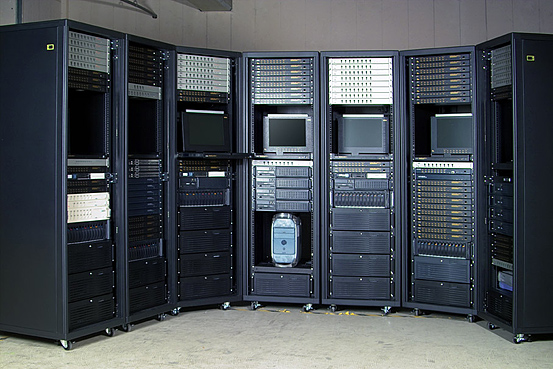
The Viridis Microserver will run on ARM Cortex-A15 processors and is certified to run Ubuntu Linux 13.10


Boston Limited has announced a new server based on ARM processors and certified to run Ubuntu Linux 13.10, a move that could further stir up growing interest in ARM servers.
When it ships, the Viridis Microserver will be one of the few commercially available ARM servers. Top server makers like Hewlett-Packard and Dell have announced their intent to release ARM servers, but only a handful of products from small vendors are commercially available.
Other ARM server makers include Penguin Computing and Aeon Computing. Advanced Micro Devices is expected to start selling ARM servers in next year's first quarter.
Boston Limited did not respond to requests for comment on price or worldwide availability of Viridis Microserver.
There is a growing interest in ARM servers as low-power alternatives to x86 servers, which dominate the data center. Some believe that low-power ARM cores are more power-efficient in processing search, social networking and other Web requests.
ARM server adoption is expected to grow with the released of 64-bit ARM chips next year from companies like AMD, Calxeda, AppliedMicro and others. Right now ARM-based servers support 32-bit addressing.
The Viridis Microserver design is centered around Calxeda's EnergyCore ECX-2000 system-on-chip (SOC), which was released late last month and has CPUs based on ARM's Cortex-A15 design. The microserver has six ECX-2000 SOCs, each of which draws just six watts of power, has four CPU cores running at 1.8GHz, 10 Gigabit Ethernet links, 16GB of DDR3 memory and 4MB of cache.
With certification to run Ubuntu Linux, the Viridis Microserver will have the drivers to support the Calxeda chip. Software development for the ARM architecture is still in its infancy, with software packages being developed by Linaro, and Oracle and ARM working to tweak the Java programming language for ARM's 32-bit and upcoming 64-bit chips.
The natural applications for the Viridis Microserver server would be for Web hosting, or for someone who wants an ARM server to test applications, said Dean McCarron, principal analyst at Mercury Research.
"We haven't seen the exact market for these products emerge yet," McCarron said. "It's early to say where it'll fit."
The ultra-low power server market is still very small, and ARM-based servers will start in the 2U form factor and work their way up, McCarron said.
The Viridis Microserver was announced at the Supercomputing Conference being held in Denver this week.
 Source

Read More
Posted in Linux, Servers | No comments

6 steps for setting up a small business server room

Posted on 14:54 by Unknown
Recent reports of widespread National Security Agency spying and NSA encryption circumvention provide an eye-opener on the vulnerability of data in transit and stored online.
Like it or not, the revelation is forcing businesses concerned with data privacy or secrecy to rethink how they can protect data from hackers and state-sponsored groups.
While eschewing online services by bringing IT in house can solve many data security issues, it does entail setting up dedicated on-premises equipment. This can be intimidating for a small business, especially given the recent focus on online services. Moreover, resources designed to help tend to assume a medium-sized or enterprise installation, which may not necessarily work well for setting up a small server room or even a closet for a branch office.
With some understanding of the basics, though, setting up your own server room need not be an arcane process. Here are some tips for getting started.
Rack-Mount Equipment Makes Sense
It's not uncommon for small businesses to begin operation by stacking server hardware and network appliances on a desk or shelf. Though such a deployment is inexpensive, the pile of equipment invariably expands into an unmanageable mess with the growth of the company. Exposed equipment is also completely open to physical tampering and is a ticking time bomb for accidents such as coffee spills, dust or even workers tripping over wires.
However, rack-mount equipment is designed specifically to properly house this type of hardware. While these tend to be pricier than their non-rack mount equivalents, it's arguable that being easier to manage far exceeds the cost premium. In addition, shelves and drawers designed for mounting onto the server rack are widely available; these let racks work with non-rack mount appliances as necessary.
There's a Server Rack for All Seasons
Before getting the server rack, it's good to first understand its basic characteristics. Server racks are measured in terms of rack units, usually written as "RU" or simply "U." One rack unit equals 1.75 inches (44.45mm) in high, with compliant equipment measured in multiples of "U." Network switches are generally 1U to 2U, servers can range from 1U to 4U and blade servers can be anywhere from 5U to 10U or more.
Consider, too, the width and depth of the server rack, which is generally accepted to be 19 inches for the former and 600mm to 1,000mm for the latter. Some server racks come with adjustable rear brackets, though most rack mount servers come with adjustable mounting kit that can be used as long as there's sufficient depth for the server.
The most common commodity server rack today is probably the four-post rack designed to hold servers and appliances 19 inches wide. A typical full-height rack measures 42U; half-height equates to 24U. Other options exist, including desktop variants that range from 5U to 20U. (These measurements don't pertain to the external dimension of the rack; that varies depending on design.) Optional caster wheels can be handy for limited mobility.
Two alternative for space-constrained locations are open frame racks or small wall-mounted cabinets. Keep in mind, though, that open frame racks may have special mounting requirements, such as being bolting to the floor, while wall-mounted cabinets may not be suitable for loads heavier than network switches or just a few servers.
Isolate Servers to Reduce Noise
Organizations without the luxury of a dedicated room for server equipment will want to consider noise management. Whenever possible, a small, partitioned room is worth the expense. Aside from substantially dampening or even eliminating productivity-sapping equipment noise, having a room for your server gear also offers the ability to secure IT equipment against casual theft or tampering.
In small businesses, where there's no option but to place your rack in the corner of the room or within the IT department itself, racks with sound-dampening properties are highly recommended. Since air vents make complete soundproofing impossible, these racks are generally measured by their noise-reduction properties. How well they work is a combination of the noise generated the one's equipment and the overall sound-reduction capabilities of the rack itself.
Beat the Heat and Get an AC Unit (or Two)
If all you plan to deploy is a couple of network switches and a five-bay network attached storage (NAS) system, then you probably don't need to worry about cooling. Pack in several more servers, a mid-sized uninterruptible power supply and a larger NAS, though, and the heat starts building up quickly. Needless to say, high temperatures can dramatically shorten equipment life and often culminate in inexplicable crashes or outages.
It's possible to compare the thermal load of the rack with the thermal output of your server equipment, but a common-sense approach of measuring the temperature inside the rack is often sufficient. Keeping your equipment cool isn't isolated to the heat dissipation capabilities of your server rack; it's also directly affected by the ambient temperature outside the rack. That's why installing air-conditioning units in the server room is recommended.
One often-overlooked concern is what happens when servers remain on after office hours. In such scenarios, you'll need a separate air-conditioning unit that's not tied to the building's central air unit, which is typically switched off after a certain hour. Ideally, businesses should install two standalone units in the room, on separate circuit breakers, for redundancy. This also allows them to be alternated regularly for servicing.
Proper cable management (see next section) also helps ensure proper ventilation. Generally, it's not a good idea to cram 42 1U servers into a full-height rack. Not only does this create cabling constraints, older server chassis may need 1U to 2U of space between each other to ensure adequate airflow. (Most modern rack-mount servers don't need such spacing.)
Managing Wires Isn't Glamorous, But It's Necessary
Setting up a server rack is more than just twisting a few screws to secure the equipment into place. Proper cable management can't be overstated, as just about every piece of equipment in the rack is linked with Ethernet cables. Intra-cabinet wiring aside, it makes sense to terminate cable runs for Ethernet LAN points for desktop computers, IP cameras and other network appliances at the rack.
The best way to properly manage all these cables is to use an RJ45 patch panel to terminate Ethernet cable runs. The typical patch panel installs in 1U of space and offers up to 24 ports. Using a patch panel does require some hands-on work - stripping a cable, punching it into the patch panel and using a wire tester tool to verify the connectivity. (If hiring a professional is in the budget, he or she can probably get everything installed in less than a day.)
In addition to a patch panel, always have a bag of cable ties handy to easily secure stray cables. Standard cable ties are "throwaway" cheap when purchased in bulk, though releasable ones that can be reused aren't that much more expensive.
Label Everything - and Keep It Simple
Finally, don't skimp on labeling and documenting your setup, even for relatively simple deployments. What may be obvious to the employer setting it up could be missed by a new IT staffer or a vendor contracted to work on certain aspects of the system. Time savings aside, proper labeling reduces the likelihood of catastrophic mistakes such as a mission-critical system getting unplugged or restarted without adequate warning.
The simplest way to properly label your infrastructure? Purchase a label printer from a hardware shop. Servers and network appliances should be labeled with unique descriptive names and their IP addresses. Ditto for other equipment such as keyboard, video and mouse switches, NAS appliances, routers, data backup devices and redundant hardware.
Detailed notes describing important procedures relating to your on-premises hardware should be printed out and attached to the server cabinet with tape or refrigerator magnets. These notes should important operating instructions relating to networking, data backup or shutting down (or starting up) the equipment in the event of a power outage.

 Source

Read More
Posted in Servers, Tutorials | No comments

Wednesday, 20 November 2013

Bring Your Own Device (BYOD) – New Windows Server 2012 R2 Device Access and Information Protection

Posted on 03:57 by Unknown
As you will have seen at Microsoft TechEd North America and Europe, we have just delivered the Preview Release of Windows Server 2012 R2 with a stunning amount of new capability that is Cloud First.
My name is Adam Hall and I look after one of the solution areas within People-centric IT that we call “Access & Information Protection”. In this post I will provide more information about what this actually is and the focus areas we have around Bring Your Own Device (BYOD) and the Consumerization of IT.
People-centric IT is about helping organizations empower their users to work on the devices they choose without compromising their information integrity or compliance. The challenge this presents to customers is that as soon as their user works on a device that they do not manage or even have any knowledge of, it becomes very difficult to retain control of sensitive corporate information, and to be able to respond to situations such as the device being sold, lost or stolen.
With our Access & Information Protection solutions, we deliver capabilities that help our customers solve this very challenging problem in the following ways:
Simple registration and enrollment for users adopting Bring Your Own Device programs (BYOD).
Users can register their device using Workplace Join which creates a new device object in Active Directory and installs a certificate on the device, allowing IT to take into account the users device authentication as part of conditional access policies. Users can also opt-in to the Windows Intune management service for consistent access to applications (including internal LOB apps and links to public app stores), management of their own devices and to gain access to their data.

Users can work from the device of their choice to access corporate resources regardless of location.
New in Windows Server 2012 R2 are the Web Application Proxy and Work Folders. The Web Application Proxy provides the ability to publish access to internal resources and perform Multi-Factor Authentication at the edge. Work Folders is a new file sync solution that allows users to sync their files from a corporate file server to all their devices both internally and externally.
 
IT can better protect corporate information and mitigate risk by being able to manage a single identity for each user across both on-premises and cloud-based applications.
As users blend their work and personal lives, and organizations adopt a mixture of traditional on-premises and cloud based solutions, IT needs a way to consistently manage the user’s identity and provide users with a single sign-on to all their resources.  Microsoft helps our customers by providing users with a common identity across on-premises or cloud-based services leveraging existing Windows Server Active Directory investments and then connecting to Windows Azure Active Directory.  In Windows Server 2012 R2, we have significantly enhanced Active Directory Federation Services (ADFS) to be easier to deploy and configure, tightly integrated with the Web Application Proxy for simple publishing and federating between Active Directory and Azure AD.
 
IT can access managed mobile devices to remove corporate data and applications in the event that the device is lost, stolen, or retired from use.
Whether a device is lost, stolen or simply being repurposed, there will be times when IT needs to ensure that the corporate information stored on the device is no longer accessible. With Windows Server 2012 R2, System Center configuration Manager 2012 R2 and Windows Intune, companies have the ability to selectively wipe corporate information while leaving personal data intact.
IT can set policy-based access control for compliance and data protection.
With users working on their own devices, the accessing of corporate resources and storage of information on these devices presents some challenges for ensuring compliance needs are met and information remaining secure.  Windows Server 2012 R2, through the Web Application Proxy, ADFS and Work Folders provides compelling and powerful solutions to make it easy for our customers to make resources available but also remain in control of information.  As we showed in the TechEd Europe keynote in Madrid this week, Work Folders is integrated with Dynamic Access Control, providing the ability to automatically classify information based on content, and perform tasks such as protecting with Rights Management Services, even for data that is created and stored on clients!
 
To see People-centric IT, including System Center 2012 R2 Configuration Manager, Windows Intune, and Windows Server 2012 R2 in action, you can watch a complete presentation and end-to-end demonstration from the TechEd North America Foundational Session. You can also learn more about People-centric IT by downloading the People-centric IT Preview Guide.
Be sure to download System Center 2012 R2 Preview Configuration Manager and Windows Server 2012 R2 Preview today! 

Source
Read More
Posted in Server2012, Servers | No comments

Saturday, 16 November 2013

Network Switching Tutorial

Posted on 12:05 by Unknown

Network Switching

Switches can be a valuable asset to networking. Overall, they can increase the capacity and speed of your network. However, switching should not be seen as a cure-all for network issues. Before incorporating network switching, you must first ask yourself two important questions: First, how can you tell if your network will benefit from switching? Second, how do you add switches to your network design to provide the most benefit?
This tutorial is written to answer these questions. Along the way, we'll describe how switches work, and how they can both harm and benefit your networking strategy. We’ll also discuss different network types, so you can profile your network and gauge the potential benefit of network switching for your environment.

What is a Switch?

Switches occupy the same place in the network as hubs. Unlike hubs, switches examine each packet and process it accordingly rather than simply repeating the signal to all ports. Switches map the Ethernet addresses of the nodes residing on each network segment and then allow only the necessary traffic to pass through the switch. When a packet is received by the switch, the switch examines the destination and source hardware addresses and compares them to a table of network segments and addresses. If the segments are the same, the packet is dropped or "filtered"; if the segments are different, then the packet is "forwarded" to the proper segment. Additionally, switches prevent bad or misaligned packets from spreading by not forwarding them.
Filtering packets and regenerating forwarded packets enables switching technology to split a network into separate collision domains. The regeneration of packets allows for greater distances and more nodes to be used in the total network design, and dramatically lowers the overall collision rates. In switched networks, each segment is an independent collision domain. This also allows for parallelism, meaning up to one-half of the computers connected to a switch can send data at the same time. In shared networks all nodes reside in a single shared collision domain.
Easy to install, most switches are self learning. They determine the Ethernet addresses in use on each segment, building a table as packets are passed through the switch. This "plug and play" element makes switches an attractive alternative to hubs.
Switches can connect different network types (such as Ethernet and Fast Ethernet) or networks of the same type. Many switches today offer high-speed links, like Fast Ethernet, which can be used to link the switches together or to give added bandwidth to important servers that get a lot of traffic. A network composed of a number of switches linked together via these fast uplinks is called a "collapsed backbone" network.
Dedicating ports on switches to individual nodes is another way to speed access for critical computers. Servers and power users can take advantage of a full segment for one node, so some networks connect high traffic nodes to a dedicated switch port.
Full duplex is another method to increase bandwidth to dedicated workstations or servers. To use full duplex, both network interface cards used in the server or workstation and the switch must support full duplex operation. Full duplex doubles the potential bandwidth on that link.

Network Congestion

Ethernet Capacity diagram 
As more users are added to a shared network or as applications requiring more data are added, performance deteriorates. This is because all users on a shared network are competitors for the Ethernet bus. A moderately loaded 10 Mbps Ethernet network is able to sustain utilization of 35 percent and throughput in the neighborhood of 2.5 Mbps after accounting for packet overhead, inter-packet gaps and collisions. A moderately loaded Fast Ethernet or Gigabit Ethernet shares 25 Mbps or 250 Mbps of real data in the same circumstances. With shared Ethernet and Fast Ethernet, the likelihood of collisions increases as more nodes and/or more traffic is added to the shared collision domain.
Ethernet itself is a shared media, so there are rules for sending packets to avoid conflicts and protect data integrity. Nodes on an Ethernet network send packets when they determine the network is not in use. It is possible that two nodes at different locations could try to send data at the same time. When both PCs are transferring a packet to the network at the same time, a collision will result. Both packets are retransmitted, adding to the traffic problem. Minimizing collisions is a crucial element in the design and operation of networks. Increased collisions are often the result of too many users or too much traffic on the network, which results in a great deal of contention for network bandwidth. This can slow the performance of the network from the user’s point of view. Segmenting, where a network is divided into different pieces joined together logically with switches or routers, reduces congestion in an overcrowded network by eliminating the shared collision domain.
Collision rates measure the percentage of packets that are collisions. Some collisions are inevitable, with less than 10 percent common in well-running networks.
The Factors Affecting Network Efficiency
  • Amount of traffic
  • Number of nodes
  • Size of packets
  • Network diameter

Measuring Network Efficiency
  • Average to peak load deviation
  • Collision Rate
  • Utilization Rate
Utilization rate is another widely accessible statistic about the health of a network. This statistic is available in Novell's console monitor and WindowsNT performance monitor as well as any optional LAN analysis software. Utilization in an average network above 35 percent indicates potential problems. This 35 percent utilization is near optimum, but some networks experience higher or lower utilization optimums due to factors such as packet size and peak load deviation.
A switch is said to work at "wire speed" if it has enough processing power to handle full Ethernet speed at minimum packet sizes. Most switches on the market are well ahead of network traffic capabilities supporting the full "wire speed" of Ethernet, 14,480 pps (packets per second), and Fast Ethernet, 148,800 pps.

Routers

Routers work in a manner similar to switches and bridges in that they filter out network traffic. Rather than doing so by packet addresses, they filter by specific protocol. Routers were born out of the necessity for dividing networks logically instead of physically. An IP router can divide a network into various subnets so that only traffic destined for particular IP addresses can pass between segments. Routers recalculate the checksum, and rewrite the MAC header of every packet. The price paid for this type of intelligent forwarding and filtering is usually calculated in terms of latency, or the delay that a packet experiences inside the router. Such filtering takes more time than that exercised in a switch or bridge which only looks at the Ethernet address. In more complex networks network efficiency can be improved. An additional benefit of routers is their automatic filtering of broadcasts, but overall they are complicated to setup.
Switch Benefits
  • Isolates traffic, relieving congestion
  • Separates collision domains, reducing collisions
  • Segments, restarting distance and repeater rules

Switch Costs
  • Price: currently 3 to 5 times the price of a hub
  • Packet processing time is longer than in a hub
  • Monitoring the network is more complicated

General Benefits of Network Switching

Switches replace hubs in networking designs, and they are more expensive. So why is the desktop switching market doubling ever year with huge numbers sold? The price of switches is declining precipitously, while hubs are a mature technology with small price declines. This means that there is far less difference between switch costs and hub costs than there used to be, and the gap is narrowing.
Since switches are self learning, they are as easy to install as a hub. Just plug them in and go. And they operate on the same hardware layer as a hub, so there are no protocol issues.
There are two reasons for switches being included in network designs. First, a switch breaks one network into many small networks so the distance and repeater limitations are restarted. Second, this same segmentation isolates traffic and reduces collisions relieving network congestion. It is very easy to identify the need for distance and repeater extension, and to understand this benefit of network switching. But the second benefit, relieving network congestion, is hard to identify and harder to understand the degree by which switches will help performance. Since all switches add small latency delays to packet processing, deploying switches unnecessarily can actually slow down network performance. So the next section pertains to the factors affecting the impact of switching to congested networks.

Network Switching

The benefits of switching vary from network to network. Adding a switch for the first time has different implications than increasing the number of switched ports already installed. Understanding traffic patterns is very important to network switching - the goal being to eliminate (or filter) as much traffic as possible. A switch installed in a location where it forwards almost all the traffic it receives will help much less than one that filters most of the traffic.
Networks that are not congested can actually be negatively impacted by adding switches. Packet processing delays, switch buffer limitations, and the retransmissions that can result sometimes slows performance compared with the hub based alternative. If your network is not congested, don't replace hubs with switches. How can you tell if performance problems are the result of network congestion? Measure utilization factors and collision rates.
Good Candidates for Performance Boosts from Switching
  • Utilization more than 35%
  • Collision rates more than 10%
Utilization load is the amount of total traffic as a percent of the theoretical maximum for the network type, 10 Mbps in Ethernet, 100 Mbps in Fast Ethernet. The collision rate is the number of packets with collisions as a percentage of total packages
Network response times (the user-visible part of network performance) suffers as the load on the network increases, and under heavy loads small increases in user traffic often results in significant decreases in performance. This is similar to automobile freeway dynamics, in that increasing loads results in increasing throughput up to a point, then further increases in demand results in rapid deterioration of true throughput. In Ethernet, collisions increase as the network is loaded, and this causes retransmissions and increases in load which cause even more collisions. The resulting network overload slows traffic considerably.
Using network utilities found on most server operating systems network managers can determine utilization and collision rates. Both peak and average statistics should be considered.

Replacing a Central Hub with a Switch

This switching opportunity is typified by a fully shared network, where many users are connected in a cascading hub architecture. The two main impacts of switching will be faster network connection to the server(s) and the isolation of non-relevant traffic from each segment. As the network bottleneck is eliminated performance grows until a new system bottleneck is encountered - such as maximum server performance.

Adding Switches to a Backbone Switched Network

Congestion on a switched network can usually be relieved by adding more switched ports, and increasing the speed of these ports. Segments experiencing congestion are identified by their utilization and collision rates, and the solution is either further segmentation or faster connections. Both Fast Ethernet and Ethernet switch ports are added further down the tree structure of the network to increase performance.

Designing for Maximum Benefit

Changes in network design tend to be evolutionary rather than revolutionary-rarely is a network manager able to design a network completely from scratch. Usually, changes are made slowly with an eye toward preserving as much of the usable capital investment as possible while replacing obsolete or outdated technology with new equipment.
Fast Ethernet is very easy to add to most networks. A switch or bridge allows Fast Ethernet to connect to existing Ethernet infrastructures to bring speed to critical links. The faster technology is used to connect switches to each other, and to switched or shared servers to ensure the avoidance of bottlenecks.
Many client/server networks suffer from too many clients trying to access the same server which creates a bottleneck where the server attaches to the LAN. Fast Ethernet, in combination with switched Ethernet, creates the perfect cost-effective solution for avoiding slow client server networks by allowing the server to be placed on a fast port.
Distributed processing also benefits from Fast Ethernet and switching. Segmentation of the network via switches brings big performance boosts to distributed traffic networks, and the switches are commonly connected via a Fast Ethernet backbone.
Good Candidates for Performance Boosts from Switching
  • Important to know network demand per node
  • Try to group users with the nodes they communicate with most often on the same segment
  • Look for departmental traffic patterns
  • Avoid switch bottlenecks with fast uplinks
  • Move users switch between segments in an iterative process until all nodes seeing less than 35% utilization

Client/Server Traffic Patterns

Client/Server Traffic
  Client/Server Traffic Patterns

Distributed Traffic

Advanced Switching Technology Issues

There are some technology issues with switching that do not affect 95% of all networks. Major switch vendors and the trade publications are promoting new competitive technologies, so some of these concepts are discussed here.

Managed or Unmanaged

Management provides benefits in many networks. Large networks with mission critical applications are managed with many sophisticated tools, using SNMP to monitor the health of devices on the network. Networks using SNMP or RMON (an extension to SNMP that provides much more data while using less network bandwidth to do so) will either manage every device, or just the more critical areas. VLANs are another benefit to management in a switch. A VLAN allows the network to group nodes into logical LANs that behave as one network, regardless of physical connections. The main benefit is managing broadcast and multicast traffic. An unmanaged switch will pass broadcast and multicast packets through to all ports. If the network has logical grouping that are different from physical groupings then a VLAN-based switch may be the best bet for traffic optimization.
Another benefit to management in the switches is Spanning Tree Algorithm. Spanning Tree allows the network manager to design in redundant links, with switches attached in loops. This would defeat the self learning aspect of switches, since traffic from one node would appear to originate on different ports. Spanning Tree is a protocol that allows the switches to coordinate with each other so that traffic is only carried on one of the redundant links (unless there is a failure, then the backup link is automatically activated). Network managers with switches deployed in critical applications may want to have redundant links. In this case management is necessary. But for the rest of the networks an unmanaged switch would do quite well, and is much less expensive.

Store-and-Forward vs. Cut-Through

LAN switches come in two basic architectures, cut-through and store-and-forward. Cut-through switches only examine the destination address before forwarding it on to its destination segment. A store-and-forward switch, on the other hand, accepts and analyzes the entire packet before forwarding it to its destination. It takes more time to examine the entire packet, but it allows the switch to catch certain packet errors and collisions and keep them from propagating bad packets through the network.
Today, the speed of store-and-forward switches has caught up with cut-through switches to the point where the difference between the two is minimal. Also, there are a large number of hybrid switches available that mix both cut-through and store-and-forward architectures.

Blocking vs. Non-Blocking Switches

Take a switch's specifications and add up all the ports at theoretical maximum speed, then you have the theoretical sum total of a switch's throughput. If the switching bus, or switching components cannot handle the theoretical total of all ports the switch is considered a "blocking switch". There is debate whether all switches should be designed non-blocking, but the added costs of doing so are only reasonable on switches designed to work in the largest network backbones. For almost all applications, a blocking switch that has an acceptable and reasonable throughput level will work just fine.
Consider an eight port 10/100 switch. Since each port can theoretically handle 200 Mbps (full duplex) there is a theoretical need for 1600 Mbps, or 1.6 Gbps. But in the real world each port will not exceed 50% utilization, so a 800 Mbps switching bus is adequate. Consideration of total throughput versus total ports demand in the real world loads provides validation that the switch can handle the loads of your network.

Switch Buffer Limitations

As packets are processed in the switch, they are held in buffers. If the destination segment is congested, the switch holds on to the packet as it waits for bandwidth to become available on the crowded segment. Buffers that are full present a problem. So some analysis of the buffer sizes and strategies for handling overflows is of interest for the technically inclined network designer.
In real world networks, crowded segments cause many problems, so their impact on switch consideration is not important for most users, since networks should be designed to eliminate crowded, congested segments. There are two strategies for handling full buffers. One is "backpressure flow control" which sends packets back upstream to the source nodes of packets that find a full buffer. This compares to the strategy of simply dropping the packet, and relying on the integrity features in networks to retransmit automatically. One solution spreads the problem in one segment to other segments, propagating the problem. The other solution causes retransmissions, and that resulting increase in load is not optimal. Neither strategy solves the problem, so switch vendors use large buffers and advise network managers to design switched network topologies to eliminate the source of the problem - congested segments.

Layer 3 Switching

A hybrid device is the latest improvement in internetworking technology. Combining the packet handling of routers and the speed of switching, these multilayer switches operate on both layer 2 and layer 3 of the OSI network model. The performance of this class of switch is aimed at the core of large enterprise networks. Sometimes called routing switches or IP switches, multilayer switches look for common traffic flows, and switch these flows on the hardware layer for speed. For traffic outside the normal flows, the multilayer switch uses routing functions. This keeps the higher overhead routing functions only where it is needed, and strives for the best handling strategy for each network packet.
Many vendors are working on high end multilayer switches, and the technology is definitely a "work in process". As networking technology evolves, multilayer switches are likely to replace routers in most large networks.


Read More
Posted in Networking, Servers | No comments

Device Servers Tutorial

Posted on 12:03 by Unknown

Device Server Technology -
Understanding and Imagining its Possibilities

For easy reference, please consult the glossary of terms at the end of this paper.*
The ability to manage virtually any electronic device over a network or the Internet is changing our world. Companies want to remotely manage, monitor, diagnose and control their equipment because doing so adds an unprecedented level of intelligence and efficiency to their businesses. 
With this trend, and as we rely on applications like e-mail and database management for core business operations, the need for more fully-integrated devices and systems to monitor and manage the vast amount of data and information becomes increasingly more important. And, in a world where data and information is expected to be instantaneous, the ability to manage, monitor and even repair equipment from a distance is extremely valuable to organizations in every sector.
This need is further emphasized as companies with legacy non-networked equipment struggle to compete with organizations equipped with advanced networking capabilities such as machine-to-machine (M2M) communications. There’s no denying that advanced networking provides an edge to improving overall efficiencies.
This tutorial will provide an overview and give examples of how device servers make it easy to put just about any piece of electronic equipment on an Ethernet network. It will highlight the use of external device servers and their ability to provide serial connectivity for a variety of applications. It will touch on how device networking makes M2M communication possible and wireless technology even more advanced. Finally, as any examination of networking technologies requires consideration of data security, this paper will provide an overview of some the latest encryption technologies available for connecting devices securely to the network.

Moving from Serial to Ethernet
An Introduction to Device Server Technology

For some devices, the only access available to a network manager or programmer is via a serial port. The reason for this is partly historical and partly evolutionary. Historically, Ethernet interfacing has usually been a lengthy development process involving multiple vendor protocols (some of which have been proprietary) and the interpretation of many RFCs. Some vendors believed Ethernet was not necessary for their product which was destined for a centralized computer center - others believed that the development time and expense required to have an Ethernet interface on the product was not justified.
From the evolutionary standpoint, the networking infrastructure of many sites has only recently been developed to the point that consistent and perceived stability has been obtained - as users and management have become comfortable with the performance of the network, they now focus on how they can maximize corporate productivity in non-IS capacities.
Device server technology solves this problem by providing an easy and economical way to connect the serial device to the network.
Device Server topology exampleLet's use the Lantronix UDS100 Device Server as an example of how to network a RAID controller serial port. The user simply cables the UDS100 's serial port to the RAID controller's serial port and attaches the UDS100's Ethernet interface to the network. Once it has been configured, the UDS100 makes that serial port a networked port, with its own IP address. The user can now connect to the UDS100 's serial port over a network, from a PC or terminal emulation device and perform the same commands as if he was using a PC directly attached to the RAID controller. Having now become network enabled, the RAID can be managed or controlled from anywhere on the network or via the Internet.
The key to network-enabling serial equipment is in a device server’s ability to handle two separate areas:
  1. the connection between the serial device and the device server
  2. the connection between the device server and the network (including other network devices)
Traditional terminal, print and serial servers were developed specifically for connecting terminals, printers and modems to the network and making those devices available as networked devices. Now, more modern demands require other devices be network-enabled, and therefore device servers have become more adaptable in their handling of attached devices. Additionally, they have become even more powerful and flexible in the manner in which they provide network connectivity.

Device Servers Defined

A device server is “a specialized network-based hardware device designed to perform a single or specialized set of functions with client access independent of any operating system or proprietary protocol.” 
Device servers allow independence from proprietary protocols and the ability to meet a number of different functions. The RAID controller application discussed above is just one of many applications where device servers can be used to put any device or "machine" on the network. 
PCs have been used to network serial devices with some success.  This, however, required the product with the serial port to have software able to run on the PC, and then have that application software allow the PC's networking software to access the application. This task equaled the problems of putting Ethernet on the serial device itself so it wasn’t a satisfactory solution. 
To be successful, a device server must provide a simple solution for networking a device and allow access to that device as if it were locally available through its serial port. Additionally, the device server should provide for the multitude of connection possibilities that a device may require on both the serial and network sides of a connection. Should the device be connected all the time to a specific host or PC? Are there multiple hosts or network devices that may want or need to connect to the newly-networked serial device? Are there specific requirements for an application which requires the serial device to reject a connection from the network under certain circumstances? The bottom line is a server must have both the flexibility to service a multitude of application requirements and be able to meet all the demands of those applications.

Capitalizing on Lantronix Device Server Expertise and Proven Solutions

Lantronix is at the forefront of M2M communication technology.  The company is highly focused on enabling the networking of devices previously not on the network so they can be accessed and managed remotely.

Lantronix has built on its long history and vast experience as a terminal, print and serial server technology company to develop more functionality in its servers that “cross the boundary” of what many would call traditional terminal or print services. Our technology provides:
  • The ability to translate between different protocols to allow non-routable protocols to be routed
  • The ability to allow management connections to single-port servers while they are processing transactions between their serial port and the network
  • A wide variety of options for both serial and network connections including serial tunneling and automatic host connection make these servers some of the most sophisticated Ethernet-enabling devices available today.

Ease of Use

As an independent device on the network, device servers are surprisingly easy to manage. Lantronix has spent years perfecting Ethernet protocol software and its engineers have provided a wide range of management tools for this device server technology. Serial ports are ideal vehicles for device management purposes - a simple command set allows easy configuration. The same command set that can be exercised on the serial port can be used when connecting via Telnet to a Lantronix device server.
An important feature to remember about the Lantronix Telnet management interface is that it can actually be run as a second connection while data is being transferred through the server - this feature allows the user to actually monitor the data traffic on even a single-port server's serial port connection while active. Lantronix device servers also support SNMP, the recognized standard for IP management that is used by many large network for management purposes.
Finally, Lantronix has its own management software utilities which utilize a graphical user interface providing an easy way to manage Lantronix device servers. In addition, the servers all have Flash ROMs which can be reloaded in the field with the latest firmware.

Device Servers for a Host of Applications

This section will discuss how device servers are used to better facilitate varying applications such as:
  • Data Acquisition
  • M2M
  • Wireless Communication/Networking
  • Factory/Industrial Automation
  • Security Systems
  • Bar Code Readers and Point-of-sale Scanners
  • Medical Applications

Data Acquisition

Microprocessors have made their way into almost all aspects of human life, from automobiles to hockey pucks. With so much data available, organizations are challenged to effectively and efficiently gather and process the information. There are a wide variety of interfaces to support communication with devices. RS-485 is designed to allow for multiple devices to be linked by a multidrop network of RS-485 serial devices. This standard also had the benefit of greater distance than offered by the RS-232/RS-423 and RS-422 standards.
However, because of the factors previously outlined, these types of devices can further benefit from being put on an Ethernet network. First, Ethernet networks have a greater range than serial technologies. Second, Ethernet protocols actually monitor packet traffic and will indicate when packets are being lost compared to serial technologies which do not guarantee data integrity.
Lantronix full family of device server products provides the comprehensive support required for network enabling different serial interfaces. Lantronix provides many device servers which support RS-485 and allow for easy integration of these types of devices into the network umbrella. For RS-232 or RS-423 serial devices, they can be used to connect equipment to the network over either Ethernet or Fast Ethernet.

An example of device server collaboration at work is Lantronix's partnership with Christie Digital Systems, a leading provider of visual solutions for business, entertainment and industry. Christie integrates Lantronix SecureBox® secure device server with feature-rich firmware designed and programmed by Christie for its CCM products. The resulting product line, called the ChristieNET SecureCCM, provided the encryption security needed for use in the company’s key markets, which include higher education and government. Demonstrating a convergence of AV and IT equipment to solve customer needs, ChristieNET SecureCCM was the first product of its kind to be certified by the National Institute of Standards and Technology (NIST).

M2M and Wireless Communications

Two extremely important and useful technologies for communication that depend heavily on device servers are M2M and wireless networking.
Made possible by device networking technology, M2M enables serial-based devices throughout a facility to communicate with each other and humans over a Local Area Network/Wide Area Network (LAN/WAN) or via the Internet. The prominent advantages to business include:
  • Serial Tunneling diagramMaximized efficiency
  • More streamlined operations
  • Improved service
Lantronix Device Servers enable M2M communications either between the computer and serial device, or from one serial device to another over the Internet or Ethernet network using “serial tunneling.” Using this serial to Ethernet method, the “tunnel” can extend across a facility or to other facilities all over the globe.
M2M technology opens a new world of business intelligence and opportunity for organizations in virtually every market sector. Made possible through device servers, M2M offers solutions for equipment manufacturers, for example, who need to control service costs. Network enabled equipment can be monitored at all times for predictive maintenance. Often when something is wrong, a simple setting or switch adjustment is all that is required. When an irregularity is noted, the system can essentially diagnose the problem and send the corrective instructions. This negates a time-consuming and potentially expensive service call for a trivial issue. If servicing is required, the technician leaves knowing exactly what is wrong and with the proper equipment and parts to correct the problem. Profitability is maximized through better operating efficiencies, minimized cost overruns and fewer wasted resources.
Traditional Service Model diagram
Remote Mgmt. Service Model diagram
M2M technology also greatly benefits any organization that cannot afford downtime, such as energy management facilities where power failures can be catastrophic, or hospitals who can’t afford interruptions with lives at stake. By proactively monitoring networked-enabled equipment to ensure it is functioning properly at all times, business can ensure uptime on critical systems, improve customer service and increase profitability.

Wireless Networking

Wireless networking, allows devices to communicate over the airwaves and without wires by using standard networking protocols. There are currently a variety of competing standards available for achieving the benefits of a wireless network. Here is a brief description of each:
Bluetooth
is a standard that provides short-range wireless connections between computers, Pocket PCs, and other equipment.
ZigBee
is a proprietary set of communication protocols designed to use small, low power digital radios based on the IEEE 802.15.4 standard for wireless personal area networking.
802.11
is an IEEE specification for a wireless LAN airlink.
802.11b (or Wi-Fi)
is an industry standard for wireless LANs and supports more users and operates over longer distances than other standards. However, it requires more power and storage. 802.11b offers wireless transmission over short distances at up to 11 megabits per second. When used in handheld devices, 802.11b provides similar networking capabilities to devices enabled with Bluetooth.
802.11g
is the most recently approved standard and offers wireless transmission over short distances at up to 54 megabits per second. Both 802.11b and 802.11g operate in the 2.4 GHz range and are therefore compatible.
For more in-depth information, please consult the Lantronix wireless whitepaper which is available online.
Wireless technology is especially ideal in instances when it would be impractical or cost-prohibitive for cabling; or in instances where a high level of mobility is required.
Wireless topology diagram
Wireless device networking has benefits for all types of organizations. For example, in the medical field, where reduced staffing, facility closures and cost containment pressures are just a few of the daily concerns, device networking can assist with process automation and data security. Routine activities such as collection and dissemination of data, remote patient monitoring, asset tracking and reducing service costs can be managed quickly and safely with the use of wireless networked devices. In this environment, Lantronix device servers can network and manage patient monitoring devices, mobile EKG units, glucose analyzers, blood analyzers, infusion pumps, ventilators and virtually any other diagnostic tool with serial capability over the Internet.
Forklift accidents in large warehouses cause millions of dollars in damaged product, health claims, lost work and equipment repairs each year. To minimize the lost revenue and increase their profit margin and administrative overhead, “a company” has utilized wireless networking technology to solve the problem. Using Lantronix serial-to-802.11 wireless device server “the company” wirelessly network-enables a card reader which is tied to the ignition system of all the forklifts in the warehouse. Each warehouse employee has an identification card. The forklift operator swipes his ID card before trying to start the forklift. The information from his card is sent back via wireless network to computer database and it checks to see if he has proper operator’s license, and that the license is current. If so, forklift can start. If not – the starter is disabled.

Factory Floor Automation

For shops that are running automated assembly and manufacturing equipment, time is money. For every minute a machine is idle, productivity drops and the cost of ownership soars. Many automated factory floor machines have dedicated PCs to control them. In some cases, handheld PCs are used to reprogram equipment for different functions such as changing computer numerically controlled (CNC) programs or changing specifications on a bottling or packaging machine to comply with the needs of other products. These previously isolated pieces of industrial equipment could be networked to allow them to be controlled and reprogrammed over the network, saving time and increasing shop efficiency. For example, from a central location (or actually from anywhere in the world for that matter) with network connectivity, the machines can be accessed and monitored over the network. When necessary, new programs can be downloaded to the machine and software/firmware updates can be installed remotely.
One item of interest is how that input programming is formatted. Since many industrial and factory automation devices are legacy or proprietary, any number of different data protocols could be used. Device servers provide the ability to utilize the serial ports on the equipment for virtually any kind of data transaction.
Lantronix device servers support binary character transmissions. In these situations, managing the rate of information transfer is imperative to guard against data overflow. The ability to manage data flow between computers, devices or nodes in a network, so that data can be handled efficiently is referred to as flow control. Without it, the risk of data overflow can result in information being lost or needing to be retransmitted.
Lantronix accounts for this need by supporting RTS/CTS flow control on its DB25 and RJ45 ports. Lantronix device servers handle everything from a simple ASCII command file to a complex binary program that needs to be transmitted to a device.

Security Systems

One area that every organization is concerned about is security. Card readers for access control are commonplace, and these devices are ideally suited to benefit from being connected to the network with device server technology. When networked, the cards can be checked against a centralized database on the system and there are records of all access within the organization. Newer technology includes badges that can be scanned from a distance of up to several feet and biometric scanning devices that can identify an individual by a thumbprint or handprint. Device servers enable these types of devices to be placed throughout an organization's network and allow them to be effectively managed by a minimum staff at a central location. They allow the computer controlling the access control to be located a great distance away from the actual door control mechanism.
An excellent example is how ISONAS Security Systems utilized Lantonix WiPort® embedded device server to produce the World’s first wireless IP door reader for the access control and security industry. With ISONAS reader software, network administrators can directly monitor and control an almost unlimited number of door readers across the enterprise. The new readers, incorporating Lantronix wireless technology, connect directly to an IP network and eliminate the need for traditional security control panels and expensive wiring. The new solutions are easy to install and configure, enabling businesses to more easily adopt access control, time and attendance or emergency response technology. What was traditionally a complicated configuration and installation is now as simple as installing wireless access points on a network.
One more area of security systems that has made great strides is in the area of security cameras. In some cases, local municipalities are now requesting that they get visual proof of a security breach before they will send authorities. Device server technology provides the user with a host of options for how such data can be handled. One option is to have an open data pipe on a security camera - this allows all data to be viewed as it comes across from the camera. The device server can be configured so that immediately upon power-up the serial port attached to the camera will be connected to a dedicated host system.
Another option is to have the camera transmit only when it has data to send. By configuring the device server to automatically connect to a particular site when a character first hits the buffer, data will be transmitted only when it is available.
One last option is available when using the IP protocol - a device server can be configured to transmit data from one serial device to multiple IP addresses for various recording or archival concerns. Lantronix device server technology gives the user many options for tuning the device to meet the specific needs of their application.

Scanning Devices

Device server technology can be effectively applied to scanning devices such as bar code readers or point-of-sale debit card scanners. When a bar code reader is located in a remote corner of the warehouse at a receiving dock, a single-port server can link the reader to the network and provide up-to-the-minute inventory information. A debit card scanner system can be set up at any educational, commercial or industrial site with automatic debiting per employee for activities, meals and purchases. A popular amusement park in the United States utilizes such a system to deter theft or reselling of partially-used admission tickets.

Medical Applications

The medical field is an area where device server technology can provide great flexibility and convenience. Many medical organizations now run comprehensive applications developed specifically for their particular area of expertise. For instance, a group specializing in orthopedics may have x-ray and lab facilities onsite to save time and customer effort in obtaining test results.  Connecting all the input terminals, lab devices, x-ray machines and developing equipment together allows for efficient and effective service. Many of these more technical devices previously relied upon serial communication or worse yet, processing being done locally on a PC. Utilizing device server technology they can all be linked together into one seamless application. And an Internet connection enables physicians the added advantage of access to immediate information relevant to patient diagnosis and treatment.
Larger medical labs, where there are hundreds of different devices available for providing test data, can improve efficiency and lower equipment costs by using device server technology to replace dedicated PCs at each device. Device servers only cost a fraction of PCs. And, the cost calculation is not just the hardware alone, but the man-hours required to create software that would allow a PC-serial-port-based applications program to be converted into a program linking that information to the PC's network port. Device server technology resolves this issue by allowing the original applications software to be run on a networked PC and then use port redirector software to connect up to that device via the network. This enables the medical facility to transition from a PC at each device and software development required to network that data, to using only a couple of networked PCs doing the processing for all of the devices.

Additional Network Security

Of course, with the ability to network devices comes the risk of outsiders obtaining access to important and confidential information. Security can be realized through various encryption methods. 
There are two main types of encryption: asymmetric encryption (also known as public-key encryption) and symmetric encryption. There are many algorithms for encrypting data based on these types.
AES
AES (Advanced Encryption Standards) is a popular and powerful encryption standard that has not been broken. Select Lantronix device servers feature a NIST-certified implementation of AES as specified by the Federal Information Processing Specification (FIPS-197). This standard specifies Rijndael as a FIPS-approved symmetric encryption algorithm that may be used to protect sensitive information.  A common consideration for device networking devices is that they support AES and are validated against the standard to demonstrate that they properly implement the algorithm. It is important that a validation certificate is issued to the product’s vendor which states that the implementation has been tested. Lantronix offers several AES certified devices including the AES Certified SecureBox SDS1100 and the AES Certified SecureBox SDS2100.
Secure Shell Encryption
Secure Shell (SSH) is a program that provides strong authentication and secure communications over unsecured channels. It is used as a replacement for Telnet, rlogin, rsh, and rcp, to log into another computer over a network, to execute commands in a remote machine, and to move files from one machine to another. AES is one of the many encryption algorithms supported by SSH. Once a session key is established SSH uses AES to protect data in transit.
Both SSH and AES are extremely important to overall network security by maintaining strict authentication for protection against intruders as well as symmetric encryption to protect transmission of dangerous packets. AES certification is reliable and can be trusted to handle the highest network security issues.
WEP
Wired Equivalent Privacy (WEP) is a security protocol for wireless local area networks (WLANs) which are defined in the 802.11b standard. WEP is designed to provide the same level of security as that of a wired LAN, however LANs provide more security by their inherent physical structure that can be protected from unauthorized access. WLANs, which are over radio waves, do not have the same physical structure and therefore are more vulnerable to tampering. WEP provides security by encrypting data over radio waves so that it is protected as it is transmitted from one end point to another.  However, it has been found that WEP is not as secure as once believed. WEP is used at the data link and physical layers of the OSI model and does not offer end-to-end security.
WPA
Supported by many newer devices, Wi-Fi Protected Access (WPA) is a Wi-Fi standard that was designed to improve upon the security features of WEP. WPA technology works with existing Wi-Fi products that have been enabled with WEP, but WPA includes two improvements over WEP. The first is improved data encryption via the temporal key integrity protocol (TKIP), which scrambles keys using a hashing algorithm and adds an integrity-checking feature to ensure that keys haven’t been tampered with. The second is user authentication through the extensible authentication protocol (EAP). EAP is built on a secure public-key encryption system, ensuring that only authorized network users have access. EAP is generally missing from WEP, which regulates access to a wireless network based on the computer’s hardware-specific MAC Address. Since this information can be easily stolen, there is an inherent security risk in relying on WEP encryption alone. 

Incorporating Encryption with Device Servers

In the simplest connection scheme where two device servers are set up as a serial tunnel, no encryption application programming is required since both device servers can perform the encryption automatically. However, in the case where a host-based application is interacting with the serial device through its own network connection, modification of the application is required to support data encryption.

Applications Abound

While this paper provides a quick snapshot of device servers at work in a variety of applications, it should be noted that this is only a sampling of the many markets where these devices could be used. With the ever-increasing requirement to manage, monitor, diagnose and control many and different forms of equipment and as device server technology continues to evolve, the applications are literally only limited by the imagination.

Glossary of terms *

Serial server
traditionally, a unit used for connecting a modem to the network for shared access among users.
Terminal server
traditionally, a unit that connects asynchronous devices such as terminals, printers, hosts, and modems to a LAN or WAN.
Device server
a specialized network-based hardware device designed to perform a single or specialized set of functions with client access independent of any operating system or proprietary protocol.
Print server
a host device that connects and manages shared printers over a network.
Console server
software that allows the user to connect consoles from various equipment into the serial ports of a single device and gain access to these consoles from anywhere on the network.
Console manager
a unit or program that allows the user to remotely manage serial devices, including servers, switches, routers and telecom equipment.
Read More
Posted in Networking, Servers | No comments

Web Servers - Examples

Posted on 11:59 by Unknown

This page contains information about three of the most popular web servers on the web.

Apache HTTP Server

Apache HTTP Server (also referred to as simply "Apache") has, at the time of writing, been the most popular web server on the web since 1996. Apache is developed and maintained by the Apache Software Foundation, which consists of a decentralized team of developers. The software is produced under the Apache licence, which makes it free and open source.
Apache is available for a range of operating systems, including Unix, Linux, Novell Netware, Windows, Mac OS X, Solaris, and FreeBSD.
Apache HTTP Server website: http://httpd.apache.org

Microsoft Internet Information Services (IIS)

IIS is, at the time of writing, the second most popular web server on the web. It is however, gaining market share, and if the current trend continues, it won't be long before it overtakes Apache.
IIS comes as an optional component of most Windows operating systems. You can install IIS by using Add/Remove Windows Components from Add or Remove Programs in the Control Panel.
Microsoft IIS website: http://www.microsoft.com/iis

Sun Java System Web Server

Based on the Sun One Web Server, the Sun Java System Web Server is designed for medium to large business applications. Sun Java System Web Server is available for most operating systems.
Sun Java System Web Server website: http://www.sun.com/software/products/web_srvr/home_web_srvr.xml
Read More
Posted in Servers, WebServer | No comments

How Web Servers Work

Posted on 11:58 by Unknown

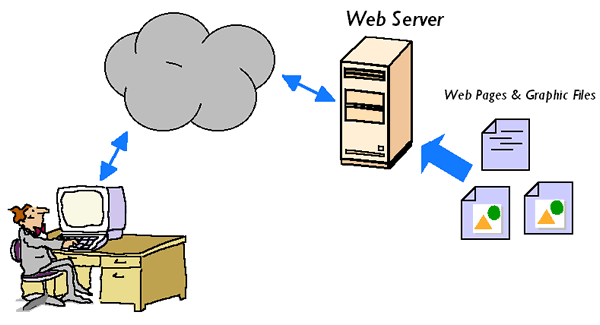
Whenever you view a web page on the internet, you are requesting that page from a web server. When you type a URL into your browser (for example, "http://www.quackit.com/html/tutorial/index.cfm"), your browser requests the page from the web server and the web server sends the page back:
Diagram of web browser requesting a page from a web server
The above diagram is a simplistic version of what occurs. Here's a more detailed version:
  1. Your web browser first needs to know which IP address the website "www.quackit.com" resolves to. If it doesn't already have this information stored in it's cache, it requests the information from one or more DNS servers (via the internet). The DNS server tells the browser which IP address the website is located at. Note that the IP address was assigned when the website was first created on the web server.
  2. Now that the web browser knows which IP address the website is located at, it can request the full URL from the web server.
  3. The web server responds by sending back the requested page. If the page doesn't exist (or another error occurs), it will send back the appropriate error message.
  4. Your web browser receives the page and renders it as required.
When referring to web browsers and web servers in this manner, we usually refer to them as a client (web browser) and a server (web server).

Multiple Websites

A web server can (and usually does) contain more than one website. In fact, many hosting companies host hundreds, or even thousands of websites on a single web server. Each website is usually assigned a unique IP address which distinguishes it from other websites on the same machine. This IP address is also what the DNS server uses to resolve the domain name.
It is also possible to configure multiple websites without using different IP addresses using host headers and/or different ports. This can be useful in a development environment and is quite easy to do.

Page Not Found

If the requested page isn't found, the web server sends the appropriate error code/message back to the client.
You can create user friendly error messages, then configure your web server to display that page instead of the usual error page. This can add a nice touch to your website. How many times have you (or even worse, your visitors) encountered a plain white page with some cryptic error message on it?
It's very easy to create custom error pages, then configure your web server to use them.

Default Documents

If you've ever created a website, you may have found that if you have an "index" file (index.html for example), you don't need to specify the name of the file. For example, the following URLs both load the same page:
  1. http://www.quackit.com/html/tutorial
  2. http://www.quackit.com/html/tutorial/index.cfm
In this example, "index.cfm" is the default document. You can configure your web server so that any file name can be the default document. For example, you could configure your web server to use "index.cfm" in the event no filename has been specified, or if you use PHP, "index.php". You could even specify different default documents for different directories if you like.

SSL Certificates

You can apply SSL certificates against a website via the web server. First you need to generate the certificate either by yourself (i.e. using a certificate generator), or by a Certificate Authority (CA). Then, once it has been generated, you apply it to your website via your web server. Applying an SSL certificate to a website is a straight forward task.
Once you've applied an SSL certificate against a website, you can navigate it using HTTPS (as opposed to HTTP). HTTPS encrypts any data that is transferred over the internet. This reduces the possibility of some malicious person being able to read your users' sensitive information.
To navigate a website using HTTPS, you simply replace the HTTP with HTTPS at the start of the URL in your browsers' location bar ("https://www.quackit.com")
Read More
Posted in Servers, WebServer | No comments

Web Servers - Features

Posted on 11:57 by Unknown
There's a common set of features that you'll find on most web servers. Because web servers are built specifically to host websites, their features are typically focussed around setting up and maintaining a website's hosting environment.
Most web servers have features that allow you to do the following:
  • Create one or more websites. (No I don't mean build a set of web pages. What I mean is, set up the website in the web server, so that the website can be viewed via HTTP)
  • Configure log file settings, including where the log files are saved, what data to include on the log files etc. (Log files can be used to analyse traffic etc)
  • Configure website/directory security. For example, which user accounts are/aren't allowed to view the website, which IP addresses are/aren't allowed to view the website etc.
  • Create an FTP site. An FTP site allows users to transfer files to and from the site.
  • Create virtual directories, and map them to physical directories
  • Configure/nominate custom error pages. This allows you to build and display user friendly error messages on your website. For example, you can specify which page is displayed when a user tries to access a page that doesn't exist (i.e. a "404 error").
  • Specify default documents. Default documents are those that are displayed when no file name is specified. For example, if you open "http://localhost", which file should be displayed? This is typically "index.html" or similar but it doesn't need to be. You could nominate "index.cfm" if your website is using ColdFusion. You could also nominate a 2nd choice (in case there is no index.cfm file), and a 3rd choice, and so on.

Example Web Server

Here's an example of the "Properties" dialog box from Microsoft IIS. This box is displaying the properties for a single website. To display the box, I simply right-clicked on the website and selected "Properties".
You can see that the website has been configured to use the local path of c:\inetpub\wwwroot. What this means is that when you update your website, you need to place your files and folders within that directory. As soon as you do that, your changes will take effect on your website. Of course, if this is your development environment, you can simply edit the files straight from that directory.
IIS web server - properties
Read More
Posted in Servers, WebServer | No comments

Web Servers - Advantages

Posted on 11:56 by Unknown
There are many advantages to using a web server within your development environment. Of course, in a production hosting environment, a web server is essential. And, depending on your website, a web server could indeed be essential in your development environment.
When I say "development environment", I'm referring to a copy of your website, usually on your local machine, that you use to perform updates before you commit them to the live (production) environment.
In practice, you could have many copies of your website for different purposes (such as testing, training, protypes etc), but let's just call it "development environment" for now.
Here are some advantages of using a web server within your development environment:
  • Your local website behaves more like the live one. For example, you can configure directory security, test your custom error pages etc before commiting them to the production environment.
  • You can use server-side scripting languages such as PHP and ColdFusion.
  • Allows you to standardize your coding. For example, you can use root-relative paths for your image references and hyperlinks (i.e. "/directory/image.gif"). In other words, your paths can represent the website structure, rather than the directory structure of your computer.
  • Knowledge. The knowledge you gain from using your own web server will help you understand how it works in the live environment. This will most certainly help you when you need to communicate with your hosting provider - you'll be able to use terminology that makes it easier for them to understand your request/issue.

Viewing HTML Files Without a Web Server

When someone learns how to code HTML, chances are, one of the first things they learn to do is how to view their (newly created) HTML file. They will learn that you can simply double click on the HTML file, and this will launch it in their web browser. And from that point on, they can view their web page/website as it was intended to be viewed.
Here are some examples of what the URL could look like when viewing a web page without a web server:
  • file:///C:/Documents%20and%20Settings/Homer%20Simpson/My%20Documents/index.html
  • file:///C:/Inetpub/wwwroot/index.html
These examples are using the file protocol in order to display the files.

Viewing HTML Files With a Web Server

One problem with the above method is that, you're not viewing the website using the HTTP protocol (you're using the file protocol instead).
Now, this isn't normally a problem if you're only using client side languages such as HTML, CSS, and client-side JavaScript. But it is a problem if you're trying to use a server-side language such as PHP, ColdFusion etc.
Also, even if you're not using a server-side language, it could still cause you problems with developing a website that behaves exactly how it should on the web.
When you view a web page via a web server, the URL begins with "http://". Also, the URL will consist of either an IP address or a domain name/host name.
Here are some examples of what the URL could look like when viewing a web page via a web server:
  • http://127.0.0.1
  • http://localhost
  • http://www.quackit.com
  • http://dev.quackit.com
When you first set up a web server, you can usually navigate to your default web site using http://localhost or http://127.0.0.1. When you add more websites, you'll need to create your own URLs for them (via a DNS server or Hosts file), then assign that URL to your websites via your web server.
Read More
Posted in Servers, WebServer | No comments

What Is A Web Server?

Posted on 11:53 by Unknown
A web server is a piece of software that enables a website to be viewed using HTTP. HTTP (HyperText Transfer Protocol) is the key protocol for the transfer of data on the web. You know when you're using HTTP because the website URL begins with "http://" (for example, "http://www.quackit.com").
You might be thinking "I always thought a web server was a special, high-powered computer". Well, you'd be right too. Some high-powered computers are referred to as web servers as they have been built with web hosting in mind. But in most cases, when someone refers to a web server, they are referring to a piece of software that you install on a computer.

What Does a Web Server Look Like?

That depends on which web server you choose to install. Here's an example of Microsoft Internet Information Services (IIS) 5.1 looks like:
IIS web serverThe left pane represents the various websites, FTP sites, and SMTP virtual servers. When an item in the left pane is selected, the contents are displayed in pane on the right hand side.
In the above screenshot, there is one website (called "Default Web Site"), one FTP site (called "Default FTP Site"), and one SMTP virtual server (called "Default SMTP Virtual Server").
You can right click on an item to display it's properties. For example, you can right click on "Default Web Site" to display (and configure) the properties of that website.

Do I Need A Web Server?

If you maintain your own web site I recommend you install a web server on your own development machine. That way you can configure your development environment to be closer to your live environment.
Also, if you intend to use server-side technologies such as PHP or ColdFusion, you will definitely need a web server.

Web Servers are Easy!

You might also be thinking that web servers are way too advanced for you - that they are only used by professional web developers and/or hosting companies. Please don't think that!
Think of a web server as simply another piece of software you can install on your machine. Once you install it, you can configure it to suit your needs.
And, depending on your computer set up, you may even find that you already have a web server on your machine.
Now, having declared that "web servers are easy!", there are many advanced topics regarding web servers. I won't be going into any detail in this tutorial. You can get a web server up and running on your machine with a minimum of technical knowledge. Then once you've done that, you'll start to become familiar with the various options available to you. Then if required, you can research the more advanced topics to suit your needs (such as security, load issues, logging etc)
Read More
Posted in Servers, WebServer | No comments
Older Posts Home
Subscribe to: Posts (Atom)

Popular Posts

  • Call of Duty: Ghosts Review
    Developer: Infinity Ward Publisher: Activision Platforms: PC, X360, PS3, PS4, Xbox One Price: £39.99 Reviewing a Call of Duty game is a ...
  • ‘Strata’ for iOS and Android game review
    There are games that are fun. There are games that look great. And then there are games that do both. Strata is one such game that h...
  • iBuypower Chimera 4SE FX Ultimate: AMD Gaming PC
    iBuypower is offering an AMD-based system in its Chimera 4SE line, which is designed to give users serious gaming performance without a wa...
  • Review: Seagate 600 480GB SSD
    Seagate Joins the Fray It’s been quite an interesting turn of events over the past couple years in the storage industry. Whereas practical...
  • Xbox One vs. PS4: How They Stack Up Today
    Two new gaming consoles. Both very powerful. Both very ambitious. Both about to meet head to head... and do battle for your time, money an...
  • The Last Days of the DSLR
    The DLSR is everywhere. You see it around the necks of tourists, against the faces of pro photographers. Since Canon introduced the Digita...
  • Buying Guide: Find the best headphones
    If you’re looking to get more audio enjoyment from your smartphone, tablet, media player, or computer, new headphones will do wonders. And ...
  • CCBoot - LAN Boot Software for Windows
    LAN Boot Solution Background LAN boot is a technology based on IP (Internet Protocol), UDP (User Datagram Protocol), DHCP (Dynamic ...
  • Sony Vaio Tap 11 Review
    Introduction Sony's engineering chops are really showing this year, across its phones, tablets and convertibles portfolio. The Vaio Tap ...
  • Adobe Photoshop CS6 Extended 13.0 & Plugins + Textures
    Adobe Photoshop CS6 Extended 13.0 & Plugins + Textures | 3.5 GB Adobe Photoshop CS6 Extended software delivers even more imaging magi...

Categories

  • Android
  • Apple
  • Audio
  • Blogger
  • C/C++
  • Cabling
  • Cameras
  • Cases
  • CISCO
  • Cooling
  • CPU
  • Desktop
  • DNS
  • Ebook
  • Fiber Optic
  • Gadgets
  • Game
  • Google
  • Graphic Card
  • Hardware
  • HDD
  • HTC
  • HTMLCSS
  • Hyper-V
  • Intel
  • iOS
  • iPad
  • Iphone
  • IT
  • jQuery
  • Laptop
  • Linux
  • Mac
  • MacTut
  • Microsoft
  • Mobile
  • Mouse
  • Networking
  • News
  • Nexus
  • Nokia
  • Nvidia
  • OS
  • PERIPHERALS & COMPONENTS
  • Photoshop
  • Printers
  • Programming
  • Projectors
  • PS4
  • Ram
  • RedHat
  • Review
  • Samsung
  • Scanners
  • Seagate
  • Security
  • Server2008
  • Server2012
  • Servers
  • Smartphone
  • Software
  • Sony
  • Storage
  • Tablets
  • TechNews
  • Template
  • Tutorials
  • TV
  • Ubuntu
  • Voip
  • Webdesign
  • Webiste
  • WebServer
  • Win7
  • Win8
  • Windows Phone
  • Wordpress
  • Workstation
  • XBOX

Blog Archive

  • ▼  2013 (495)
    • ▼  December (35)
      • Smart Power Strip now works with SmartThings WiFi ...
      • The Last Days of the DSLR
      • Nokia Lumia 2520 has arrived, check out our hands-on
      • 2 Million Gmail, Facebook and Twitter Accounts Rep...
      • Fleksy predictive keyboard for Android exits beta,...
      • iPhone Anamorphic Lens Lets You Shoot Wider Than W...
      • Nokia Wins Ban on HTC One Mini in U.K.
      • Finally, USB 3.1 Will Feature Reversible Connectors
      • MSI Launches Small But Mighty Z87I Gaming AC and G...
      • Samsung Galaxy S5 benchmark reveals 2K screen
      • NVIDIA Fan in Bejing Builds a 6ft Replica GeForce ...
      • Are dual-booting phones the future of Android?
      • How to Block Websites in Windows 7/8 in Chrome and...
      • How to Control your Android Mobile from PC or Laptop
      • Resize Image without loosing Quality
      • AllCast for Android pushes media to Apple TV and R...
      • Alcatel Idol X+ to launch with smartwatch and smar...
      • The legend of the HTC HD2 continues; aged device r...
      • Amazon Prime Air drones revealed on 60 Minutes, ai...
      • Samsung to create 20 MP camera sensor for future f...
      • Oppo's swiveling N1 smartphone to be available wor...
      • FileMaker Pro 13 Prematurely Appears on Apple's On...
      • Sony Vaio Tap 11 Review
      • Dell preparing to squeeze 4K resolution onto a 24-...
      • Microsoft releases VideoLoops: A GIF creator tool ...
      • Pebble Smartwatch for Android and iOS Hit Amazon f...
      • 3D Printing Market Forecasted For Explosive Growth...
      • ASUS Transformer Book T100 review: a Windows table...
      • Xbox One's 500GB HDD swapped for bigger, faster dr...
      • U.S. Army Saved $130 Million by Stealing Software
      • Xbox One Scores Big on Black Friday Surpassing PS4...
      • Buying Guide: Find the best headphones
      • Sailfish OS will be available for Android users to...
      • Amazon Cyber Monday Is The Real Deal
      • Nvidia Calls PC "Far Superior" to Video Game Consoles
    • ►  November (332)
    • ►  October (12)
    • ►  September (27)
    • ►  August (2)
    • ►  July (10)
    • ►  June (42)
    • ►  May (35)
Powered by Blogger.

About Me

Unknown
View my complete profile