albtechportal

  • Subscribe to our RSS feed.
  • Twitter
  • StumbleUpon
  • Reddit
  • Facebook
  • Digg
Showing posts with label HDD. Show all posts

Sunday, 1 December 2013

Xbox One's 500GB HDD swapped for bigger, faster drives, and tested for performance

Posted on 11:55 by Unknown

The Xbox One arrives with a 500GB HDD built-in, and in contrast to the PlayStation 4's easily-accessed storage, it's not meant to be accessed or replaced by the user, ever. While we'll probably leave ours in place to keep from voiding the warranty or risk a ban from Xbox Live, a few folks have already cracked open the console to see what else will fit. iFixit noted during its teardown that there's an off-the-shelf 2.5-inch Samsung HDD inside connected via SATA II inside, and swapping that out isn't much of an issue. Brian Williams has already tried out the system with two alternate drives: a 500GB Samsung EVO SSD, and a Seagate 1TB hybrid SSHD. As you can see in his video (embedded after the break) boot time from off to the dashboard only improved slightly, with the SSD loading in 46.1 seconds compared to 50.5 stock. A test with Call of Duty: Ghosts revealed similar results, with the SSD loading up in 27 seconds and the hybrid drive close behind in 27.7, compared to 33.5 seconds stock. We'll need tests with more games to be sure, but so far it's not showing the improvements seen after swapping the PS4's hard drive out for speedier options. The folks at Tested report doing so improved level load times in Killzone: Shadow Fall from 60 seconds to 39 seconds.
So, if it's not a ton faster, why would you want to take the chance of prying Microsoft's box open? To get more space. Brian's drives were simply copies of the original transferred by Clonezilla, but an individual named Juvenal1 has already worked out how to get the system to actually recognize and make use of drives bigger than 500GB. By copying files from your original drive and using their Linux-compatible tool to repartition the new HDD, you can be up and running with more capacity after just a reboot or two. Of course, this carries significant risks and we don't recommend it for most, as Microsoft's Albert Penello has already revealed support for external drives is coming in a future update, along with the ability to do crazy things like see how much storage you actually have left. Still, if you just need to live on the edge (or store every game released so far and record hours of clean Upload Studio clips) the instructions can be found here.
Update: If you're interested in performing the upgrade, Brian Williams has followed with a video walkthrough for the process of properly formatting a larger hard drive, even if you're not familiar with using Linux.


Source
Read More
Posted in HDD, TechNews, XBOX | No comments

Saturday, 30 November 2013

Watch Out for Seagate Drives Allegedly Sold Under the Supertron Name with No Warranty

Posted on 09:45 by Unknown
You may not have heard of Supertron Electronics before, but over in India, the company's name is much better known. Supertron has a longstanding relationship with Seagate which, for thirteen years, existed as an import partner and sub-distributor. In 2006, Supertron became an official Seagate National Distributor, giving Seagate an extended presence in India and local areas.

Apparently some unscrupulous folks have decided to take advantage of both company's good names. According to Supertron Electronics, gray market dealers are importing fake Seagate hard drives, rebadging them as Supertron models, and then selling them inside and outside of India with seemingly favorable warranties.

Seagate's normal warranty period for external HDDs is 3 years in India and 2 years outside India. The gray market dealers are selling their fake drives, complete with duplicated product and packaging, with 3-year warranty periods outside India.


Seagate External HDD

"Such a fake warranty period is attracting the customers. Since it is matching with India's warranty period which is 3 years, customers are viewing this as a lucrative option and hence buying the fake product," Nirmal Kr Meharia, director of Supertron Electronics, told DQ-Week. "They are unaware of this unlawful activity and thinking the product to be original Seagate manufactured."

Meharia says he was first alerted of the situation after seeing a drop in sales. He initially shrugged off the decline to poor market conditions, but upon further research, discovered it was only happening in Bengaluru and Chennai. Further probing led to the discovery of the fake drives by an unknown dealer.

Via: DQ-Week | News Archive |
Read More
Posted in Hardware, HDD, Seagate | No comments

Tuesday, 26 November 2013

WD My Cloud Personal Cloud Server Review

Posted on 13:55 by Unknown
Cloud  storage has emerged as a hugely attractive option for consumers and businesses alike. Consumer cloud storage darling Dropbox has gotten big enough that it warrants its own developer conference, Box is consistently innovating in the business space, Amazon’s storage cloud is massive and popular, and we could go on and on with numerous other companies offering all types of cloud storage services.

Even as cloud storage has exploded, however, there are many skeptics who believe that entrusting your data to a cloud service is foolish. For one thing, you’re giving your precious data (be it family photos or company trade secrets) to a third party, and beyond that security is a concern, vendor lock-in is a possibility, and more recently, many are growing concerned that the government has too much access to data stored on others’ servers. Cloud storage also tends to be rather expensive, should you need to store large amounts of data.

Thus, the diehard proponents of local storage have legitimate concerns when they say they’re distrustful of the cloud. But on the other hand, there are problems with relying solely on local storage, too. You have to diligently manage your own backups, and unless you have an offsite backup, all of your copies are in one geographical location. If your house burns down, or floods, or is burgled, you could easily lose everything.

The middle ground is setting up your own NAS file server with redundancy, but that too can be problematic. Although there are some consumer-friendly options out there, file servers can be tricky to effectively set up and tiresome to manage. Western Digital has developed a solution called WD My Cloud that seeks to nullify part of this problem while also providing a smattering of additional features.


WD My Cloud
Specifications & Features
Capacity:
Interface:
Ports:


OS Support:

Processor:
Included software:


Weight:
Dimensions:
Warranty:
Price:
2TB (as configured)
Gigabit Internet
Ethernet x1
USB 3.0 x1
Power supply port
Windows XP(SP3)/Vista/7/8
Mac OS X Mountain Lion/Snow Leopard
Dual-core
WD My Cloud
WD My Cloud Dashboard
WD SmartWare Pro
2.12 lb
6.7 x 5.5 x 1.9 inches (HxDxW)
2 years limited
~$140 At Amazon.Com

WD My Cloud is a personal private cloud. At its core it’s essentially a NAS, but it’s designed to be incredibly simple to set up, and managing it requires almost no expertise. Even better, adding devices is designed to be super simple.
We’ll get into the nitty gritty in the subsequent pages, but the idea is that you connect the My Cloud--which just looks like any of WD’s desktop external hard drives--to your home router. My Cloud, which comes in 2TB , 3TB, and 4TB capacities, is ideal for stashing all of a family’s files, including truckloads of photos and video. You can use it as a file repository for your family’s PCs and mobile devices, thus allowing you to keep those devices less cluttered with files, while ensuring that all your data is in a single, always-available location. It’s also easy to pull the files you have stored in “public” cloud storage such as Dropbox onto My Cloud.

Another nifty feature is that instead of sending files via email, My Cloud lets you send links to files, which the recipient can then open at their convenience. You can stream the audio and video stored on My Cloud, and you can open and edit files just as you would if they were stored locally.
My Cloud is even accessible via TVs, media players, and game consoles, and if you need more storage than My Cloud offers, you can connect an external hard drive via its USB 3.0 port to expand its capacity.

You manage the My Cloud and other connected devices via the My Cloud Dashboard and use the WD My Cloud desktop app to manage your stored files and folders. Both pieces of software offer intuitive interfaces that have essentially zero learning curve, as we'll show you next...
It doesn’t take much to set up and configure My Cloud. After downloading the desktop software (WD My Cloud Dashboard) and installing it on a PC, we plugged My Cloud into an outlet and connected it to our router using the included Ethernet cable. The software found My Cloud right away, and then it was time to set up our personal private cloud.

To do so, we entered our name and an email address; after receiving a confirmation email, we created a device password, and then we were able to access our My Cloud.

WD My Cloud Dashboard has several tabs: Home, Users, Shares, Cloud Access, Safepoints, and Settings. The Home tab gives you sort of a system overview if you will that consists of your available capacity, how many devices you have set up with My Cloud, information about your physical My Cloud device such as the most recent firmware, how many “shares” you have, and more.


Under the Users tab, you can add more user accounts and determine those users’ access levels. Adding a new user is simply matter of entering someone’s first and last names, email address, and that person’s device password. As far as your administration duties go, that's all you have to do.

There are four “shares” that our device set up by default. There’s a Public share, one for our specific PC, one for WD SmartWare backups (if you have the software), and one for Time Machine backups (for those using a Mac). From this tab you can change the name of each share, adjust the level of access, and determine whether or not a given folder can serve up media.

You can manage who can access your personal cloud and with what devices from the Cloud Access tab. Users that have access can tap into My Cloud via a web interface at WDMyCloud.com. Under the Safepoints tab, you can set My Cloud to take snapshots of your data for recovery in the event the My Cloud fails; you can select a USB drive or a compatible storage device on your network for the task.


There’s another piece of software you can use to work with files and folders called, appropriately enough, WD My Cloud. This software offers a simple drag-and-drop interface for adding files and folders to various shares, and it’s terribly simple to add or delete new folders and subfolders.


Adding devices is easy enough, although it’s a bit inconsistent depending on the type of device you want to add. To add, for example, a mobile device, you need to download an iOS or Android app from those respective app stores; launch the My Cloud Dashboard on a PC; click Cloud Devices and generate a 12-digit code; and then pull up the app on your smartphone or tablet and enter that code. It feels like that’s one too many steps, but perhaps we’re being a little nit-picky.


Saving files from a smartphone to My Cloud was smooth and simple. My Cloud pops up on the smartphone as one of the options when you want to share a photo or video. The only oddity is that in the app, those files are saved to a Download folder, which doesn’t exist on the desktop My Cloud app; thus, you have to go to that download folder in the mobile app and copy and paste items to the appropriate folder.


One nice surprise was that I noticed that My Cloud showed up on my Samsung Smart TV as an input option. The TV found the My Cloud device on the network with no action on my part (because DLNA media streaming was enabled by default in the My Cloud Dashboard), appearing as one of the input choices.


When I selected My Cloud as the TV’s input, I was able to access all the music, photos, and video stored on the drive.
Measuring performance on a device such as the My Cloud that communicates strictly over an Internet connection is a bit dicey. Because My Cloud operates over a network instead of a local storage interface, we aren’t able to run our normal spate of benchmarks.

However, we want to give you a sense of how My Cloud performs, so we conducted timed file transfer tests and also used versions of ATTO and CrystalDiskMark that can run on mapped network drives.


Timed File Transfers
Sending files over the network

For comparison purposes, we clocked several file transfers of different sizes from an external hard drive to our test PC, and then we repeated the process by moving those same files from the PC to the My Cloud and recorded the time each one took. Thus, we got a sense of how transfer times of local storage via a USB 3.0 interface compared to those of My Cloud from a PC.


As expected, transfers from an external drive to a PC happen at a blistering speed compared to those to My Cloud. Note that as the size of the file transfer increases, the time it takes for the PC-to-My Cloud transfers to finish compared to the local USB 3.0 connection increases by a larger delta. Still, 89 seconds for a large (3.33GB) chunk of files is nothing.

ATTO Disk Benchmark
More information here: http://bit.ly/btuV6w

ATTO is a "quick and dirty" type of disk benchmark that measures transfer speeds across a specific volume length. It measures transfer rates for both reads and writes and graphs them out in an easily interpreted chart. We chose .5kb through 8192kb transfer sizes and a queue depth of 6 over a total max volume length of 256MB. ATTO's workloads are sequential in nature and measure bandwidth, rather than I/O response time, access latency, etc.


My Cloud posted some imbalanced read and write speeds here. With smaller file sizes it delivered slower read/write speeds between 1.9/1.3 MBps and 6.2/6.5 MBps, but once the device got cranking it reached as high as 49 MBps (writes) and 74 MBps (reads). Mostly, though, the test results hovered between 50-70 MBps for reads and 30-37 MBps for writes. For comparison, a decent external hard drive with a USB 3.0 interface would turn in read/write speeds closer to 100-120 MBps.

CrystalDiskMark Benchmarks
Synthetic File Transfer Tests

CrystalDiskMark is a synthetic benchmark that tests both sequential and random small and mid-sized file transfers. It provides a quick look at best and worst case scenarios with regard to drive performance, best case being larger sequential transfers and worse case being small, random transfers.


You won't get the same kind of read and write speeds out of the WD My Cloud, as you would with a locally attached drive, but its performance across the network was acceptable.  Summary: Western Digital promised an easy to use personal cloud with the My Cloud device, and that’s precisely what they delivered. Performance in terms of file transfer speeds isn’t all that close to what you’d find with locally connected storage, but at least all the transfer times we checked out were reasonable. (It's also worth noting that at times you'll be limited by the speed of your Internet connection as opposed to the My Cloud itself, such as when you're opening up files on your mobile device while out and about.) What’s more important is that My Cloud serves up your files when you want them and via any number of devices, including smartphones, smart TVs, and PCs. Even better, My Cloud is a cinch to set up, and adding devices is a quick and relatively painless process. Uploading files to My Cloud takes a little longer than you might like, but the interface is simple to use and easy to manage.


My Cloud solves a big problem for a lot of people: It delivers a remote storage solution for average consumers that offers the capacity many families need, with simple setup and management tools. You have complete control over your personal cloud and its security instead of having to trust a third party, while also enjoying the benefits of anytime, anywhere access to your files. Because you only pay for your capacity once, when you first purchase a My Cloud, you can save money versus expensive cloud services that require continual monthly fees.

What My Cloud does not offer, however, is offsite backup. As we mentioned in the beginning of this article, one of the problems of local storage is that it’s vulnerable to fires, floods, and thieves, and My Cloud still suffers from those risks. However, because My Cloud is so easy to use, one could use it as offsite backup by parking it at a trusted location with a reliable internet connection. You can still manage the device and everything on it from your own home PC, and if you maintain a copy of all your files on local storage, you’d effectively have a disaster recovery solution with the My Cloud.

My Cloud offers a compelling service, and it’s nice to see a very simple way for average consumers to set up and manage a personal cloud. All things considered, we were honestly a bit surprised that My Cloud costs just $149.99. For the storage capacity alone (2TB) that’s not a terrible deal, but considering all of the conveniences My Cloud affords, that’s simply a great deal.


  • Compelling use case
  • Simple, intuitive setup and management
  • Good Price
  • Slow file transfers
  • Occasionally glitches
 Source
Read More
Posted in HDD, Review | No comments

Sunday, 24 November 2013

Review: Seagate 600 480GB SSD

Posted on 07:05 by Unknown

Seagate Joins the Fray

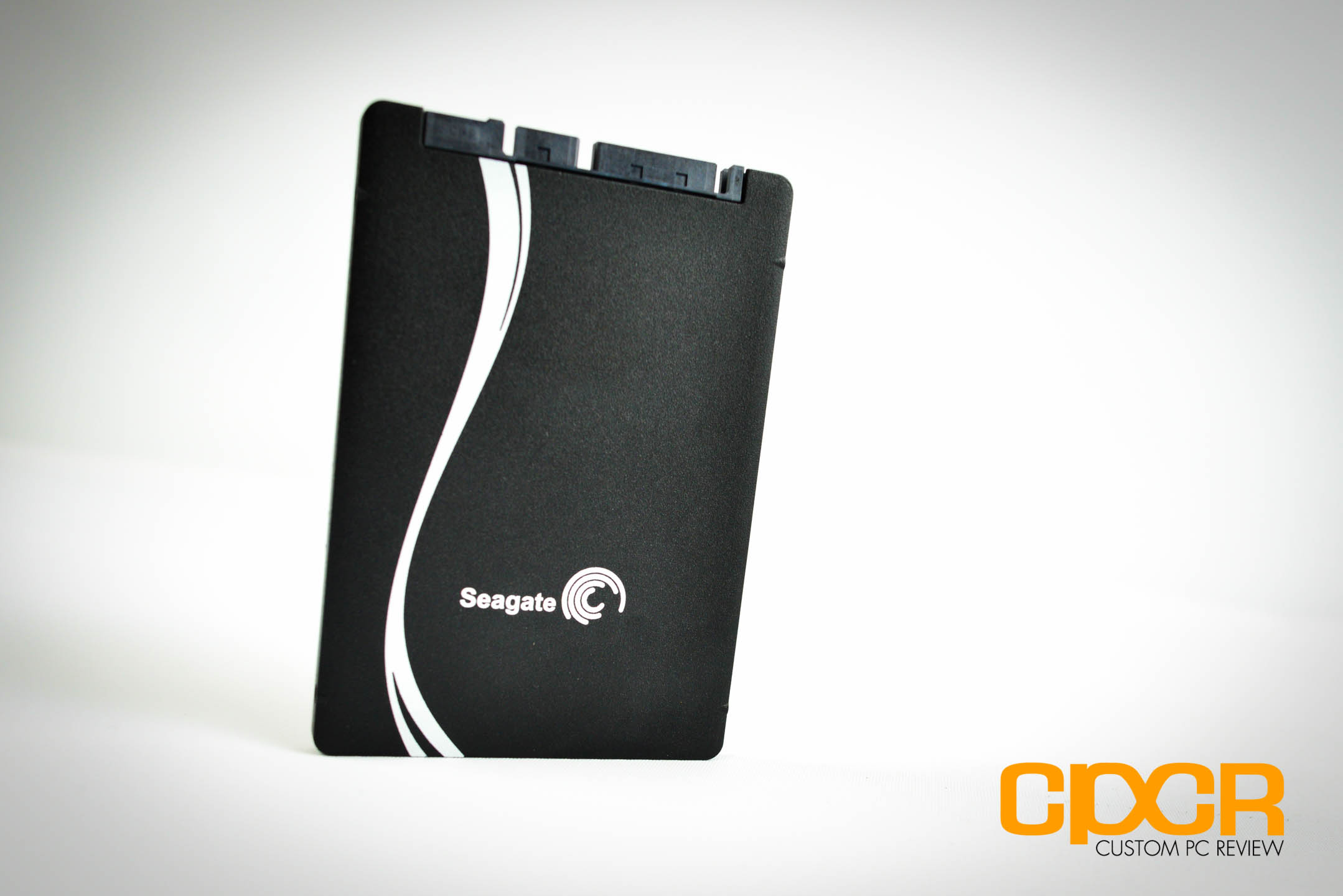
seagate-600-480gb-ssd-custom-pc-review-11It’s been quite an interesting turn of events over the past couple years in the storage industry. Whereas practically everyone has turned their sights onto the exploding SSD market, both of the largest hard drive manufacturers Seagate and Western Digital were for the most part never to be seen. Although both companies dabbled a bit in the enterprise SSD space and SSD caching solutions, they never really focused their efforts in SSD technology and instead doubled down on traditional hard drives especially in the consumer space.
With 2011, 2012 and soon 2013 becoming record years for SSD growth all while the hard drive market stagnates, it’s no wonder that the big boys are finally looking to get a foothold in the emerging market. While Western Digital is still a bit silent on the consumer side, they’ve been making huge moves on the enterprise side acquiring a ton of smaller enterprise flash storage companies this year. In March they acquired Skyera, in June they acquired STEC, in July they acquired Velobit and most recently in September they acquired Virident bringing in tons of experience and IP to the mix. Seagate on the other hand is also making big moves and in May of this year, they introduced a complete line of SSDs ranging from consumer oriented products to the enterprise.
As you may expect, today we’ll be doing a review on the Seagate 600 480GB, which is Seagate’s entry level SSD and their only consumer oriented offering. The next step up, the Seagate 600 Pro is a enterprise oriented SSD focused on highly consistent performance and data security. That said, let’s take a look at what the Seagate 600 offers.

Seagate 600 Specifications

5mm, 2.5″ Form Factor
ManufacturerSeagateSeagateSeagate
Model600600600
Model NumberST120HM001ST240HM001ST480HM001
Form Factor5mm, 2.5″ SATA5mm, 2.5″ SATA5mm, 2.5″ SATA
Capacity120 GB240 GB480 GB
ControllerLink A Media LM87800Link A Media LM87800Link A Media LM87800
NAND19nm Toshiba MLC Toggle NAND19nm Toshiba MLC Toggle NAND19nm Toshiba MLC Toggle NAND
Sequential Reads550 MB/s550 MB/s550 MB/s
Sequential Writes450 MB/s450 MB/s440 MB/s
InterfaceSATA 3 6GB/sSATA 3 6GB/sSATA 3 6GB/s
Warranty3 Years3 Years3 Years
7mm, 2.5″ Form Factor
ManufacturerSeagateSeagateSeagate
Model600600600
Model NumberST120HM000ST240HM000ST480HM000
Form Factor7mm, 2.5″ SATA7mm, 2.5″ SATA7mm, 2.5″ SATA
Capacity120 GB240 GB480 GB
ControllerLink A Media LM87800Link A Media LM87800Link A Media LM87800
NAND19nm Toshiba MLC Toggle NAND19nm Toshiba MLC Toggle NAND19nm Toshiba MLC Toggle NAND
Sequential Reads550 MB/s550 MB/s550 MB/s
Sequential Writes450 MB/s450 MB/s450 MB/s
InterfaceSATA 3 6GB/sSATA 3 6GB/sSATA 3 6GB/s
Warranty3 Years3 Years3 Years
The Seagate 600 comes in six different models with three models in the 5mm, 2.5″ form factor and three models in the more common 7mm, 2.5″ form factor. Seagate is the first company to mass produce SSDs in the 5mm, 2.5″ form factor although it’s difficult to say whether it’ll enjoy the same level of success as 5mm, 2.5″ hard drives with M.2 (NGFF) form factor SSDs already on the market. The 600 will be powered by a LAMD (Link_A_Media) LM87800 controller paired with Toshiba’s very fast 19nm Toggle NAND, which provides the Seagate 600 with performance of up to 550 MB/s reads and 450 MB/s writes.

A Closer Look at the Seagate 600 480GB

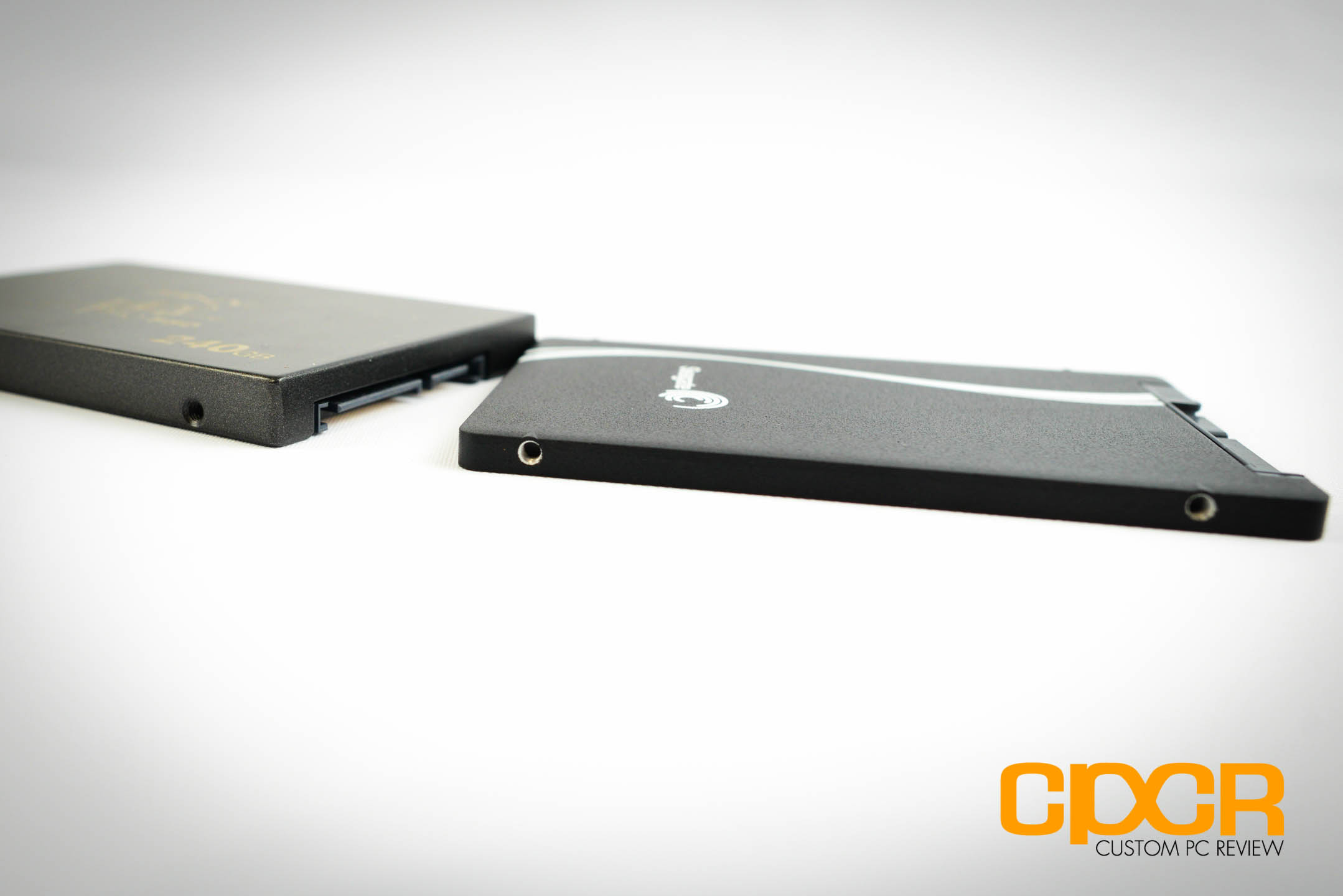
seagate-600-480gb-ssd-custom-pc-review-2
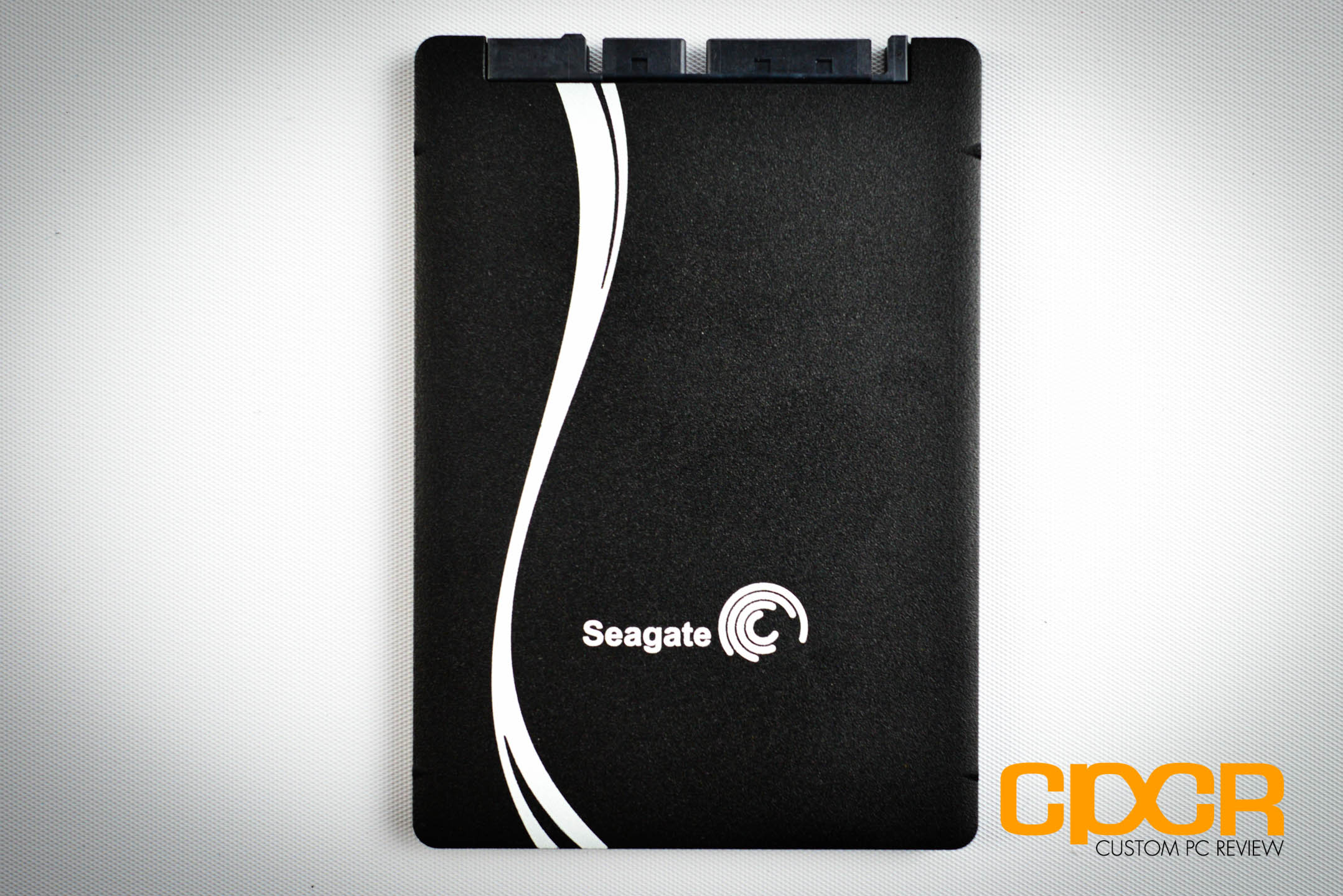
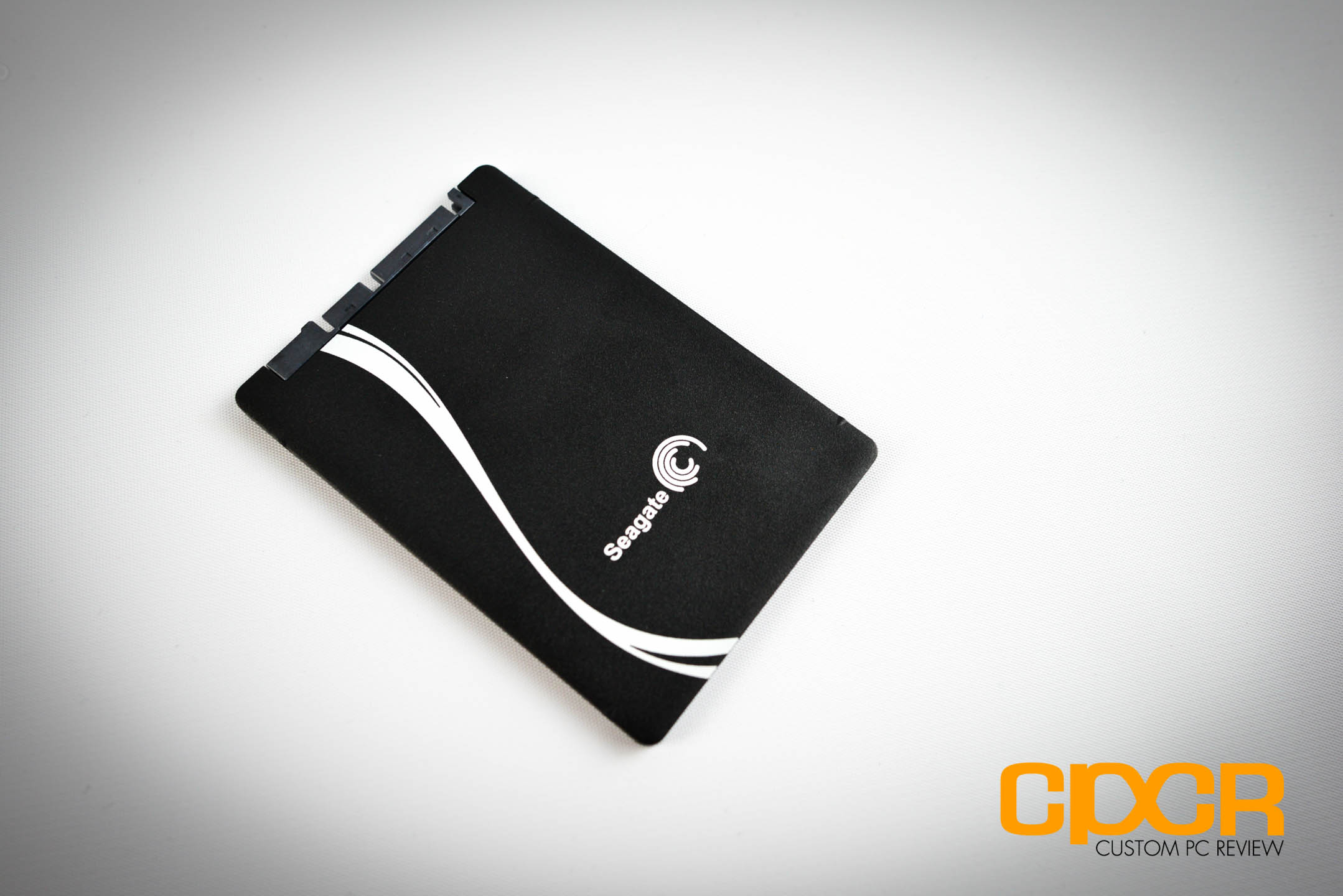
Here’s a look at the top of the Seagate 600. Unfortunately as Seagate doesn’t really ship retail boxes with any of their sample products, I’m not quite sure what’s actually included with the 600, but I wouldn’t be surprised if the drive itself is all you get.
seagate-600-480gb-ssd-custom-pc-review-3
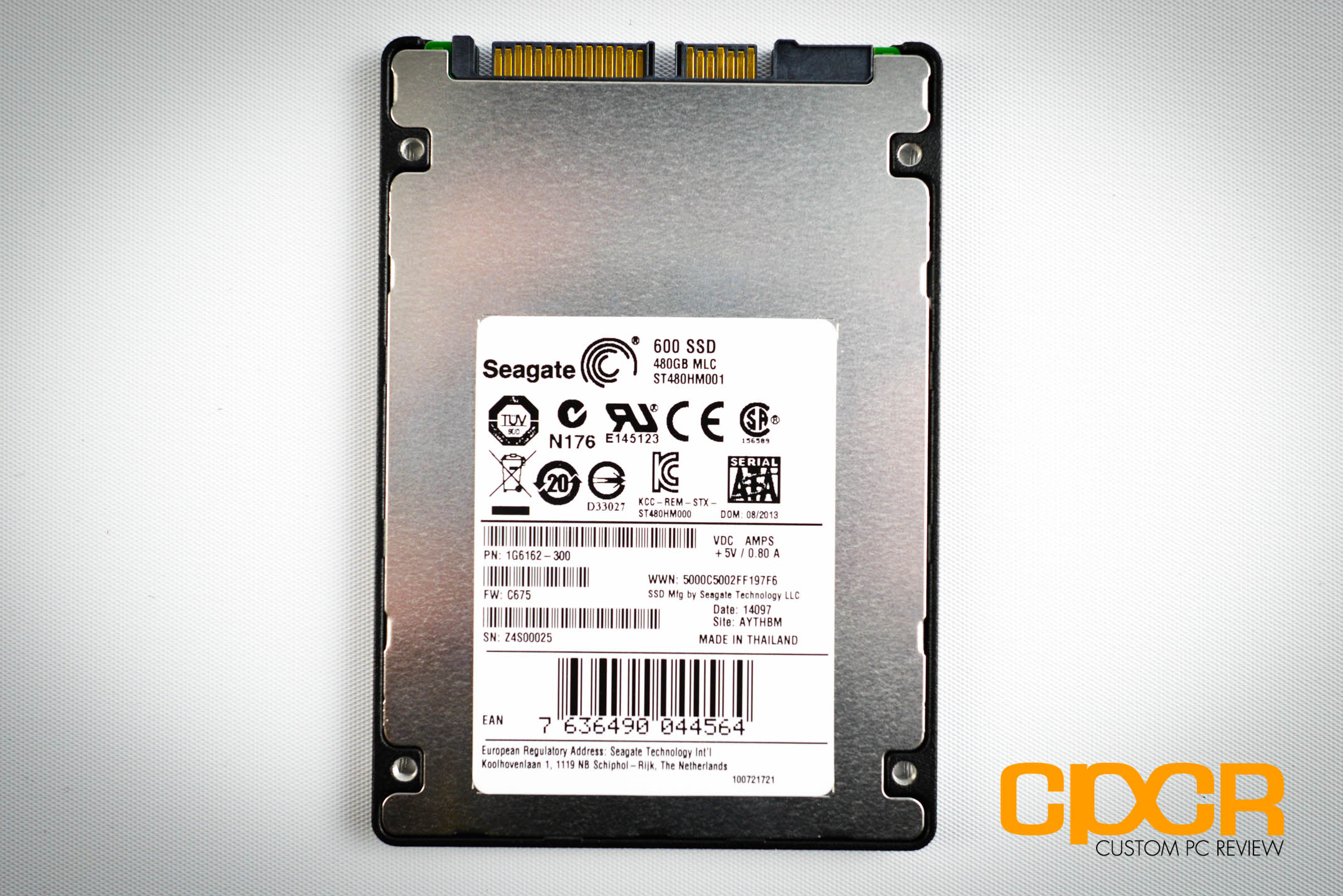
Flipping the drive over, we get a sticker with all the important information about the SSD. Here we get the model, capacity, NAND type, model number, serial number, etc. There’s also four standard mounting holes down here for mounting the SSD inside a desktop.
seagate-600-480gb-ssd-custom-pc-review-4seagate-600-480gb-ssd-custom-pc-review-5
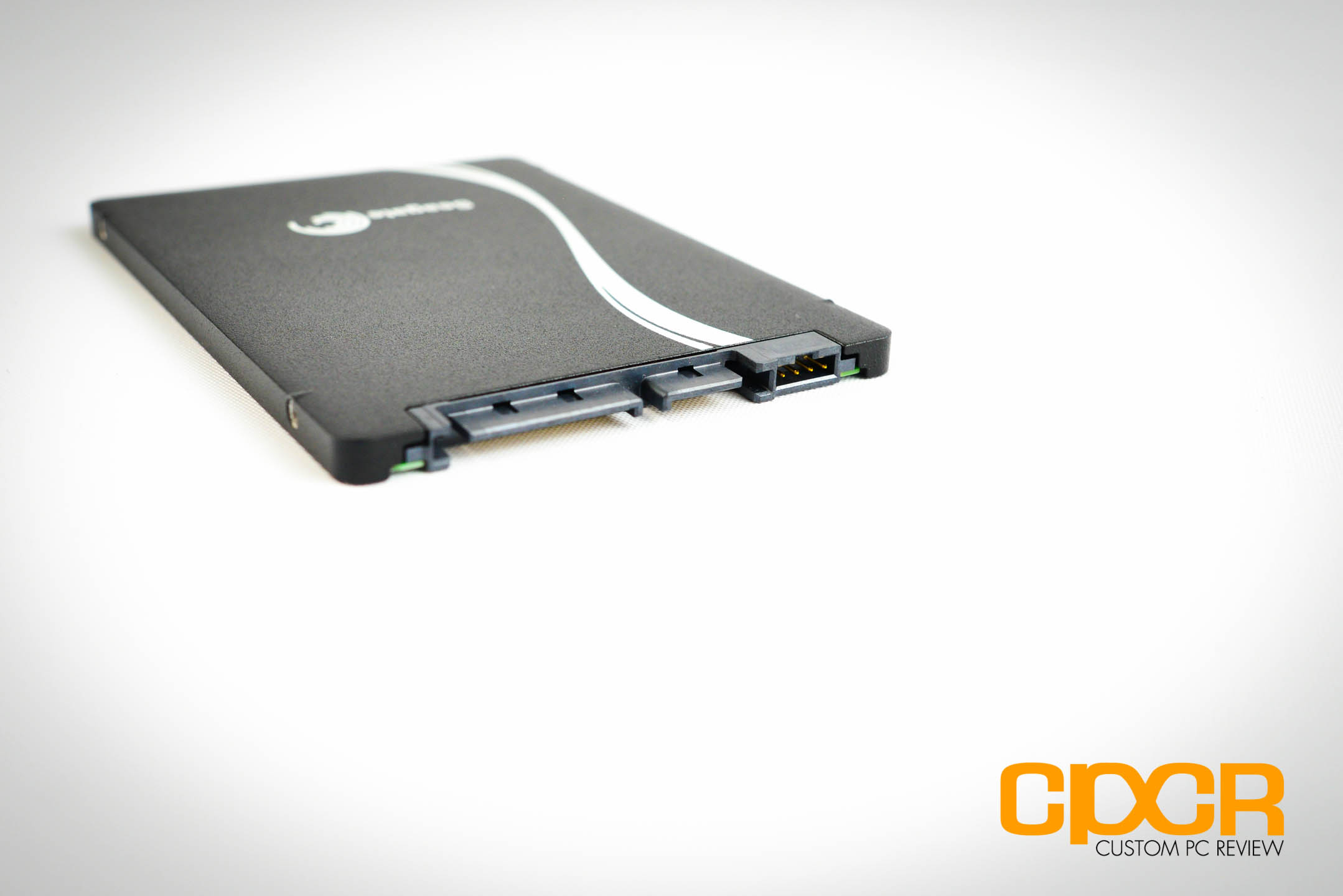
Our sample of the Seagate 600 is the 5mm thin 480GB edition carrying the model number of ST480HM001. Generally, 5mm, 2.5″ form factor SSDs and hard drives are reserved for only the smallest of Ultrabooks and tablets. For those with slightly larger Ultrabooks and ultrathins, Seagate also offers a 7mm, 2.5″ version of the 600 [Model #ST120HM000 (120GB), ST240HM000 (240GB), and ST480HM000(480GB)]. This makes Seagate one of the very select few who currently offer 5mm, 2.5″ form factor SSDs.

A Closer Look at the Seagate 600 480GB

seagate-600-480gb-ssd-custom-pc-review-6seagate-600-480gb-ssd-custom-pc-review-7
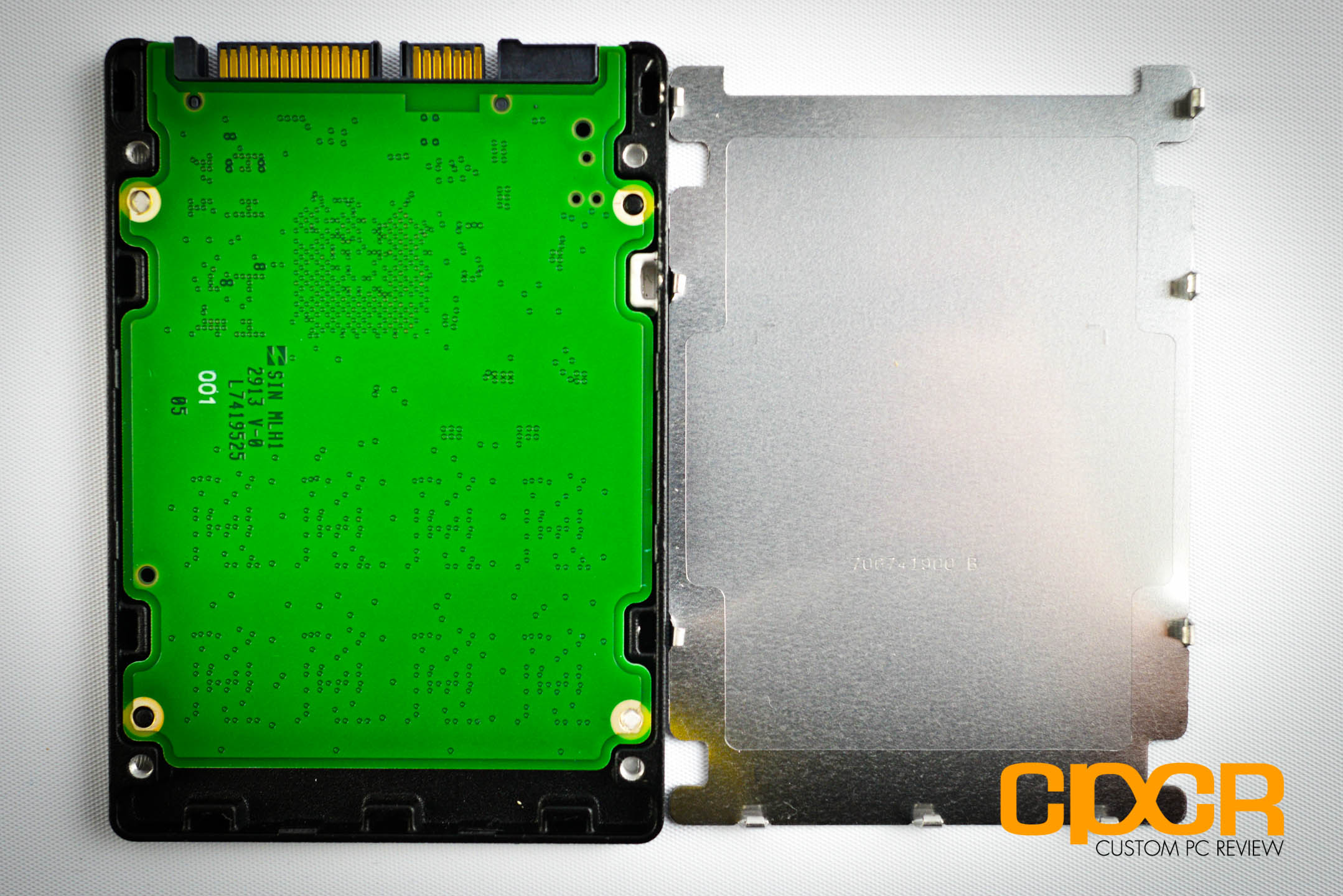
Unfortunately, the Seagate 600 isn’t secured using screws and is instead secured using metal tabs on the backplate. Removing the backplate does damage the casing a bit, so it’s definitely not recommended especially if you want to keep your warranty, but for the sake of your entertainment we’ve gone ahead and removed the backplate to show you what the PCB looks like.
Since this is a 5mm drive, Seagate is only cramming a single side of the PCB with components. Onboard we get a single controller that’s cooled using a thermal interface material, two DRAM chips, and eight NAND packages. Let’s take a closer look at what we get.
seagate-600-480gb-ssd-custom-pc-review-15
Seagate’s choice for 600′s controller is the LAMD (Link_A_Media) LM87800 paired along with Seagate’s own home brewed firmware. It’s not much of a surprise here as Seagate not only has a firmware team with a ton of experience in HDD controller firmware design, but they also have plenty of experience with LAMD controllers and SSDs in general. After all, they’ve had enterprise SSD offerings for quite a while prior to the introduction of the Seagate 600. In fact, Seagate even had a hand in the development of LAMD’s SSD controllers, so it’s pretty safe to say that the LM87800 is something that Seagate understands pretty well.
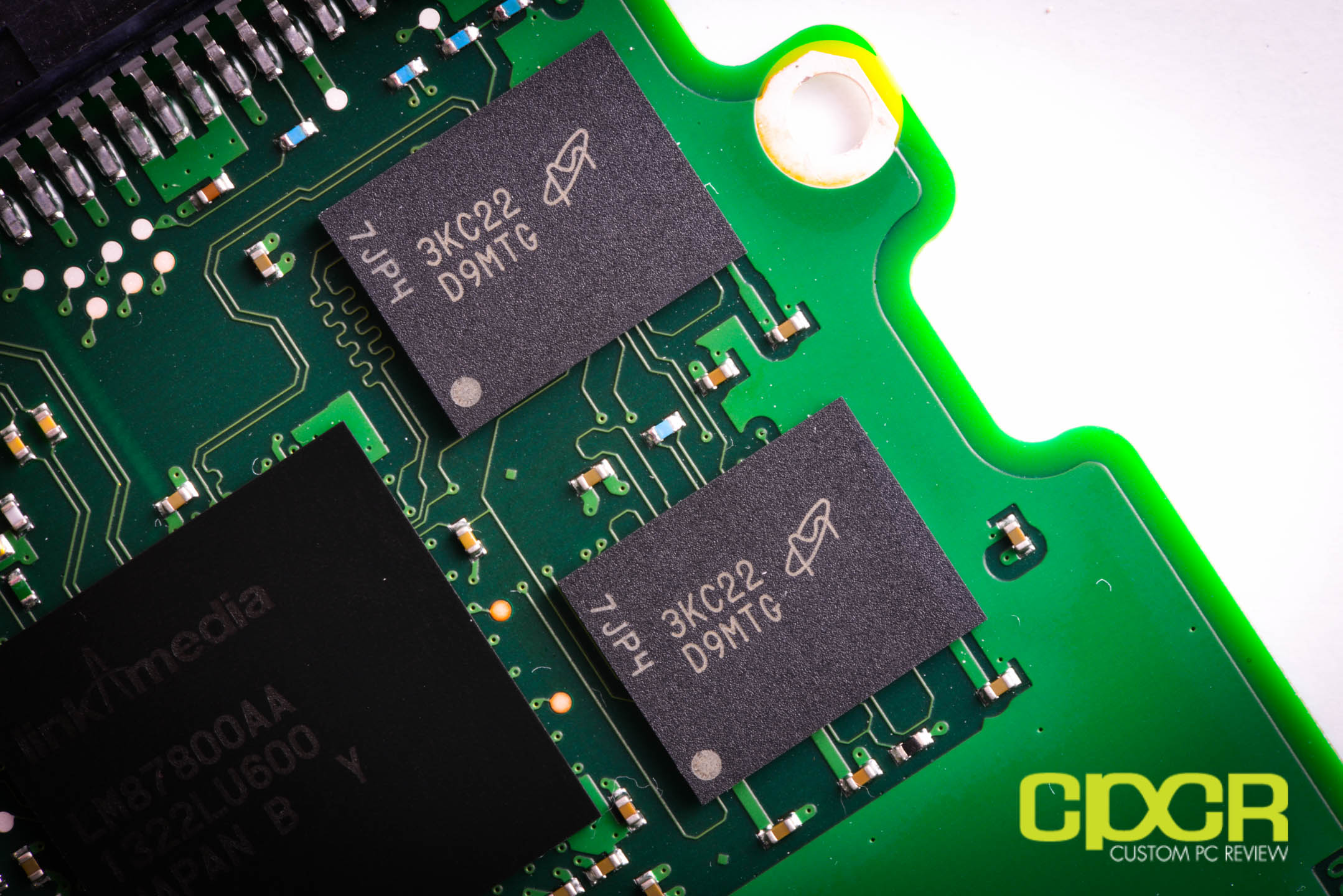
That said, with LAMD’s sale to Hynix not too long ago it’ll be interesting to see what happens with the next generation of Seagate SSDs, but that’s a topic for another day. For now let’s briefly discuss the LM87800. The controller itself was first seen in the consumer market on the Corsair Neutron and Corsair Neutron GTX SSDs although Seagate had the controller in their enterprise stuff long before Corsair did. Now we don’t know too much about the LM87800 even at this point, but we do know that it’s an ARM based SSD controller with eight NAND channels supporting four chip enables per channel. It’s pretty flexible with NAND supporting 2y-nm and 1x-nm ONFi and Toggle mode NAND from all major vendors. There’s also adaptive signal processing onboard for more powerful error correction that LAMD calls “eBoost technology” although we don’ t necessarily know much more than that.
seagate-600-480gb-ssd-custom-pc-review-16
Onboard we also get two modules of Micron 256MB DDR2-800 for a total of 512MB worth of DRAM buffer. The buffer generally caches writes prior writing it to NAND, so we’ll generally see better write and consistency performance on drives with DRAM buffers. Usually it’s good to see 1MB per 1GB of NAND, so it looks good here.
seagate-600-480gb-ssd-custom-pc-review-17
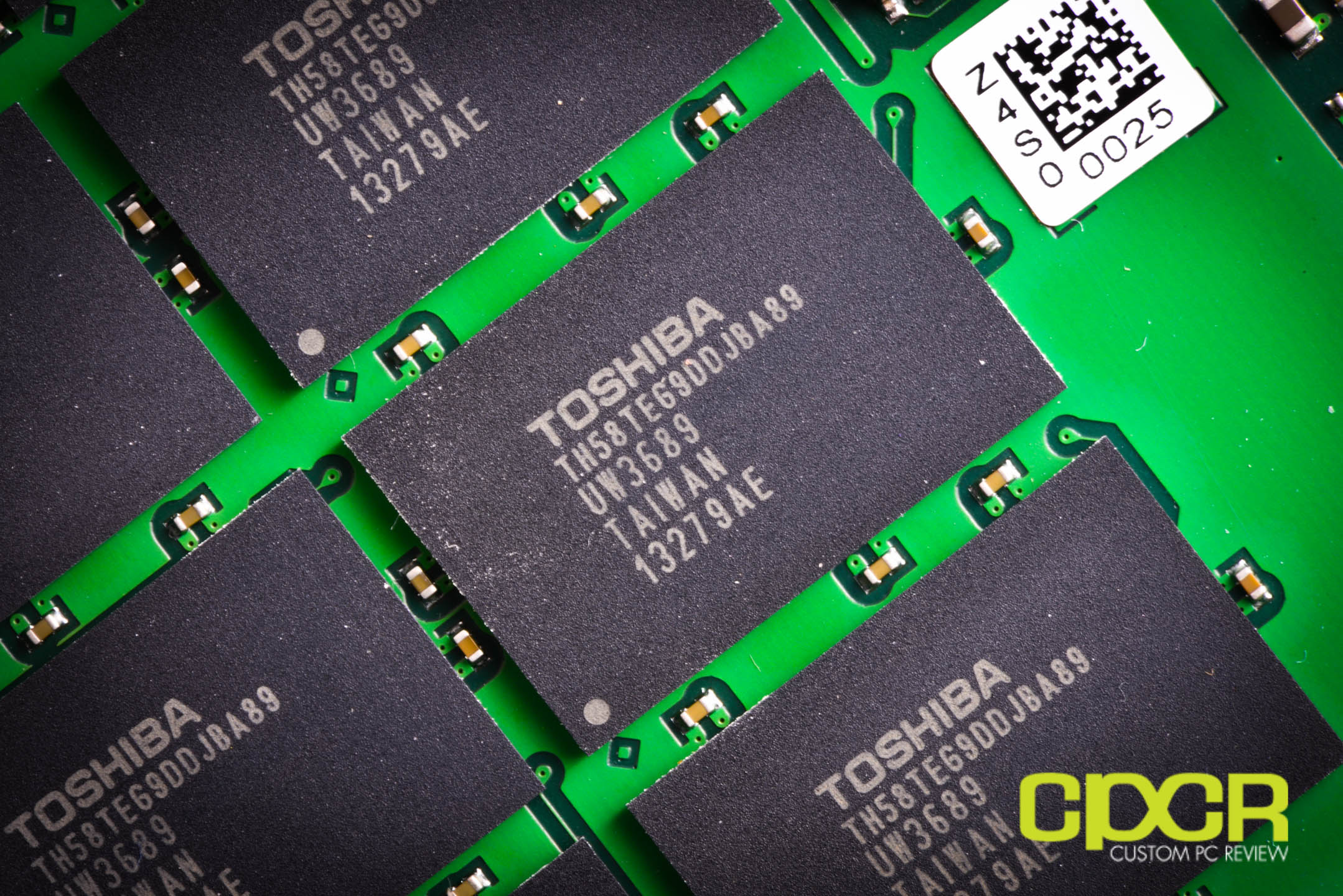
Finally, we also got 8x64GB packages of Toshiba 19nm Type C Toggle Mode 2.0 NAND, which provide for the main storage of the Seagate 600. This makes up a total of 512GB of NAND, but Seagate over-provisions the 600 reducing capacity by ~6.25%. This is the same thing SandForce drives do, and it improves steady state performance and durability at the cost of total capacity.

Haswell Test Bench

As of October 5, 2013, we’ve upgraded our storage testing system to a Z87/Haswell testing platform. All SSDs used for comparison here have been updated to the latest firmware as of October 2013. Performance tests from storage reviews prior to that date should not be compared to our latest reviews.
SystemCyberPowerPC Gamer Xtreme 4200
CPUIntel Core i7 4770K
MotherboardASUS Z87-A
MemoryKingston HyperX Genesis 16GB DDR3 2133MHz
GraphicsIntel HD4600 Graphics
StorageOCZ Vertex 4 256GB
Power SupplyCorsair HX650
CaseHSPC High Speed Tech Station
Optical DriveASUS OEM DVD Drive
Operating SystemWindows 8 64 bit & CentOS 6.4
Special thanks to CyberPowerPC, Kingston, OCZ Technology and HSPC for sponsoring our test bench!

Crystal Disk Info

Seagate 600 480GB

crystal-disk-info-seagate-600-480gb-custom-pc-review
For our testing today, we’ll be using the C675 firmware for the Seagate 600. Looking at Crystal Disk Info, the Seagate 600 supports NCQ (Native Command Queuing) and TRIM, which is good, but it’s curiously lacking APM (Advanced Power management). Unfortunately, this means it likely won’t support power saving features such as LPM (Link Power Management), HIPM (Host Initiated Power Management), and DIPM (Device Initiated Power Management).

Seagate 600 480GB Performance

ATTO Disk Benchmark v2.46

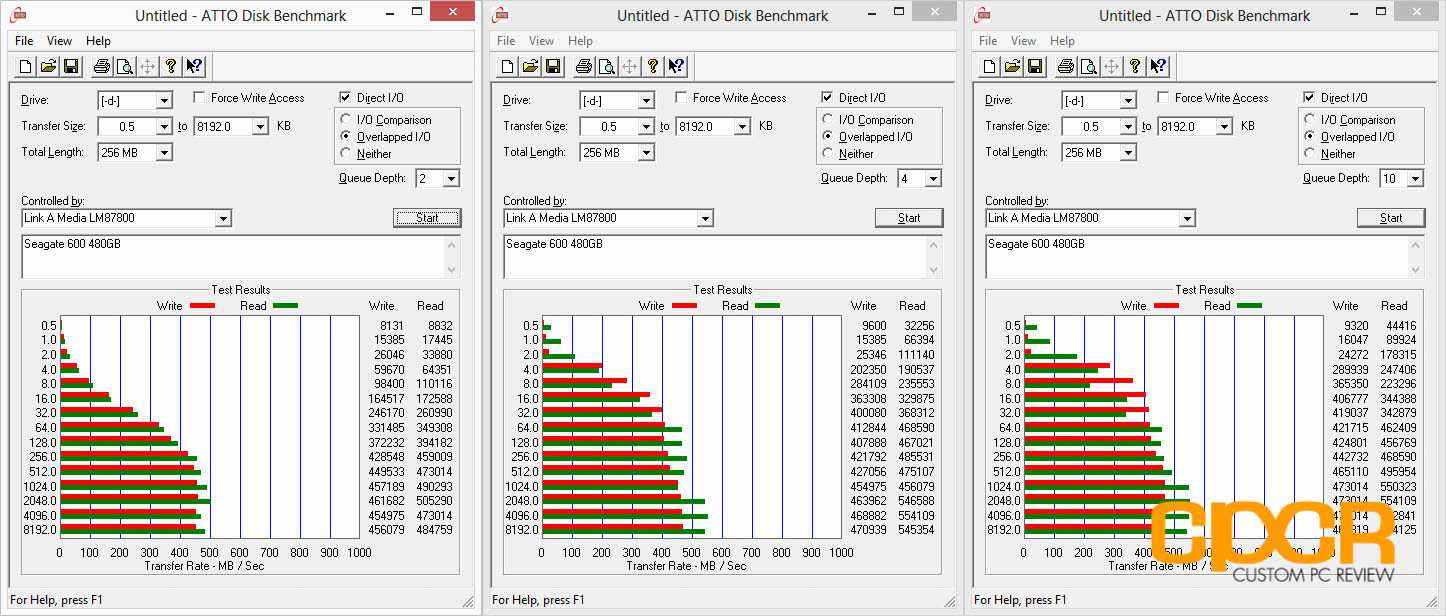
ATTO Disk Benchmark is one of the industry’s oldest and most popular benchmarks for testing disk read/write speeds. This benchmarks allows read and write testing using predefined block sizes and gives us a good idea of read/write speeds with different sized files. Most SSD manufacturers these days prefer using this benchmark when advertising SSDs as it tests using compressible data, which tends to yield better performance.
atto-disk-bench-seagate-600-480gb-custom-pc-review
Performance Analysis
Beating its rated specifications, the Seagate 600 480GB is capable of pulling in up to 554 MB/s reads and 470 MB/s writes. Write performance here isn’t the fastest we’ve seen, but the Seagate 600 is a product aimed at entry level consumers rather than enthusiasts or enterprise users.

AS SSD Benchmark

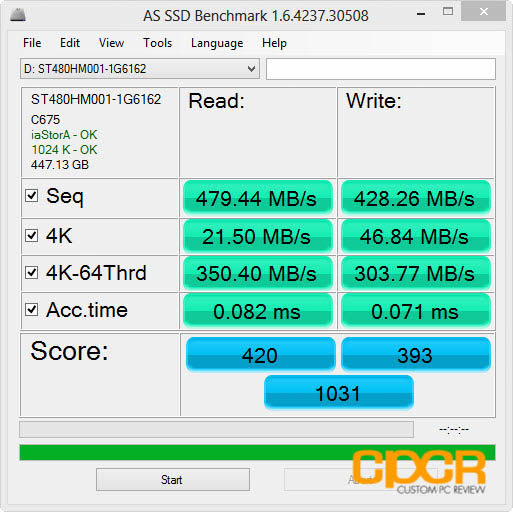
AS SSD is a very commonly used benchmark used to measure SSD performance in a number of categories. Here, tests are run using incompressible data at QD1. It also outputs a final score at the conclusion of the test based off the read and write performance of the drive.
as-ssd-seagate-600-480gb-custom-pc-review
Performance Analysis
Here we can confirm the performance results from ATTO Disk Benchmark and we can confirm that compressible and incompressible data do not affect the Seagate 600′s performance. The LAMD LM87800 controller’s enterprise roots are also quite apparent here as we can see the 4K-64Thrd performance is extremely fast.

Crystal Disk Mark 3.0.1 x64

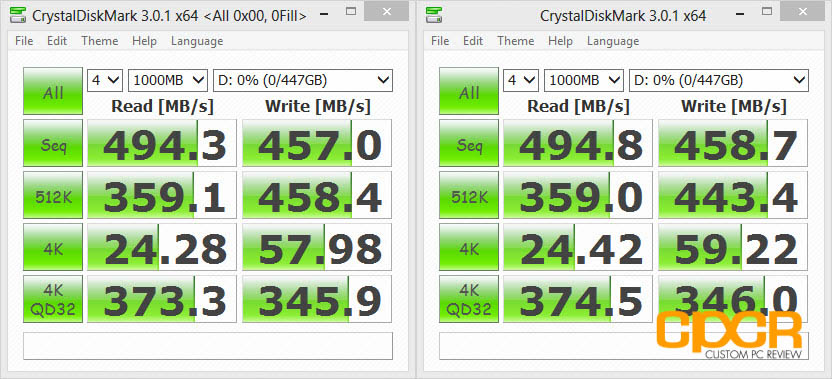
Crystal Disk Mark is another popular benchmark which allows us to measure both sequential read/write speeds as well as random read/write speeds. With this benchmark, tests can be run using both random fill (incompressible data) and 0 fill (compressible data). Realistically in typical computer usage scenarios, data being transferred will consist of a mixture of both incompressible and compressible data.
crystal-disk-mark-seagate-600-480gb-custom-pc-review
Performance Analysis
Crystal Disk Mark confirms our findings thus far. There’s no difference to the Seagate 600 when dealing with files of different levels of compress-ability and it does extremely well in high queue depth operations.

Seagate 600 480GB Performance

PC Mark 7

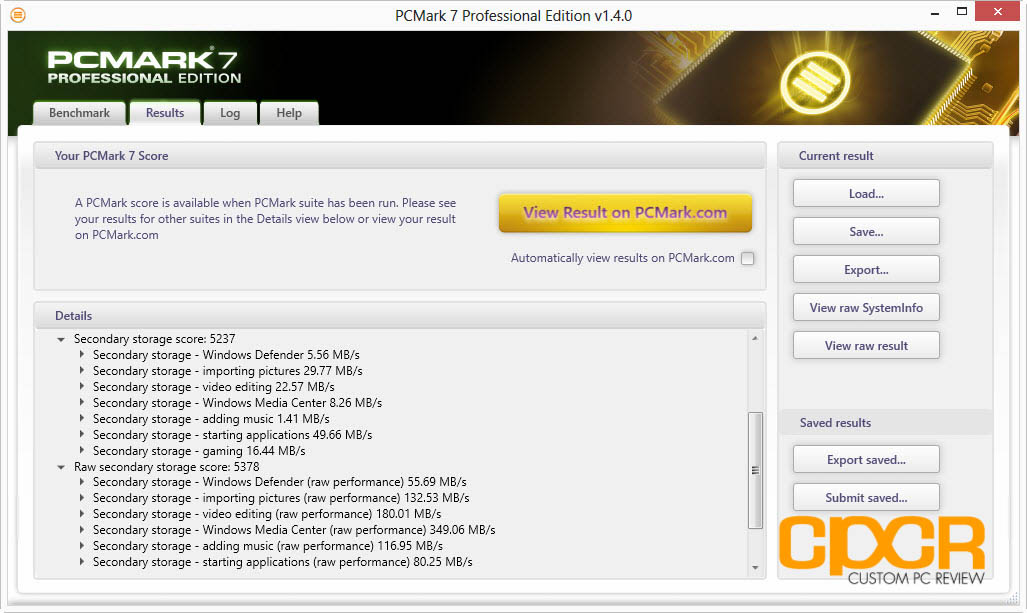
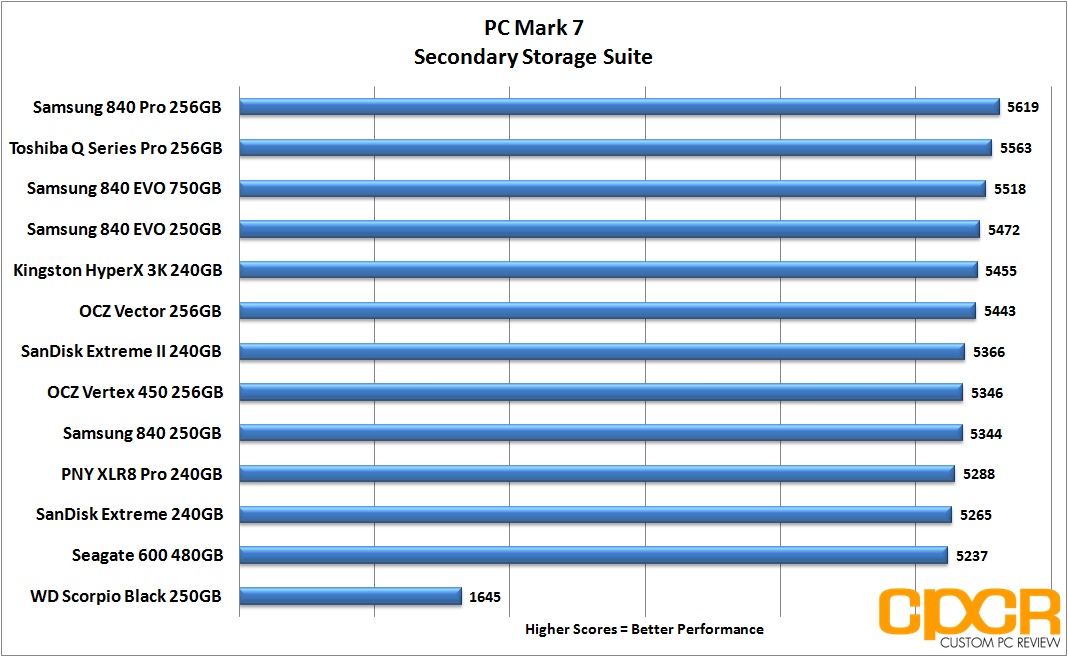
The PC Mark 7 storage test evaluates the SSD under many different real world environments such as gaming, multimedia editing, etc. This closely represents the SSD’s performance under real world situations.
pc-mark-7-seagate-600-480gb-custom-pc-review
pc-mark-7-chart-seagate-600-480gb-custom-pc-review

PC Mark 8

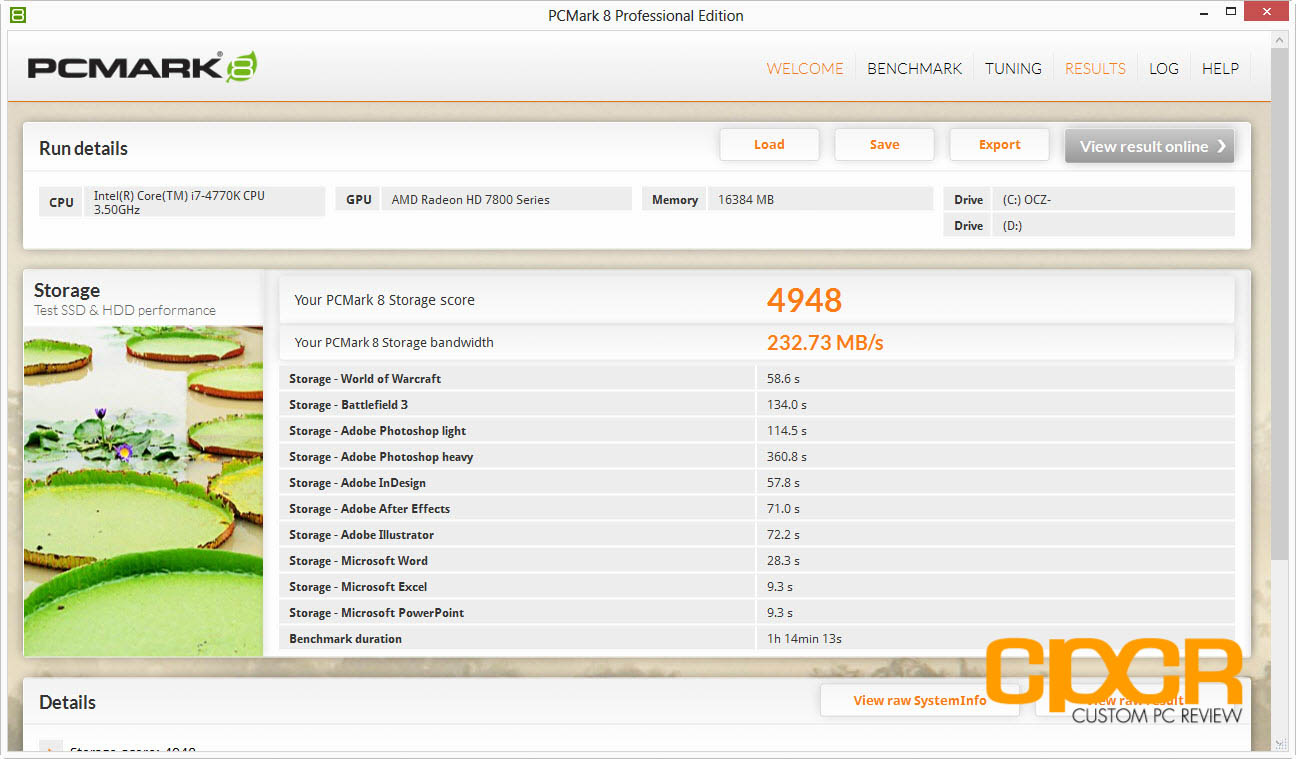
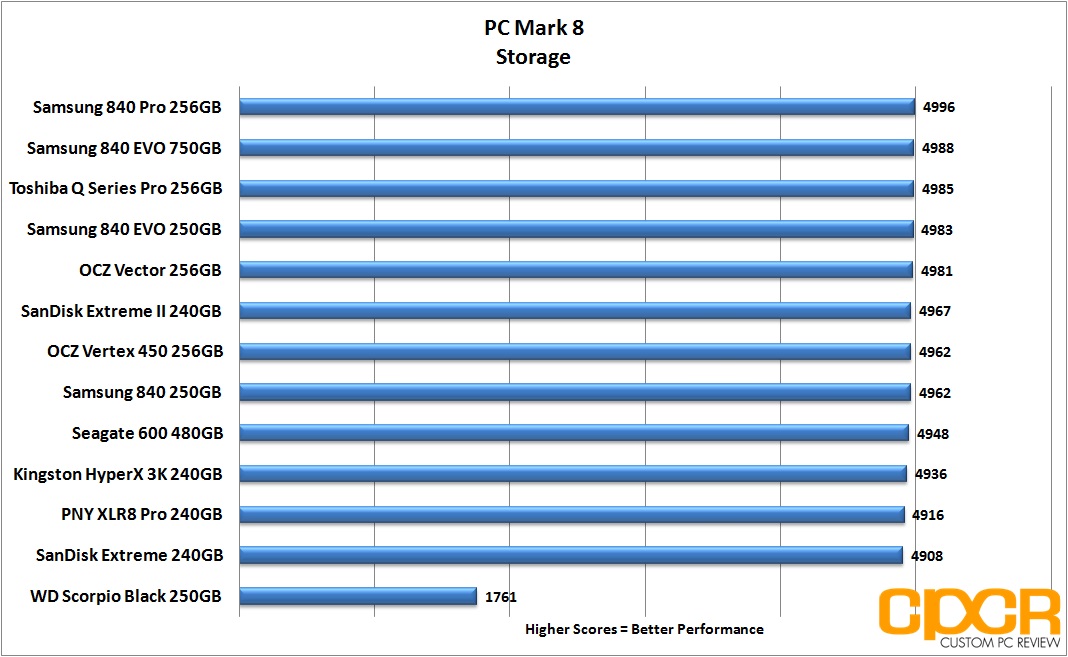
The PC Mark 8 storage test is similar to storage tests found in PC Mark 7. The PC Mark 8 storage test evaluates SSDs under many real world applications such as gaming, video editing, photo editing, etc. and is well regarded among the SSD industry.
pc-mark-8-seagate-600-480gb-custom-pc-review
pc-mark-8-chart-seagate-600-480gb-custom-pc-review
Performance Analysis
Pitting the Seagate 600 against our higher end, enthusiast oriented SSDs doesn’t really paint a great picture here as the Seagate 600 falls down to the lower end of our PC Mark 7 and PC Mark 8 tests. PC Mark 7 and PC Mark 8 tends to focus on burst performance and 4K read performance, which the Seagate 600 seems fall a bit behind on.

FIO (Flexible I/O Tester)

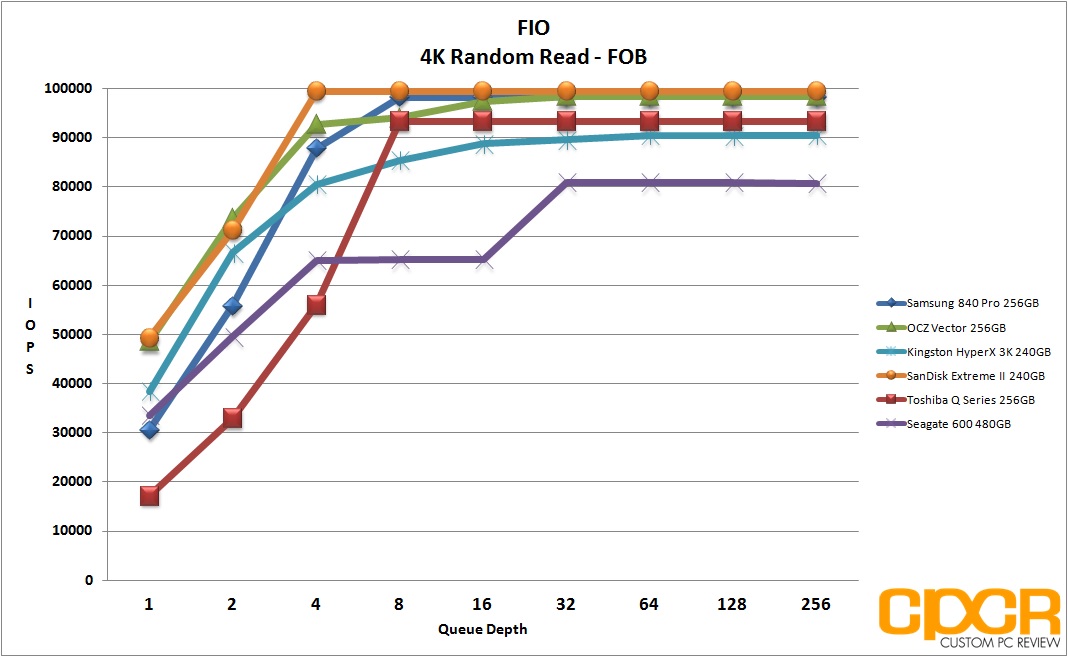
FIO, which stands for Flexible I/O Tester, is basically what its name says – a flexible I/O tester / I/O workload generator. Whereas all the benchmarking tools we’ve used previously are fantastic, easy to use benchmarking tools that provide a good snapshot of SSD performance, they do lack a lot of versatility, especially for more complex and in-depth operations such as custom queue depths, block sizes, test run times, etc. While the testing that follows may not pertain to typical consumer usage, they do help give us a much more in-depth look at each individual product’s strengths and weaknesses when they’re pushed to the limits.
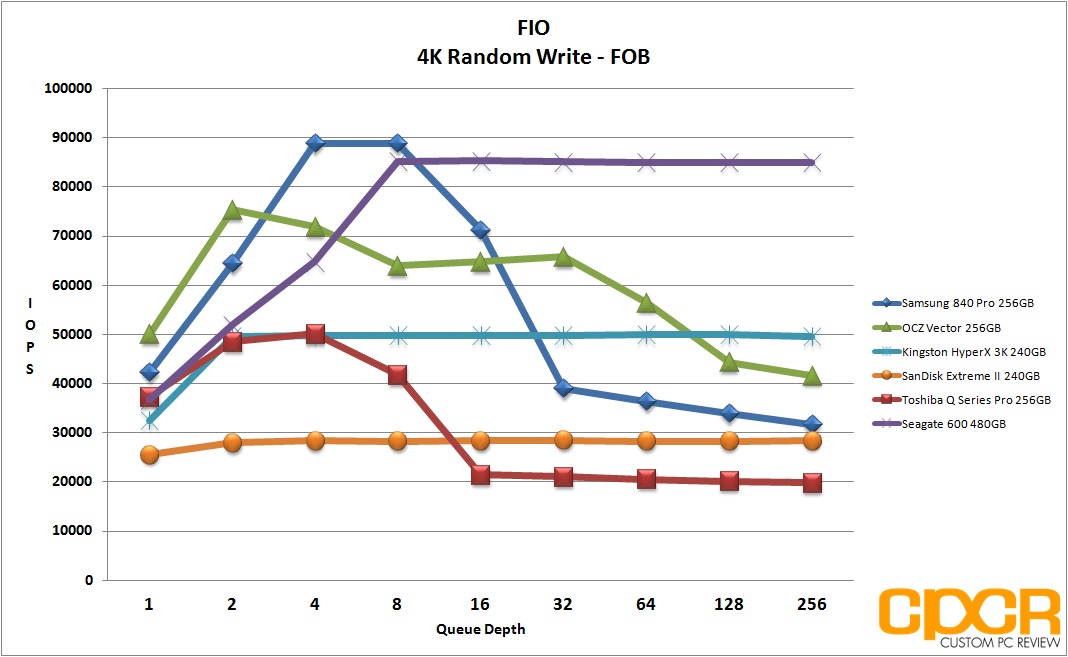
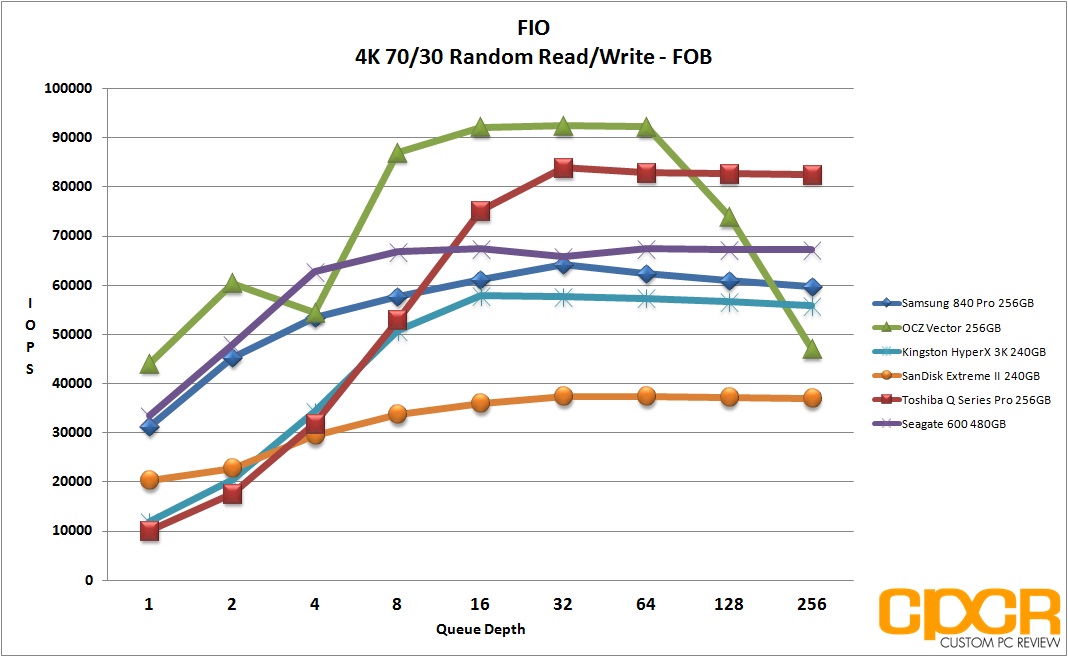
FIO – FOB (Fresh Out of the Box) Testing
When SSDs are brand new and Fresh Out of the Box, they’re generally able to perform at  or outperform their advertised speeds, but unlike traditional hard drives, performance on SSDs begin to degrade over time as they become more and more used. This is because while SSDs are new, all bits on the SSD are empty, so they can instantly be programmed with data. However, once data gets programmed in, even if it’s deleted in the filesystem the actual data will still stay programmed on the NAND itself unless some sort of garbage collection routine comes in to wipe the data. Unfortunately, in order to write new data onto “dirty” NAND, the NAND needs to go first through an erase cycle to erase the old data before a program cycle can happen to program new data, which as you may imagine takes more time than just a simple program cycle. As this only happens when writing new data onto the SSD, you’ll generally see less performance degradation on reads and more performance degradation on writes.
For our FOB testing, we run a secure erase on the SSD then run each test sans any preconditioning. This will provide us with the highest level of performance the SSD is capable of and is likely never to be seen ever again once the SSD goes into a used state.
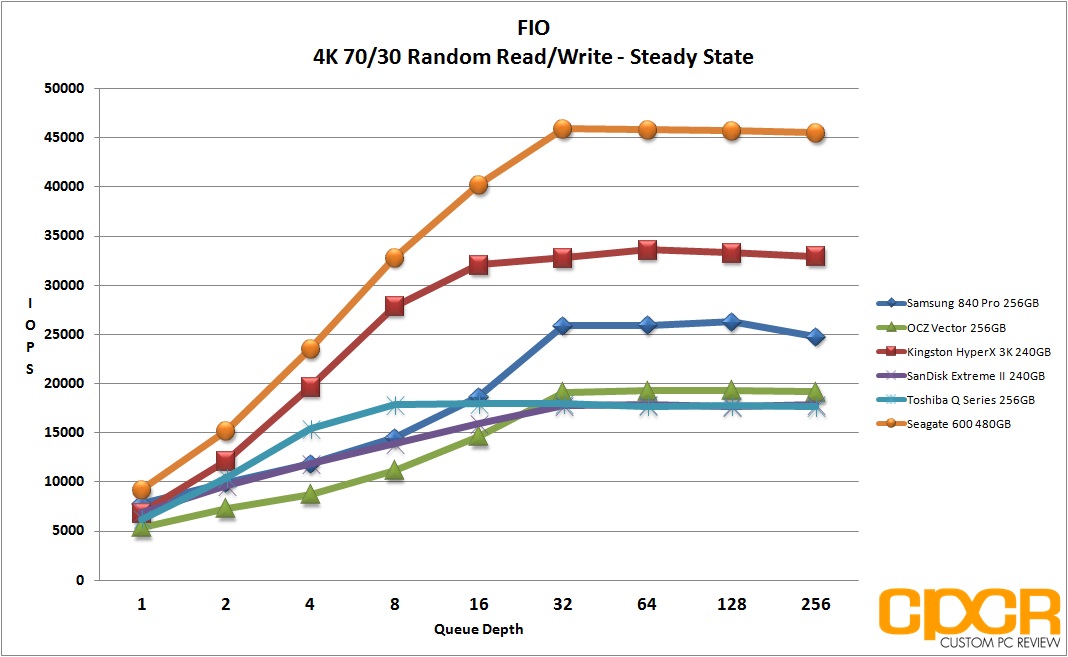
Our testing will include 4K read testing, 4K write testing, and 4K 70/30 read/write mix testing at queue depths of 1,2,4,8,16,32,64,128,256. The reason we’ve also included 4K 70/30 read/write mix testing is simply because most real world workloads will always fall somewhere between 0% write and 100% write rather than one or the other. Since client usage is much more read heavy, we’ll be using the 70/30 read/write mix.
For general client usage, performance will fall somewhere between queue depths of 1-4 whereas servers and other enterprise applications will easily see queue depths of 32 or greater.
fob-fio-4k-random-read-seagate-600-480gb-custom-pc-review
fob-fio-4k-random-write-seagate-600-480gb-custom-pc-review
fob-fio-4k-random-rw-seagate-600-480gb-custom-pc-review

Performance Analysis

Fresh out of the box, the Seagate 600′s performance is actually very good especially when looking at performance figures in read/write mix testing. With our 70/30 read write mix, the Seagate 600 outperformed most of our SSDs tested today at both higher and lower queue depths. While 4K random write performance at lower queue depths aren’t necessarily remarkable, the 4k random write performance at higher queue depths is extremely impressive showcasing the abilities of the highly enterprise oriented LM87800 controller aboard the 600.

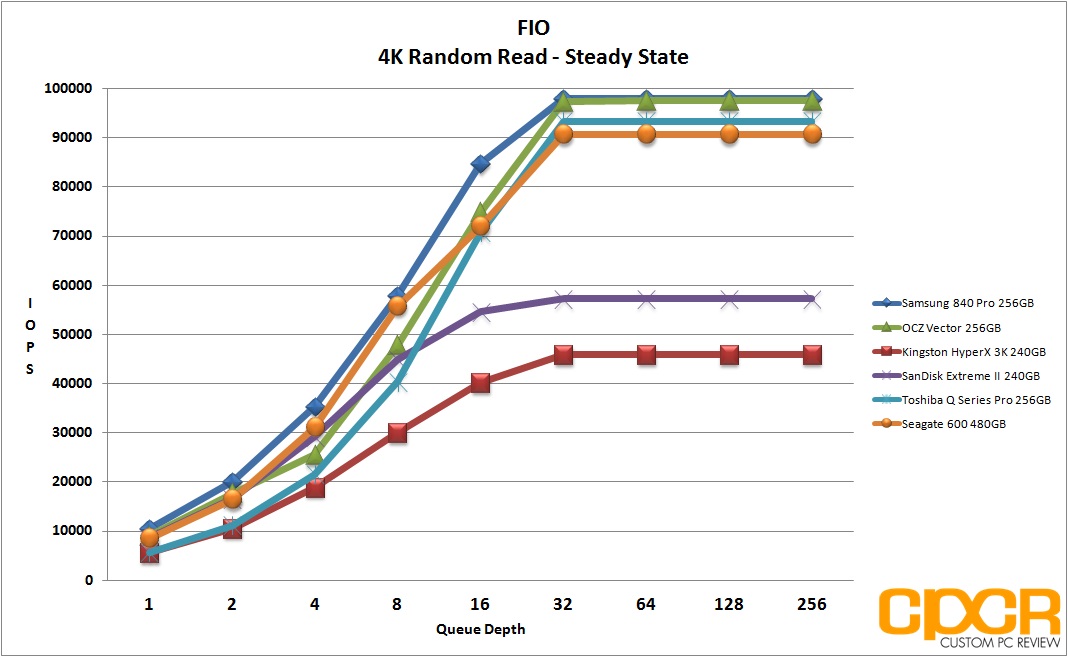
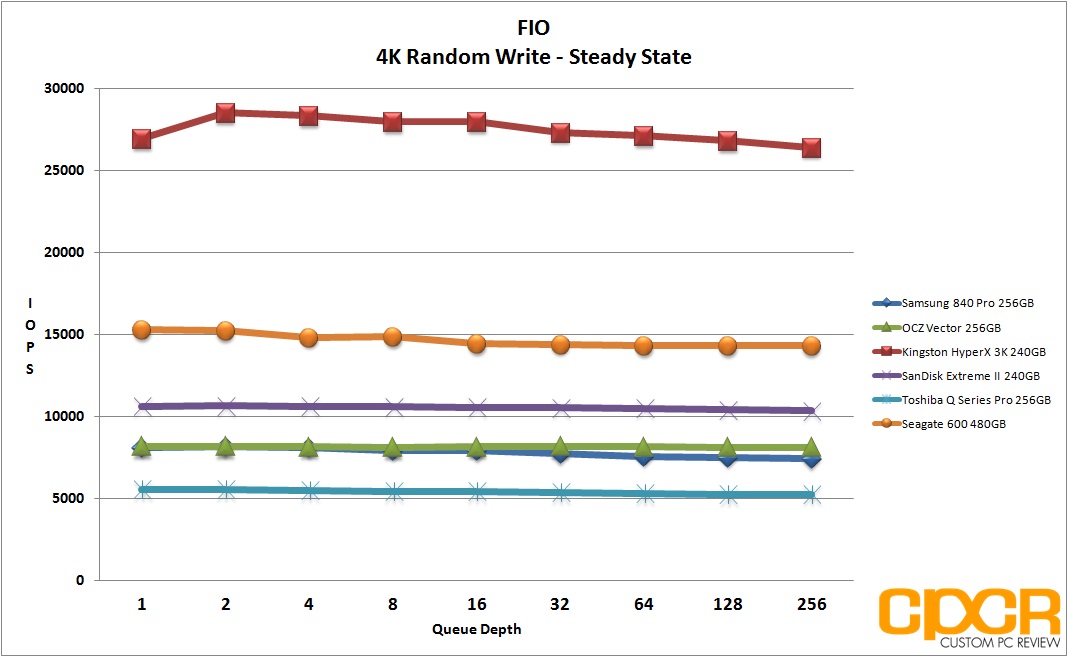
FIO – Steady State Testing

After prolonged use of an SSD, they will generally reach “steady state”. The FOB state is the “best case scenario” for SSD performance while “steady state” is going to be your worst.  Here, we ran the exact same set of benchmarks we just completed in the FOB state; except this time around, we’ll be preconditioning the drive by filling 100% of the drive’s LBAs with two sequential passes of 128k data. Next, we hammered the drive with two full passes of random 4K data for six hours.
ss-fio-4k-random-read-seagate-600-480gb-custom-pc-review
ss-fio-4k-random-write-seagate-600-480gb-custom-pc-review
ss-fio-4k-random-rw-seagate-600-480gb-custom-pc-review
Performance Analysis
The Seagate 600 isn’t going to win any awards for FOB performance, but what it lacks there it does make up for in superior steady state performance. Again in our read/write mix testing, the Seagate 600 blew all of its competitors out of the water especially at extremely high queue depths, including the very well performing SandForce powered Kingston HyperX 3K.

FIO Consistency Testing

Another one of the benefits of testing with FIO is the flexibility of running consistency tests, which is one of the most important metrics when considering SSDs going forward. Looking at the results of our benchmarks such as ATTO Disk Benchmark and Crystal Disk Benchmark, we can see that practically every top tier SSD is capable of saturating SATA 6Gb/s in the FOB state. However, what really differentiates these SSDs is their ability to hold a certain level of performance even after extended periods of use.
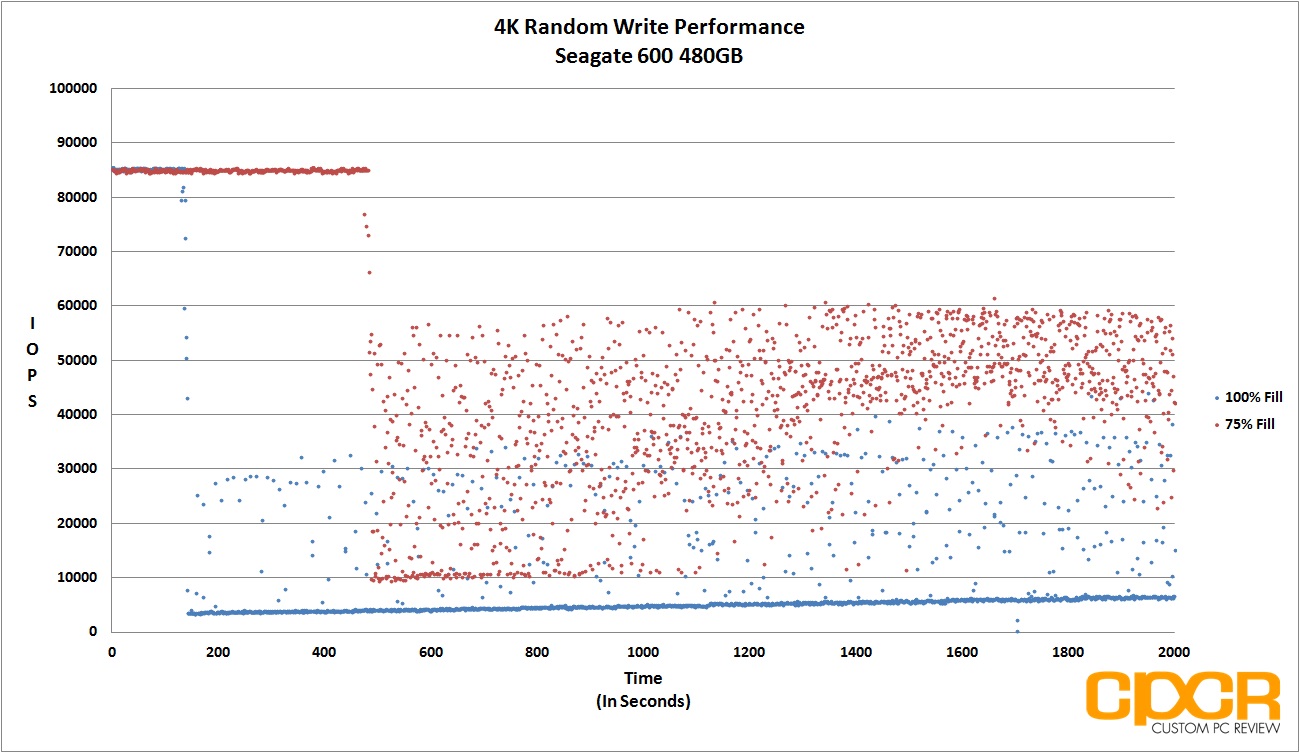
For our consistency testing, we used a fairly standard method, which includes both filling up 75% of capacity (consumer use) as well as 100% capacity(enterprise use) twice with sequential 128k data followed by the actual test itself, which is simply running 4K random writes at a queue depth of 32. By recording the IOPS every second for 2,000 seconds, we’re able to get a good look at what kind of performance can be expected when the drive is relatively new, when it’s heading towards steady state, and when it’s actually in steady state.

Seagate 600 480GB

consistency-fio-4k-random-write-seagate-600-480gb-custom-pc-review
Performance Analysis
We just saw the Seagate 600 dominate in steady state performance and here we can see that it’s quite a consistent performer as well. With zero spare area, after a very consistent initial ~170 seconds of high performance, the Seagate 600 drops into a slower, but fairly consistent steady state. After that, we can also see the Seagate 600 works pretty hard to improve performance despite being hammered by our I/O workload which shows very effective garbage collection routines in play.

Seagate 600 480GB Power Consumption

Previously, our power consumption analysis only tested for idle and maximum load power consumption, but we felt that this was a bad way to accurately measure power consumption. The reason for this is because SSDs tend to be bursty while in operation and will spike in power usage, but only for a second. As such, many of our SSDs appeared to have even higher power consumption than traditional hard drives, which is untrue.
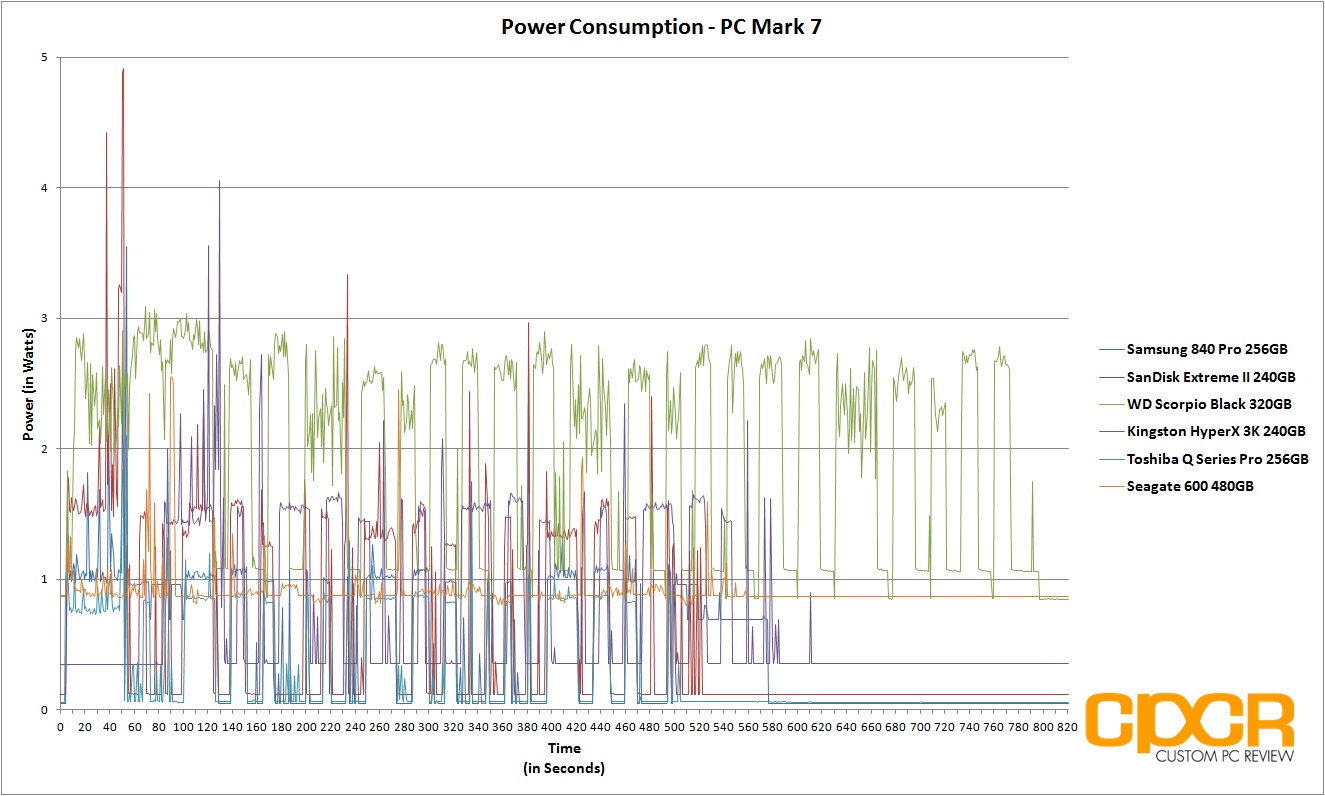
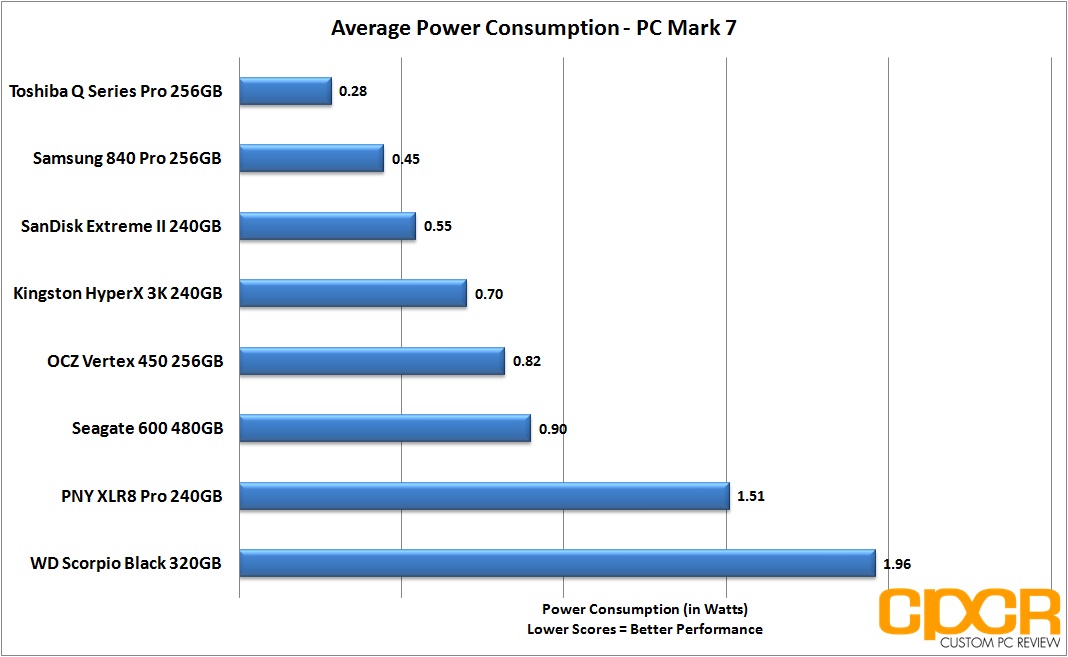
In order to improve our reading of power consumption, our solution was to run a test closer to the real-world and record a trace on the power consumption during testing. Since PC Mark 7 has been recognized by the industry as a fantastic real-world benchmark, we’ll be running our power consumption test while running the benchmark.
All tests below are measured by tapping our calibrated B&K Precision 5491B Bench Multimeter directly into the 5v line running from the power supply to the drive. All testing here is conducted with “HIPM (Host Initiated Power Management)/DIPM (Device Initiated Power Management)” enabled and “AHCI Link Power Management – Adaptive” set to 0 milliseconds for maximum power efficiency.

Power Consumption

power-consumption-seagate-600-480gb-custom-pc-review-1
idle-power-consumption-seagate-600-480gb-custom-pc-review
average-power-consumption-seagate-600-480gb-custom-pc-review
Performance Analysis
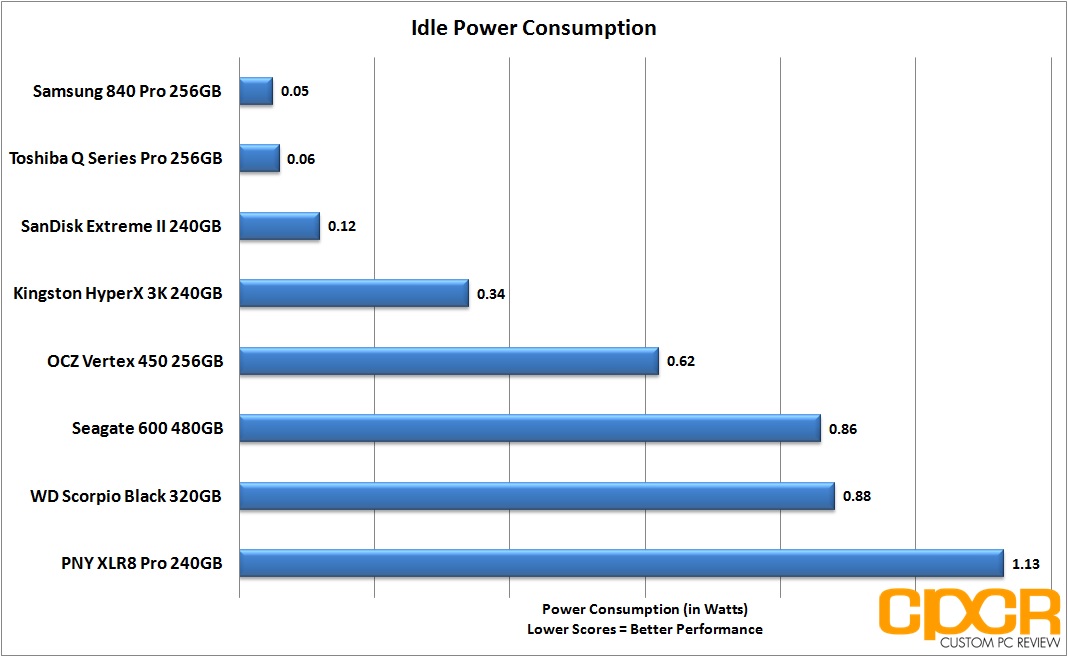
As indicated in the Crystal Disk info report, the Seagate 600 does not support HIPM or DIPM power saving features thus even with all power savings features turned on in our test bench, the SSD still drew 0.86w at idle. Looking at our average power consumption charts, the Seagate 600 drew a pretty high average of 0.90w during out PC Mark 7 run, which is actually just slightly lower than Seagate’s rated 1.1w, and only more power efficient than the ultra power hungry eMLC based PNY XLR8 Pro.

Seagate 600 480GB Conclusions

seagate-600-480gb-ssd-custom-pc-review-1Back in 2008 when Intel leashed the X25-M SSD, I would never have predicted that Samsung would be the company leading the charge on next generation storage technology. Sure they have access to their own DRAM fabs and all that, but being one of the smaller players in the hard drive market back in the day I would’ve thought either Seagate or Western Digital would instead be the ones leading the charge. Instead, both companies sat quiet and it ended up being Samsung who would dump their own hard drive division to go balls deep into SSD development. With that said, I’ve been waiting a very long time for a Seagate SSD and the 600 is definitely a solid first offering for the company.
Performance on the Seagate 600 is good and more importantly, it’s consistent. I like that. Seagate follows SandForce’s formula on over-provisioning their drives and we definitely see an impact on I/O consistency as the drives hit steady state. Unfortunately the drive is lacking some initial burst performance which I think is important for typical client workloads, but I’m happy to take long term I/O consistency over a small bit of extra burst performance. That’s not a problem.
What is a problem though is power efficiency, which is something I think Seagate needs to address with their next SSD. Having both a 5mm and 7mm drive means you’re looking to market your drive to Ultrabooks, ultrathins and tablets, all of which could use as much power savings as humanly possible. While it’s not a whole ton of extra power that’s being used, when the choice is between the more power efficient Samsung SSD or the more power hungry Seagate SSD for say a Windows tablet, the choice should be pretty simple.
ManufacturerSeagateSeagateSeagate
Model600600600
Capacity120 GB240 GB480 GB
Street Price$109.99$179.99$359.00
Price/GB$0.92$0.75$0.75
Check PriceClick HereClick HereClick Here 

Pricing on the Seagate 600 is currently $109.99 for 120GB, $179.99 for 240GB, and $359.00 for 480GB. These prices are only for the 7mm z-height editions of the Seagate 600 as it’s extremely difficult to find the 5mm z-height edition of the drive right now. I think 5mm z-height edition of the drive is more for SIs and OEMs rather than the general retail market, which is why it’s so difficult to find one of these. That said, as far as value goes, I think the Seagate 600 7mm z-height is very competitive especially when looking at the 240GB and 480GB editions going for only $0.75/GB. The drives do come with only 3 year warranties though, so if you’re looking for that legendary 5 year, you’ll want to look somewhere else (and probably be willing to shell out a couple more bucks in the process).
Ultimately, the Seagate 600 is a great drive with competitive pricing, consistent performance, and Seagate’s solid reputation in the storage industry. Those in the market for a new SSD will find that the Seagate 600 is a product worth checking out.
CPCR-Silver
Sample provided by: Seagate
Available at: Amazon


 Source


Read More
Posted in HDD, Review, Seagate | No comments
Older Posts Home
Subscribe to: Posts (Atom)

Popular Posts

  • Call of Duty: Ghosts Review
    Developer: Infinity Ward Publisher: Activision Platforms: PC, X360, PS3, PS4, Xbox One Price: £39.99 Reviewing a Call of Duty game is a ...
  • ‘Strata’ for iOS and Android game review
    There are games that are fun. There are games that look great. And then there are games that do both. Strata is one such game that h...
  • iBuypower Chimera 4SE FX Ultimate: AMD Gaming PC
    iBuypower is offering an AMD-based system in its Chimera 4SE line, which is designed to give users serious gaming performance without a wa...
  • Review: Seagate 600 480GB SSD
    Seagate Joins the Fray It’s been quite an interesting turn of events over the past couple years in the storage industry. Whereas practical...
  • Xbox One vs. PS4: How They Stack Up Today
    Two new gaming consoles. Both very powerful. Both very ambitious. Both about to meet head to head... and do battle for your time, money an...
  • The Last Days of the DSLR
    The DLSR is everywhere. You see it around the necks of tourists, against the faces of pro photographers. Since Canon introduced the Digita...
  • Buying Guide: Find the best headphones
    If you’re looking to get more audio enjoyment from your smartphone, tablet, media player, or computer, new headphones will do wonders. And ...
  • CCBoot - LAN Boot Software for Windows
    LAN Boot Solution Background LAN boot is a technology based on IP (Internet Protocol), UDP (User Datagram Protocol), DHCP (Dynamic ...
  • Sony Vaio Tap 11 Review
    Introduction Sony's engineering chops are really showing this year, across its phones, tablets and convertibles portfolio. The Vaio Tap ...
  • Adobe Photoshop CS6 Extended 13.0 & Plugins + Textures
    Adobe Photoshop CS6 Extended 13.0 & Plugins + Textures | 3.5 GB Adobe Photoshop CS6 Extended software delivers even more imaging magi...

Categories

  • Android
  • Apple
  • Audio
  • Blogger
  • C/C++
  • Cabling
  • Cameras
  • Cases
  • CISCO
  • Cooling
  • CPU
  • Desktop
  • DNS
  • Ebook
  • Fiber Optic
  • Gadgets
  • Game
  • Google
  • Graphic Card
  • Hardware
  • HDD
  • HTC
  • HTMLCSS
  • Hyper-V
  • Intel
  • iOS
  • iPad
  • Iphone
  • IT
  • jQuery
  • Laptop
  • Linux
  • Mac
  • MacTut
  • Microsoft
  • Mobile
  • Mouse
  • Networking
  • News
  • Nexus
  • Nokia
  • Nvidia
  • OS
  • PERIPHERALS & COMPONENTS
  • Photoshop
  • Printers
  • Programming
  • Projectors
  • PS4
  • Ram
  • RedHat
  • Review
  • Samsung
  • Scanners
  • Seagate
  • Security
  • Server2008
  • Server2012
  • Servers
  • Smartphone
  • Software
  • Sony
  • Storage
  • Tablets
  • TechNews
  • Template
  • Tutorials
  • TV
  • Ubuntu
  • Voip
  • Webdesign
  • Webiste
  • WebServer
  • Win7
  • Win8
  • Windows Phone
  • Wordpress
  • Workstation
  • XBOX

Blog Archive

  • ▼  2013 (495)
    • ▼  December (35)
      • Smart Power Strip now works with SmartThings WiFi ...
      • The Last Days of the DSLR
      • Nokia Lumia 2520 has arrived, check out our hands-on
      • 2 Million Gmail, Facebook and Twitter Accounts Rep...
      • Fleksy predictive keyboard for Android exits beta,...
      • iPhone Anamorphic Lens Lets You Shoot Wider Than W...
      • Nokia Wins Ban on HTC One Mini in U.K.
      • Finally, USB 3.1 Will Feature Reversible Connectors
      • MSI Launches Small But Mighty Z87I Gaming AC and G...
      • Samsung Galaxy S5 benchmark reveals 2K screen
      • NVIDIA Fan in Bejing Builds a 6ft Replica GeForce ...
      • Are dual-booting phones the future of Android?
      • How to Block Websites in Windows 7/8 in Chrome and...
      • How to Control your Android Mobile from PC or Laptop
      • Resize Image without loosing Quality
      • AllCast for Android pushes media to Apple TV and R...
      • Alcatel Idol X+ to launch with smartwatch and smar...
      • The legend of the HTC HD2 continues; aged device r...
      • Amazon Prime Air drones revealed on 60 Minutes, ai...
      • Samsung to create 20 MP camera sensor for future f...
      • Oppo's swiveling N1 smartphone to be available wor...
      • FileMaker Pro 13 Prematurely Appears on Apple's On...
      • Sony Vaio Tap 11 Review
      • Dell preparing to squeeze 4K resolution onto a 24-...
      • Microsoft releases VideoLoops: A GIF creator tool ...
      • Pebble Smartwatch for Android and iOS Hit Amazon f...
      • 3D Printing Market Forecasted For Explosive Growth...
      • ASUS Transformer Book T100 review: a Windows table...
      • Xbox One's 500GB HDD swapped for bigger, faster dr...
      • U.S. Army Saved $130 Million by Stealing Software
      • Xbox One Scores Big on Black Friday Surpassing PS4...
      • Buying Guide: Find the best headphones
      • Sailfish OS will be available for Android users to...
      • Amazon Cyber Monday Is The Real Deal
      • Nvidia Calls PC "Far Superior" to Video Game Consoles
    • ►  November (332)
    • ►  October (12)
    • ►  September (27)
    • ►  August (2)
    • ►  July (10)
    • ►  June (42)
    • ►  May (35)
Powered by Blogger.

About Me

Unknown
View my complete profile