albtechportal

  • Subscribe to our RSS feed.
  • Twitter
  • StumbleUpon
  • Reddit
  • Facebook
  • Digg
Showing posts with label Server2012. Show all posts

Wednesday, 20 November 2013

Bring Your Own Device (BYOD) – New Windows Server 2012 R2 Device Access and Information Protection

Posted on 03:57 by Unknown
As you will have seen at Microsoft TechEd North America and Europe, we have just delivered the Preview Release of Windows Server 2012 R2 with a stunning amount of new capability that is Cloud First.
My name is Adam Hall and I look after one of the solution areas within People-centric IT that we call “Access & Information Protection”. In this post I will provide more information about what this actually is and the focus areas we have around Bring Your Own Device (BYOD) and the Consumerization of IT.
People-centric IT is about helping organizations empower their users to work on the devices they choose without compromising their information integrity or compliance. The challenge this presents to customers is that as soon as their user works on a device that they do not manage or even have any knowledge of, it becomes very difficult to retain control of sensitive corporate information, and to be able to respond to situations such as the device being sold, lost or stolen.
With our Access & Information Protection solutions, we deliver capabilities that help our customers solve this very challenging problem in the following ways:
Simple registration and enrollment for users adopting Bring Your Own Device programs (BYOD).
Users can register their device using Workplace Join which creates a new device object in Active Directory and installs a certificate on the device, allowing IT to take into account the users device authentication as part of conditional access policies. Users can also opt-in to the Windows Intune management service for consistent access to applications (including internal LOB apps and links to public app stores), management of their own devices and to gain access to their data.

Users can work from the device of their choice to access corporate resources regardless of location.
New in Windows Server 2012 R2 are the Web Application Proxy and Work Folders. The Web Application Proxy provides the ability to publish access to internal resources and perform Multi-Factor Authentication at the edge. Work Folders is a new file sync solution that allows users to sync their files from a corporate file server to all their devices both internally and externally.
 
IT can better protect corporate information and mitigate risk by being able to manage a single identity for each user across both on-premises and cloud-based applications.
As users blend their work and personal lives, and organizations adopt a mixture of traditional on-premises and cloud based solutions, IT needs a way to consistently manage the user’s identity and provide users with a single sign-on to all their resources.  Microsoft helps our customers by providing users with a common identity across on-premises or cloud-based services leveraging existing Windows Server Active Directory investments and then connecting to Windows Azure Active Directory.  In Windows Server 2012 R2, we have significantly enhanced Active Directory Federation Services (ADFS) to be easier to deploy and configure, tightly integrated with the Web Application Proxy for simple publishing and federating between Active Directory and Azure AD.
 
IT can access managed mobile devices to remove corporate data and applications in the event that the device is lost, stolen, or retired from use.
Whether a device is lost, stolen or simply being repurposed, there will be times when IT needs to ensure that the corporate information stored on the device is no longer accessible. With Windows Server 2012 R2, System Center configuration Manager 2012 R2 and Windows Intune, companies have the ability to selectively wipe corporate information while leaving personal data intact.
IT can set policy-based access control for compliance and data protection.
With users working on their own devices, the accessing of corporate resources and storage of information on these devices presents some challenges for ensuring compliance needs are met and information remaining secure.  Windows Server 2012 R2, through the Web Application Proxy, ADFS and Work Folders provides compelling and powerful solutions to make it easy for our customers to make resources available but also remain in control of information.  As we showed in the TechEd Europe keynote in Madrid this week, Work Folders is integrated with Dynamic Access Control, providing the ability to automatically classify information based on content, and perform tasks such as protecting with Rights Management Services, even for data that is created and stored on clients!
 
To see People-centric IT, including System Center 2012 R2 Configuration Manager, Windows Intune, and Windows Server 2012 R2 in action, you can watch a complete presentation and end-to-end demonstration from the TechEd North America Foundational Session. You can also learn more about People-centric IT by downloading the People-centric IT Preview Guide.
Be sure to download System Center 2012 R2 Preview Configuration Manager and Windows Server 2012 R2 Preview today! 

Source
Read More
Posted in Server2012, Servers | No comments

Tuesday, 5 November 2013

Installing the DNS Server Role on Windows Server 2012

Posted on 12:28 by Unknown
The Domain Name System (DNS) protocol has long been the foundation of a useable network (and Internet) experience. With the introduction of Microsoft’s Active Directory (AD) the use of DNS became even more important. This article take a look at how to install the DNS Server role in Windows Server 2012 Standard edition.

How to Install the DNS Server Role in Windows Server 2012

Like with Window Server 2008 R2, the installation of a DNS server of Window Server 2012 involves the addition of the DNS Server role. There are two different main ways to start the Add Roles wizard. The first is shown below in Figure 1; it utilizes the Quick Start menu from the Dashboard.
Install the DNS Server Role in Windows Server 2012: server manager dashboard

  • The other option is available under the specific server being managed; in this case, select the Local Server option shown in the left pane.
Install the DNS Server Role in Windows Server 2012: server manager

  • The selection of the Local Server will bring up a properties window as shown below. Scroll down in this window until the Roles and Features box is shown. Click on Tasks then click Add Roles and Features to begin server role installation.
Install the DNS Server Role in Windows Server 2012: server properties
How should I backup my Windows Azure VMs?

  • Regardless of which path is taken, the window shown below will be the result. Skim through the text shown and select Next.
Install the DNS Server Role in Windows Server 2012: server manager

  • The next window will ask for the installation type; in this case the role will be installed on a single server (local). Select this option and select Next.
Install the DNS Server Role in Windows Server 2012: server manager installation

  • The next window will then ask for the destination’s server (the one where the DNS Server role will be added). Select the destination server and select Next.
Install the DNS Server Role in Windows Server 2012: server manager destination

  • The next window (as shown below in Figure 7) will be where the DNS Server role will be selected.

Install the DNS Server Role in Windows Server 2012: select role

Once it is selected it will bring up an additional window asking whether the DNS management tools should also be installed on the same server. For the purposes of this article they will be installed on the same server, but there is no requirement for local management.
Install the DNS Server Role in Windows Server 2012: DNS management

  • Once the window is handled it will come back to the Server Roles selection window again with the DNS Server role selected (as seen below). Since only the DNS Server role is being installed at this time, select Next.
Install the DNS Server Role in Windows Server 2012: select role

  • The next window will prompt if there are any additional features that should be installed. Since the DNS Management tools have already been selected and there are no additional features needed, select Next.
Install the DNS Server Role in Windows Server 2012: select features

  • Now you'll be given some information on DNS and how it can and is used with Windows Active Directory (AD). Skim over this and once complete select Next.
  • The next window (as shown below) will confirm the roles and features that will be added to the selected server. If everything looks correct, select Install.
Install DNS Server Role Windows Server 2012: confirmation

  • At this point the installation will begin. Once the installation is complete the window confirms success (or failure). Now select Close.
  • With a successful installation, the DNS option will be added to the left pane of the Server Manager (as shown below in Figure 15). To manage DNS select DNS from the left pane.
Install DNS Server Role Windows Server 2012: added option

  • The next window will show the DNS server that are currently available for management; in this case, there is only one available.
Install DNS Server Role Windows Server 2012: available servers

  • Right-click on the server shown to bring up a menu of available actions available. Select DNS Manager.
Install DNS Server Role Windows Server 2012: management

  • This will launch the DNS Manager. This should look familiar to those experienced with DNS Manager in earlier version of Windows Server.
Install DNS Server Role Windows Server 2012
The installation of the DNS Server role in Windows Server 2012 has a few additional steps over its successors, but it remains intuitive to most junior-level and above engineers. From the DNS Manager the specific records required for the specific network can be added. Or, if AD is deployed, some records will be automatically added.
Read More
Posted in DNS, Server2012, Tutorials | No comments

Monday, 7 October 2013

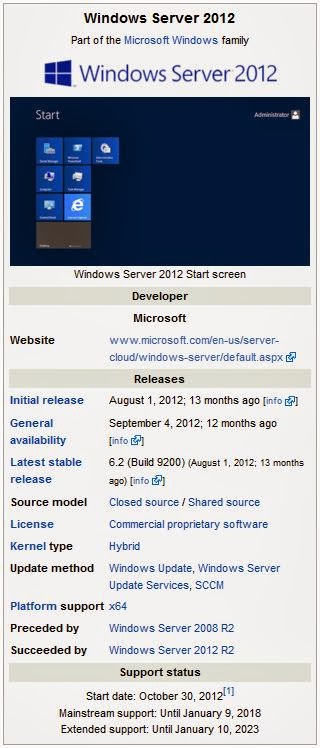
Windows Server 2012

Posted on 07:53 by Unknown
Windows Server 2012, codenamed "Windows Server 8",[2] is the sixth release of Windows Server. It is the server version of Windows 8 and succeeds Windows Server 2008 R2. Two pre-release versions, a developer preview and a beta version, were released during development. The software was generally available to customers starting on September 4, 2012.[3]
Unlike its predecessor, Windows Server 2012 has no support for Itanium-based computers,[4] and has four editions. Various features were added or improved over Windows Server 2008 R2 (with many placing an emphasis on cloud computing), such as an updated version of Hyper-V, an IP address management role, a new version of Windows Task Manager, and ReFS, a new file system. Windows Server 2012 received generally good reviews in spite of having included the same controversial Metro-based user interface seen in Windows 8.

History

Windows Server 2012, codenamed "Windows Server 8",[2] is the sixth release of Windows Server family of operating systems developed concurrently with Windows 8.[5][6] It was not until 17 April 2012 that the company announced that the final product name would be "Windows Server 2012".[2]
Microsoft introduced Windows Server 2012 and its developer preview in the BUILD 2011 conference on 9 September 2011.[7] However, unlike Windows 8, the developer preview of Windows Server 2012 was only made available to MSDN subscribers.[8] It included a graphical user interface (GUI) based on Metro design language and a new Server Manager, a graphical application used for server management.[9] On 16 February 2012, Microsoft released an update for developer preview build that extended its expiry date from 8 April 2012 to 15 January 2013.[10]
Before Windows Server 2012 was finalized, two test builds were made public. A public beta version of Windows Server 2012 was released along with the Windows 8 Consumer Preview on 29 February 2012.[5] The release candidate of Windows Server 2012 was released on 31 May 2012, along with the Windows 8 Release Preview.[6]
The product was released to manufacturing on 1 August 2012 and became generally available on 4 September 2012.[3] However, not all editions of Windows Server 2012 were released at the same time. Windows Server 2012 Essentials was released to manufacturing on 9 October 2012[11] and was made generally available on 1 November 2012.[12] As of 23 September 2012, all students subscribed to DreamSpark program can download Windows Server 2012 Standard or Datacenter free of charge.[13]

Features

Installation options

Unlike its predecessor, Windows Server 2012 can switch between "Server Core" and "Server with a GUI" installation options without a full reinstallation. Server Core - an option with a command-line interface only - is now the recommended configuration. There is also a third installation option that allows some GUI elements such as MMC and Server Manager to run, but without the normal desktop, shell or default programs like File Explorer.[9]

User interface

Server Manager has been redesigned with an emphasis on easing management of multiple servers.[14] The operating system, like Windows 8, uses the Metro UI unless installed in Server Core mode.[15] Windows PowerShell in this version has over 2300 commandlets, compared to around 200 in Windows Server 2008 R2.[16]

Task Manager

Main article: Windows Task Manager
Windows Server 2012 includes a new version of Windows Task Manager together with the old version.[17] In the new version the tabs are hidden by default showing applications only. In the new Processes tab, the processes are displayed in varying shades of yellow, with darker shades representing heavier resource use.[18] It lists application names and status, as well as CPU, memory, hard disk and network utilization. The process information found in the older versions are now moved to the new Details tab. The Performance tab shows "CPU", "Memory", "Disk", "Wi-Fi" and "Ethernet" graphs. The CPU tab no longer displays individual graphs for every logical processor on the system by default; instead, it can display data for each NUMA node. When displaying data for each logical processor for machines with more than 64 logical processors, the CPU tab now displays simple utilization percentages on heat-mapping tiles.[19] The color used for these heat maps is blue, with darker shades again indicating heavier utilization. Hovering the cursor over any logical processor's data now shows the NUMA node of that processor and its ID, if applicable. Additionally, a new Startup tab has been added that lists startup applications,[20] however this tab does not exist in Windows Server 2012.[21] The new task manager recognizes when a Windows Store app has the "Suspended" status.

IP address management (IPAM)

Windows Server 2012 has an IP address management role for discovering, monitoring, auditing, and managing the IP address space used on a corporate network. The IPAM is used for the management and monitoring of Domain Name System (DNS) and Dynamic Host Configuration Protocol (DHCP) servers. Both IPv4 and IPv6 are fully supported.[22]

Active Directory

Windows Server 2012 has a number of changes to Active Directory from the version shipped with Windows Server 2008 R2. The Active Directory Domain Services installation wizard has been replaced by a new section in Server Manager, and a GUI has been added to the Active Directory Recycle Bin.[23] Multiple password policies can be set in the same domain.[24] Active Directory in Windows Server 2012 is now aware of any changes resulting from virtualization, and virtualized domain controllers can be safely cloned. Upgrades of the domain functional level to Windows Server 2012 are simplified; it can be performed entirely in Server Manager. Active Directory Federation Services is no longer required to be downloaded when installed as a role, and claims which can be used by the Active Directory Federation Services have been introduced into the Kerberos token. Windows Powershell commands used by Active Directory Administrative Center can be viewed in a "Powershell History Viewer".[25][26]

Hyper-V

Windows Server 2012, along with Windows 8, includes a new version of Hyper-V,[27] as presented at the Microsoft BUILD event.[28] Many new features have been added to Hyper-V, including network virtualization, multi-tenancy, storage resource pools, cross-premise connectivity, and cloud backup. Additionally, many of the former restrictions on resource consumption have been greatly lifted. Each virtual machine in this version of Hyper-V can access up to 64 virtual processors, up to 1 terabyte of memory, and up to 64 terabytes of virtual disk space per virtual hard disk (using a new .vhdx format).[29][30] Up to 1024 virtual machines can be active per host, and up to 8000 can be active per failover cluster.[31] SLAT is a required processor feature for Hyper-V on Windows 8, while for Windows Server 2012 it is only required for the supplementary RemoteFX role.[32]

ReFS

Main article: ReFS
Resilient File System (ReFS),[33] codenamed "Protogon",[34] is a new file system in Windows Server 2012 initially intended for file servers that improves on NTFS in some respects. Major new features of ReFS include:[35][36]
Improved reliability for on-disk structures
ReFS uses B+ trees[35] for all on-disk structures including metadata and file data. Metadata and file data are organized into tables similar to a relational database. The file size, number of files in a folder, total volume size and number of folders in a volume are limited by 64-bit numbers; as a result ReFS supports a maximum file size of 16 Exabytes, a maximum of 18.4 × 10¹⁸ folders and a maximum volume size of 1 Yottabyte (with 64 KB clusters) which allows large scalability with no practical limits on file and folder size (hardware restrictions still apply). Free space is counted by a hierarchical allocator which includes three separate tables for large, medium, and small chunks. File names and file paths are each limited to a 32 KB Unicode text string.
Built-in resilience
ReFS employs an allocation-on-write update strategy for metadata,[35] which allocates new chunks for every update transaction and uses large IO batches. All ReFS metadata has built-in 64-bit checksums which are stored independently. The file data can have an optional checksum in a separate "integrity stream", in which case the file update strategy also implements allocation-on-write; this is controlled by a new "integrity" attribute applicable to both files and directories. If nevertheless file data or metadata becomes corrupt, the file can be deleted without taking down the whole volume offline for maintenance, then restored from the backup. As a result of built-in resiliency, administrators do not need to periodically run error-checking tools such as CHKDSK when using ReFS.
Compatibility with existing APIs and technologies
ReFS does not require new system APIs and most file system filters continue to work with ReFS volumes.[35] ReFS supports many existing Windows and NTFS features such as BitLocker encryption, Access Control Lists, USN Journal, change notifications,[37] symbolic links, junction points, mount points, reparse points, volume snapshots, file IDs, and oplock. ReFS seamlessly[35] integrates with Storage Spaces, a storage virtualization layer that allows data mirroring and striping, as well as sharing storage pools between machines.[38] ReFS resiliency features enhance the mirroring feature provided by Storage Spaces and can detect whether any mirrored copies of files become corrupt using background data scrubbing process, which periodically reads all mirror copies and verifies their checksums then replaces bad copies with good ones.
Some NTFS features are not supported in ReFS, including named streams, object IDs, short names, file compression, file level encryption (EFS), user data transactions, hard links, extended attributes, and disk quotas.[35][34] Sparse files was not supported by Preview, but it is supported by RTM.[39][40] ReFS does not itself offer data deduplication.[35] Dynamic disks with mirrored or striped volumes are replaced with mirrored or striped storage pools provided by Storage Spaces. However, in Windows Server 2012, automated error-correction is only supported on mirrored spaces, and booting from ReFS is not supported either.

IIS 8.0

Windows Server 2012 includes version 8.0 of Internet Information Services (IIS). The new version contains new features such as SNI, CPU usage caps for particular websites,[41] centralized management of SSL certificates, WebSocket support and improved support for NUMA, but few other substantial changes were made.[42]

Scalability

Windows Server 2012 supports the following maximum hardware specifications.[43][30] Windows Server 2012 improves over its predecessor Windows Server 2008 R2:


System requirements


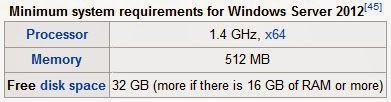
Windows Server 2012 runs only on x64 processors. Unlike its predecessor, Windows Server 2012 does not support Itanium.[4]Upgrades from Windows Server 2008 and Windows Server 2008 R2 are supported, though upgrades from prior releases are not.[45]

Editions

Windows Server 2012 has four editions: Foundation, Essentials, Standard and Datacenter.


Reception

Reviews of Windows Server 2012 have been generally positive.[51][52][53] Simon Bisson of ZDnet described it as "ready for the datacentre, today,"[51] while Tim Anderson of The Register said that "The move towards greater modularity, stronger automation and improved virtualisation makes perfect sense in a world of public and private clouds" but remarked that "That said, the capability of Windows to deliver obscure and time-consuming errors is unchanged" and concluded that "Nevertheless, this is a strong upgrade overall."[52] InfoWorld noted that Windows Server 2012 has the Metro UI, which had led to mixed reviews for Windows 8, but mentioned that "Microsoft is pushing harder for a GUI-less install than a Metro-based screen", with reference to the improved Server Core installation option and the improvements for Windows PowerShell.[54] However, Michael Otey of Windows IT Pro expressed dislike with the new Metro interface and the lack of ability to use the older desktop interface alone, saying that most users of Windows Server manage their servers using the graphical user interface rather than PowerShell.[55] The Australian construction company Kennards found the OS stable.[56]
Paul Ferrill wrote that "Windows Server 2012 Essentials provides all the pieces necessary to provide centralized file storage, client backups, and remote access,"[57] but Tim Anderson contended that "Many businesses that are using SBS2011 and earlier will want to stick with what they have", citing the absence of Exchange, the lack of ability to synchronize with Active Directory Federation Services and the 25-user limit,[58] while Paul Thurott wrote "you should choose Foundation only if you have at least some in-company IT staff and/or are comfortable outsourcing management to a Microsoft partner or solution provider" and "Essentials is, in my mind, ideal for any modern startup of just a few people."[59]

Windows Server 2012 R2

Windows Server 2012 R2 is the next version of Windows Server. It was unveiled on June 3, 2013 at TechEd North America,[60] with a preview release on June 24, 2013.[61] According to Windows Server 2012 R2 datasheet published on May 31, 2013, there will be three editions of this operating system: Essentials, Standard and Datacenter.[62]As with Windows Server 2012, the Datacenter and Standard editions are feature identical, varying only based on licensing (particularly licensing of Hyper-V VMs). The Essentials edition has the same features as the Datacenter and Standard products, with some restrictions.[63]

Changes from Windows Server 2012

Microsoft has confirmed the following changes introduced by Windows Server 2012 R2:
  • Automated Tiering: Storage Spaces stores most frequently accessed files on fastest physical media[64]
  • Deduplication for VHD: Reduces the storage space for VHD files with largely similar contents by storing the similar contents only once[64]
  • Windows PowerShell v4, which now includes a Desired State Configuration (DSC) feature
  • Integrated Office 365 support
  • Return of the Windows Start button[65]
  • UEFI-based virtual machines
  • Upgrades from driver emulators to synthetic hardware drivers to minimize legacy support
  • Boot from SCSI
  • Faster VM deployment (approximately half the time)[66]
  • IIS 8.5, which includes several performance and logging enhancements[66]                       
  •  
    Source : Wikipedia.org
Read More
Posted in Microsoft, Server2012 | No comments

Monday, 27 May 2013

Components of a Server Computer

Posted on 16:56 by Unknown

http://stephenstechsolutions.com/wp-content/themes/goodnews1/framework/scripts/timthumb.php?src=http://stephenstechsolutions.com/wp-content/uploads/2012/07/server-poweredge-t310-overview1.jpg&h=275&w=599&zc=1

The hardware components that a typical server computer comprises are similar to the components used in less expensive client computers. However, server computers are usually built from higher-grade components than client computers. The following paragraphs describe the typical components of a server computer.

Motherboard

The motherboard is the computer's main electronic circuit board to which all the other components of your computer are connected. More than any other component, the motherboard is the computer. All other components attach to the motherboard.
The major components on the motherboard include the processor (or CPU), supporting circuitry called the chipset, memory, expansion slots, a standard IDE hard drive controller, and input/output (I/O) ports for devices such as keyboards, mice, and printers. Some motherboards also include additional built-in features such as a graphics adapter, SCSI disk controller, or a network interface.

Processor

The processor, or CPU, is the brain of the computer. Although the processor isn't the only component that affects overall system performance, it is the one that most people think of first when deciding what type of server to purchase. At the time of this writing, Intel had four processor models designed for use in server computers:
  • Itanium 2: 1.60GHz clock speed; 1–2 processor cores
  • Xeon: 1.83–2.33GHz clock speed; 1–4 processor cores
  • Pentium D: 2.66-3.6GHz clock speed; 2 processor cores
  • Pentium 4: 2.4-3.6GHz clock speed; 1 processor core
Each motherboard is designed to support a particular type of processor. CPUs come in two basic mounting styles: slot or socket. However, you can choose from several types of slots and sockets, so you have to make sure that the motherboard supports the specific slot or socket style used by the CPU. Some server motherboards have two or more slots or sockets to hold two or more CPUs.
The term clock speed refers to how fast the basic clock that drives the processor's operation ticks. In theory, the faster the clock speed, the faster the processor. However, clock speed alone is reliable only for comparing processors within the same family. In fact, the Itanium processors are faster than Xeon processors at the same clock speed. The same holds true for Xeon processors compared with Pentium D processors. That's because the newer processor models contain more advanced circuitry than the older models, so they can accomplish more work with each tick of the clock.
The number of processor cores also has a dramatic effect on performance. Each processor core acts as if it's a separate processor. Most server computers use dual-core (two processor cores) or quad-core (four cores) chips.

Memory

Don't scrimp on memory. People rarely complain about servers having too much memory. Many different types of memory are available, so you have to pick the right type of memory to match the memory supported by your motherboard. The total memory capacity of the server depends on the motherboard. Most new servers can support at least 12GB of memory, and some can handle up to 32GB.

Hard drives

Most desktop computers use inexpensive hard drives called IDE drives (sometimes also called ATA). These drives are adequate for individual users, but because performance is more important for servers, another type of drive known as SCSI is usually used instead. For the best performance, use the SCSI drives along with a high-performance SCSI controller card.
Recently, a new type of inexpensive drive called SATA has been appearing in desktop computers. SATA drives are also being used more and more in server computers as well due to their reliability and performance.

Network connection

The network connection is one of the most important parts of any server. Many servers have network adapters built into the motherboard. If your server isn't equipped as such, you'll need to add a separate network adapter card.

Video

Fancy graphics aren't that important for a server computer. You can equip your servers with inexpensive generic video cards and monitors without affecting network performance. (This is one of the few areas where it's acceptable to cut costs on a server.)

Power supply

Because a server usually has more devices than a typical desktop computer, it requires a larger power supply (300 watts is typical). If the server houses a large number of hard drives, it may require an even larger power supply
Read More
Posted in Server2008, Server2012, Software, Tutorials | No comments

Installing and Configuring DNS

Posted on 16:55 by Unknown

http://bio3d.colorado.edu/tor/sadocs/dns/dns-1.png

The Active Directory Installation wizard offers to install DNS if the wizard does not detect a proper DNS zone configuration during the installation of Active Directory. However, you should not rely on the wizard for these tasks. Many bug reports have been submitted regarding installation bases that relied on the wizard. Also keep in mind that the Active Directory Installation wizard does not install a reverse lookup zone.
The Windows 2000 DNS service can coexist with or migrate other DNS services, including the popular Berkeley Internet Name Domain (BIND) DNS service. One great place to find BIND information is the Internet Software Consortium Web site. To migrate from BIND, you must transfer the BIND zone and boot files to the Microsoft DNS service.
Windows 2000 DNS can also upgrade or coexist with Windows NT 4.0 DNS servers.
For the exam, you should know how to configure DNS for Active Directory. Here is the procedure.
1. Click Start --> Settings --> Control Panel.
2. Double-click Add/Remove Programs and then click Add/Remove Windows Components.
3. In Components, select Networking Services and then click Details.
4. In Subcomponents of Networking Services, select the Domain Name System (DNS) check box, click OK, and then click Next.
5. In Copy Files From, type the full path to the Windows 2000 distribution files and then click OK.
To host Active Directory, you must properly configure DNS with a zone for the Active Directory namespace. You should create both zone types for a proper DNS implementation for your Active Directory namespace — that is, a forward lookup zone and a reverse lookup zone. Read on to discover how.

Creating a forward lookup zone

To create a forward lookup zone:
1. Click Start --> Programs --> Administrative Tools --> DNS.
Windows 2000 launches the DNS Microsoft Management Console, from which you can perform your DNS administration.
2. Expand the DNS server.
3. Right-click the Forward Lookup Zone folder and choose New Zone.
4. Click Next to continue when the New Zone wizard appears.
The wizard takes the pain out of DNS administration.
5. Ensure that Standard Primary is selected and click Next.
6. Ensure that Forward Lookup Zone is selected and click Next.
7. At the New Zone page, type the name of your zone (for example, fordummies.com) and click Next.
8. Select Create a New File With This File Name and click Next.
9. Click Finish.

Creating a reverse lookup zone

To create a reverse lookup zone:
1. Click Start --> Programs --> Administrative Tools --> DNS.
2. Expand the DNS server.
3. Right-click your server and choose New Zone.
4. Click Next to continue when the New Zone wizard appears.
5. Ensure that Standard Primary is selected and click Next.
6. Ensure that Reverse Lookup Zone is selected and click Next.
7. Ensure that Network ID is selected, type your network ID in the Network ID field, and click Next.
8. Select Create a New File With This File Name and click Next.
9. Click Finish.
As far as Active Directory is concerned, your DNS server is almost ready. You should now configure the forward and reverse lookup zones for dynamic updating so that you do not get stuck creating all the records required for Active Directory yourself!
Read More
Posted in Server2008, Server2012, Tutorials | No comments
Older Posts Home
Subscribe to: Posts (Atom)

Popular Posts

  • Call of Duty: Ghosts Review
    Developer: Infinity Ward Publisher: Activision Platforms: PC, X360, PS3, PS4, Xbox One Price: £39.99 Reviewing a Call of Duty game is a ...
  • ‘Strata’ for iOS and Android game review
    There are games that are fun. There are games that look great. And then there are games that do both. Strata is one such game that h...
  • Review: Seagate 600 480GB SSD
    Seagate Joins the Fray It’s been quite an interesting turn of events over the past couple years in the storage industry. Whereas practical...
  • iBuypower Chimera 4SE FX Ultimate: AMD Gaming PC
    iBuypower is offering an AMD-based system in its Chimera 4SE line, which is designed to give users serious gaming performance without a wa...
  • Xbox One vs. PS4: How They Stack Up Today
    Two new gaming consoles. Both very powerful. Both very ambitious. Both about to meet head to head... and do battle for your time, money an...
  • The Last Days of the DSLR
    The DLSR is everywhere. You see it around the necks of tourists, against the faces of pro photographers. Since Canon introduced the Digita...
  • Buying Guide: Find the best headphones
    If you’re looking to get more audio enjoyment from your smartphone, tablet, media player, or computer, new headphones will do wonders. And ...
  • CCBoot - LAN Boot Software for Windows
    LAN Boot Solution Background LAN boot is a technology based on IP (Internet Protocol), UDP (User Datagram Protocol), DHCP (Dynamic ...
  • Adobe Photoshop CS6 Extended 13.0 & Plugins + Textures
    Adobe Photoshop CS6 Extended 13.0 & Plugins + Textures | 3.5 GB Adobe Photoshop CS6 Extended software delivers even more imaging magi...
  • Sony Vaio Tap 11 Review
    Introduction Sony's engineering chops are really showing this year, across its phones, tablets and convertibles portfolio. The Vaio Tap ...

Categories

  • Android
  • Apple
  • Audio
  • Blogger
  • C/C++
  • Cabling
  • Cameras
  • Cases
  • CISCO
  • Cooling
  • CPU
  • Desktop
  • DNS
  • Ebook
  • Fiber Optic
  • Gadgets
  • Game
  • Google
  • Graphic Card
  • Hardware
  • HDD
  • HTC
  • HTMLCSS
  • Hyper-V
  • Intel
  • iOS
  • iPad
  • Iphone
  • IT
  • jQuery
  • Laptop
  • Linux
  • Mac
  • MacTut
  • Microsoft
  • Mobile
  • Mouse
  • Networking
  • News
  • Nexus
  • Nokia
  • Nvidia
  • OS
  • PERIPHERALS & COMPONENTS
  • Photoshop
  • Printers
  • Programming
  • Projectors
  • PS4
  • Ram
  • RedHat
  • Review
  • Samsung
  • Scanners
  • Seagate
  • Security
  • Server2008
  • Server2012
  • Servers
  • Smartphone
  • Software
  • Sony
  • Storage
  • Tablets
  • TechNews
  • Template
  • Tutorials
  • TV
  • Ubuntu
  • Voip
  • Webdesign
  • Webiste
  • WebServer
  • Win7
  • Win8
  • Windows Phone
  • Wordpress
  • Workstation
  • XBOX

Blog Archive

  • ▼  2013 (495)
    • ▼  December (35)
      • Smart Power Strip now works with SmartThings WiFi ...
      • The Last Days of the DSLR
      • Nokia Lumia 2520 has arrived, check out our hands-on
      • 2 Million Gmail, Facebook and Twitter Accounts Rep...
      • Fleksy predictive keyboard for Android exits beta,...
      • iPhone Anamorphic Lens Lets You Shoot Wider Than W...
      • Nokia Wins Ban on HTC One Mini in U.K.
      • Finally, USB 3.1 Will Feature Reversible Connectors
      • MSI Launches Small But Mighty Z87I Gaming AC and G...
      • Samsung Galaxy S5 benchmark reveals 2K screen
      • NVIDIA Fan in Bejing Builds a 6ft Replica GeForce ...
      • Are dual-booting phones the future of Android?
      • How to Block Websites in Windows 7/8 in Chrome and...
      • How to Control your Android Mobile from PC or Laptop
      • Resize Image without loosing Quality
      • AllCast for Android pushes media to Apple TV and R...
      • Alcatel Idol X+ to launch with smartwatch and smar...
      • The legend of the HTC HD2 continues; aged device r...
      • Amazon Prime Air drones revealed on 60 Minutes, ai...
      • Samsung to create 20 MP camera sensor for future f...
      • Oppo's swiveling N1 smartphone to be available wor...
      • FileMaker Pro 13 Prematurely Appears on Apple's On...
      • Sony Vaio Tap 11 Review
      • Dell preparing to squeeze 4K resolution onto a 24-...
      • Microsoft releases VideoLoops: A GIF creator tool ...
      • Pebble Smartwatch for Android and iOS Hit Amazon f...
      • 3D Printing Market Forecasted For Explosive Growth...
      • ASUS Transformer Book T100 review: a Windows table...
      • Xbox One's 500GB HDD swapped for bigger, faster dr...
      • U.S. Army Saved $130 Million by Stealing Software
      • Xbox One Scores Big on Black Friday Surpassing PS4...
      • Buying Guide: Find the best headphones
      • Sailfish OS will be available for Android users to...
      • Amazon Cyber Monday Is The Real Deal
      • Nvidia Calls PC "Far Superior" to Video Game Consoles
    • ►  November (332)
    • ►  October (12)
    • ►  September (27)
    • ►  August (2)
    • ►  July (10)
    • ►  June (42)
    • ►  May (35)
Powered by Blogger.

About Me

Unknown
View my complete profile