With real information about iPad 5 and iPad mini 2 almost non-existent, the iOSsphere seized on the dregs, most of them provided by anonymous Asian supply chain sources. The most prevalent rumor is the unfounded claim that iPad 5 will be announced and released in September, but iPad mini 2 won’t appear until the October-December quarter. Unless you believe another rumor that both new tablets along with the iPhone 5S and the iPhone 6 and possibly a completely separate iPhone cheap will be announced at the same time in September. Finally, contradictory rumors confirmed once more that no one really knows if the Next iPad mini will have a Retina display or not. You read it here second. __________ “A new rumour emerged claiming that Apple is set to release its iPhone 6, iPhone 5S, iPad 5 and iPad Mini 2 in one big event in September.” Kristin Dian Mariano, International Business Times, who seems to have made up this rumor completely on her own, based on the “fact” that other rumors have predicted September as the month in which these products will be announced. Why not just put them all together and get it over with? __________
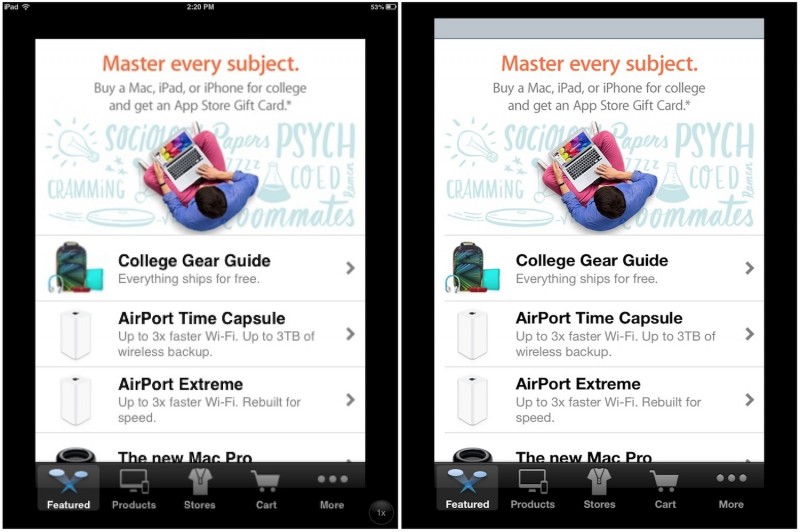
iPad 5 will be announced in September but iPad mini 2 is “delayed.” And the reason for the later date for the smaller tablet is that it “may receive further upgrades in specifications,” according to a post at DigiTimes. Some in the iOSphere, predictably, are already interpreting this as a delay, caused by the iPad mini 2 “not being ready” in time. Thus RedmondPie’s Ben Reid: “[W]hile the iPad 5 is apparently set for a September release, the purported iPad mini [2] may not be ready in time, probably releasing later on in the year.” Reid packs a lot of unexamined assumptions into that one statement: that iPad mini 2 originally was scheduled for September 2013 release, that it’s late, and that “probably” it will be released later in the year. And he’s confident that given such a schedule “We are quickly approaching that time of the year whereby Apple’s supply chains begin leaking clues on the Cupertino’s upcoming products….” Good luck with that because the basis for Reid’s post is the original DigiTimes’ post, with its “sources from the upstream supply chain,” which is the usual breeding ground for DigiTimes’ Apple rumors. And as usual, there is remarkably little detail, let alone clues or even hints, offered by these presumably informed supply chain sources. Except for one, and it’s a big one, buried near the end of the DigiTimes post: “As for the new 7.9-inch iPad mini, the sources pointed out that Apple is still considering whether to adopt a Retina Display for the device, and if the company decides to do so, the product's release may be delayed to the end of the fourth quarter.” This revelation contracts the Accepted Wisdom of the iOSphere since shortly after the original iPad mini was announced in 2012 – that the Next Obvious Improvement would be to upgrade its screen to the high resolution Retina display. Without any expert knowledge of Apple’s supply chain, it nevertheless seems a bit late in the game to be deciding on whether you’re going to replace the main iPad mini display, and do it in time to have any hope of offering the new iPad mini for sale during at least part of the year-ending holiday quarter. The change would involve possibly retooling not just Foxconn assembly lines but those of the display manufacturers, and their suppliers. And that doesn’t take into account the need for enough processing and graphics processing power, and battery power, to drive the much higher resolution display. According to DigiTimes, “Apple is expected to announce its fifth-generation 9.7-inch iPad in September as scheduled,” which is a nice touch since the phrasing makes the Apple announcement sound as precise as a publicly announced re-entry plan for a NASA space shuttle. Yet two paragraphs later, DigiTimes has this: “Although suppliers have not yet received a firm mass production schedule from Apple and are mainly shipping products for pilot production, the sources pointed out that pilot production is already able to satisfy demand for the initial launch. Therefore, the sources expect Apple to give its shipment estimates at the end of July or early August.” DigiTimes is saying that iPad 5 is scheduled for September launch even though as yet there’s no schedule for mass production of the devices. From this posting, it’s not clear whether or not this is a routine practice for Apple, and for consumer electronics companies in general, or something unusual. The post recycles the widely accepted, if not well grounded, rumor that the next full-sized iPad will have a “slimmer bezel design to allow a bigger viewing area.” That doesn’t sound quite right: reducing the width of the “border” or “frame” around the 9.7-inch iPad display wouldn’t increase the display’s surface area – it would still be 9.7-inches diagonally. But the reduction could allow Apple to make the length and width of the iPad somewhat smaller and to create the illusion that the screen is, relatively, bigger. Apparently, at least according to DigiTimes’ supply chain sources, Apple also wants to make the iPad mini’s mini bezel still smaller, and possibly nonexistent. DigiTimes: “Apple has also been asking its upstream supply partners to further shrink the next-generation iPad mini's bezel, aiming to push a bezel-less design similar to that of Samsung and HTC's large-size smartphones.” If this is true, the months-long speculation that Apple is reducing the 9.7-inch iPad bezel in part to mimic the outside design of the iPad mini is another example of misreading Apple’s options, plans, and actions. The iPad 5 will end up mimicking the first-generation iPad mini. CNET’s Brooke Crothers claims to believe that “a distinct theme has emerged about the timing of upcoming Apple tablets: The iPad 5 is on track, while the Retina Mini is up in the air.” Yet for all anyone really knows, both products are on track, because Apple plans to introduce one first and then the other. The theme that Crothers says is emerging is based on “speculation” and “continuing chatter” the credibility of which is highly variable. Much of it is from badly reported postings that depend on completely anonymous supply chain sources. Based on that, Crothers says regarding iPad mini 2: “Don't hold your breath.” Crothers quotes one analyst who makes a point that allows us to be even more skeptical of the DigiTimes post. “Ideally, [display makers] should be producing in high volume one or two quarters before Apple can use the display," Sweta Dash, senior director of LCD research at IHS iSuppli, told CNET previously.” But if, as DigiTimes says, Apple is expected to greenlight mass production in late July or early August, there would be at best eight and at worst four weeks of high volume manufacturing before a September tablet release, not counting units created during a preceding “pilot” production phase. iPad 5, iPad mini 2, and iPhone 5S and iPhone 6 will be announced at one September event Talk about Epic. This rumor seems to have resulted from the iOSphere’s mutant version of deductive reasoning, in this case applied by Kristin Dian Mariano, of International Business Times. The headline to her post, declares the conclusion: “Apple may release all its devices in September in one launching event.” She begins: “A new rumour emerged claiming that Apple is set to release its iPhone 6, iPhone 5S, iPad 5 and iPad Mini 2 in one big event in September.” This is ingenuous, since Mariano seems to be the one starting this very rumor. “This [rumor] came from previous reports that all devices are speculated to be released in Fall,” she continues. But then the “reports” became more specific. “A wide array of separate reports claimed that the flagship phone and tablet of the company will be released in September,” she explains helpfully. She doesn’t link or cite any of these reports, which are clearly nothing more than the unfounded rumors and speculation that have been rife in the iOSphere for months. And none of them, according to what we can tell, ever suggested Apple would announce all four or five new mobile products at one event. So there’s no basis for this rumor in reasoning; no basis for it in any credible, let alone substantiated, facts; and no basis for it in Apple’s practice. iPhone and iPad represent two separate classes of product, each with separate design and production processes and schedules. It’s not impossible for them to coincide but it’s rather like a rare astronomical event, say the red dwarf star Ross 248 passing within 3.024 light years of Earth, 36,000 years from now to become for a while the closest star to the Sun. The IBT post also mentions that the iPad 5, which a “wide array of separate reports” for the better part of a year have claimed will have iPad mini-like narrow bezels, actually will have “no bezels.” iPad mini 2, whenever it comes, will have Retina display…or not And the latest beta release of iOS 7 has a change that might argue against the higher resolution for the 2013 iPad mini 2. MobileMag somehow interprets the previously mentioned DigiTimes story – which cites supply chain sources claiming that Apple still hasn’t decided whether to give iPad Mini 2 a Retina display – as indicating that it “might” do exactly that. The Retina display is such a must-have feature, that MobileMag’s Leo Xavier reads the DigiTimes rumor as proving that Apple will “delay” the iPad mini 2 in order to ensure it has that higher resolution screen. “We are not expecting Apple to release the iPad Mini 2 with a lower resolution display, which has turned many customers away from the current iPad Mini,” pontificates Xavier in a post that doesn’t even attempt to explain how he knows that “many” have turned away from the current iPad mini because of its non-Retina display. “So it might be safe to believe in a delayed launch for the upcoming tablet.” Over at GottaBeMobile, Adam Mills is serenely confident that the next iPad mini will be Retina equipped. “If the iPad mini 2 does come with a Retina Display, and there is little reason to doubt that it will, the iPad mini 2 display would likely feature 2048 x 1536 resolution at around 324 ppi,” he writes. “That is an incredible difference in both numbers and quality.” Indeed it is. And it’s also an incredible difference in terms of microprocessor and battery demand. No one yet knows whether Apple has cracked this problem, while preserving battery life, performance, price, and display quality requirements. Mills advises buyers “So while the iPad mini might look like a tempting buy, especially since an iPad mini 2 release date hasn’t been nailed down yet, a Retina Display is going to be one reason to wait for the iPad mini 2 instead of buying something right now.” Exactly: if you need or want an iPad mini now, don’t buy it. Instead, wait four to six months and buy the iPad mini 2. Of course, if you want a really, really good iPad mini, wait 16-18 months and buy the iPad mini 3 in 2014. Some of the confusion over the iPad mini Retina display may be due to the possibility of two separate new iPad mini products. CNET’s Crothers reported in June about this prospect, raised in a blog post at NPD DisplaySearch, which also draws much of its information from contacts in Asian electronics firms and component suppliers. Crothers quoted from the blog entry, by analyst Richard Shim: “The new [2013] iPad mini will continue to use a 7.9-inch display with a 1024×768 resolution, but it will use the iOS 7 operating system and an A6 processor. Another iPad mini is also planned for production but not until early 2014. That device is expected to feature a QXGA (2,048 x 1,536) resolution [Retina] display and the iOS 7 operating system.” Regardless, the recent beta 3 release of iOS 7 contains a change that improves the presentation of iPhone apps, written for the newer iPhone Retina displays, on the two non-Retina iPad models – iPad 2 and iPad mini. MacRumors’ Eric Slivka has the details and we won’t repeat them in depth here. Essentially, Apple has improved the “pixel doubling” that allows apps designed for the Retina display iPhone to appear sharper and clearer when “blown up” on the non-Retina iPad 2 and iPad mini screens. You can see the difference in this MacRumors screen shot. Apple today still sells a 16-Gbyte version of iPad 2, for $399. But that is likely to end with the release of the next iPad. The iOS 7 enhancement is good news for existing iPad 2 and iPad mini users. But – perhaps -- it could also indicate that the iPad mini 2 will not have a Retina display, and this OS-level change is one way for Apple to improve display quality for iPhone apps on the lower-resolution screen. The bottom line: at this point, the Retina display iPad mini 2 remains wishful thinking and nothing more.
The iPhone 4's operating system represents a significant improvement on earlier versions of Apple's smartphone operating system. It's also got a new name - iOS - signifying the importance of the iPad alongside the iPhone. And what's more, iOS 4 is available to users of the iPhone 3GS, third-gen iPod touch and 3G too (albeit with limited features with the latter). iOS 4 will be available for the iPad later in the year. We've delved right under the hood of the new iPhone to bring you 20 tips for all those iPhone 4s out there.
1. Lock the screen orientation
If you're lying in bed reading an iBook or a page in Safari it can be annoying when the iPhone's orientation keeps flicking between portrait and landscape. You can solve this by activating the new Portrait Lock. Double tap the Home button to reveal all the running apps, then swipe your finger to the right to reveal iPod controls and the Portrait Lock.
2. Tap to focus/zoom in Camera
The iPhone 4's new 5 megapixel camera has a fantastic digital zoom. But to activate it you first need to focus on an object – like a face, for example, in your view. Do this by simply tapping anywhere on the screen. A white square will appear showing you the object that the iPhone is focused on. A zoom bar will also appear, which you can use to zoom into the object you've picked.
3. Multitasking: update your apps
Multitasking is one of the big new features of iOS4, but while all Apple's apps (like Calculator and iPod) are compatible, all third party apps will need to be upgraded to properly multitask. So, you'll need to head to the App Store app on your phone, then visit the Updates section to download a update for each app. This can take a while, but don't forget, the App Store app also multitasks (as it always has), so double tap the Home button to get back to it to save time after selecting each update. There's also a handy "Update all" button to tap.
4. Switch to UK English If you're getting annoyed that your iPhone thinks colour should be spelt without a 'u' it's because you've got English (US) selected. You can easily switch back to English (UK) for spell checking by tapping the globe button next to the space bar in any app that brings up the soft keyboard (like Mail or Notes). This toggles your iPhone between English (UK) and English (US).
5. Multitasking: kill a running app After you've been using your iPhone for a while double-tap the Home button to see how many apps you have running - it will be more than you think! Normally you just let the iPhone decide how many it can keep running at once, but you can take matters into your own hands by killing running apps here. Just tap and hold on a running app and a "-" button appears against all of them. Tap this to kill the app.
6. Add an accent on the e and a key
It's possible to quickly add a variety of accents to the letters "e" and "a" when typing on the iPhone's keyboard. Just tap and hold on either key to reveal more options, like "é", for example.
7. Turn caps lock on
If you want to change your typing to capital letters all the time, rather than just for the next letter, then double-tap on the Shift key on the iPhone's keyboard. It will now turn blue, indicating caps lock is on. Just tap it again to turn it off.
8. Camera: take a picture of yourself The iPhone 4 has a front and rear-facing camera. The rear-facing camera is the high quality 5 megapixel one, and the front facing camera (used mainly for FaceTime video chat) is lower VGA resolution. This means it's now easy to take a picture of yourself (something that was pretty difficult on the previous iPhone models). In the Camera app just tap the Switch button at the top right to change cameras from rear to front.
9. Camera: email a video of yourself talking You can also use the forward facing camera for recording video, and the iPhone 4's second microphone means it works well capturing anything you say too. In the Camera app tap the switch icon (as in tip 8) then change to video mode using the slider and record a video of yourself talking. Now select it in the Camera roll then tap the Forward icon and select Email Video - job done!
10. Make and rename folders Organising your apps is so much easier on iPhones running iOS4. Just tap and drag apps on top of each other and you create intelligently named folders. You can rename the folder names Apple chooses though - just tap and hold on an app to make them wiggle, then tap on the folder name and start typing.
11. Make a FaceTime call When they first get an iPhone 4 a lot of people start looking for the FaceTime app to make video calls. Actually, there's no FaceTime app! To make a video call you simply make a regular call, then tap the FaceTime button in the Phone application. At the moment FaceTime is only available between iPhone 4 users on Wi-Fi. We would expect more compatibility going forward, as the FaceTime technologies are being ratified as an open standard.
12. Hide Caller ID
It's possible to hide your Caller ID when making calls on your iPhone. In the Settings app tap on Phone, then tap on Show My Caller ID and turn it to OFF. (Incidentally, if you ever forget your phone number, you'll find it in here too).
13. Restrict features If you've brought an iPhone for your kids to use you might want to restrict some options, like the iTunes store and the App Store, for instance. You can also restrict the ability to watch age-rated content. In the Settings app click on General then Restrictions to turn this feature on and choose what you'd like to restrict.
14. Delete a text from the text history The iPhone Messages app records a history of all your text messages, like an instant message conversation. You can selectively delete old texts though. In Messages tap the Edit button at the top of the screen and then tap the radio button next to the offending text and tap Delete.
15. Watch live TV on your iPhone Not an iOS 4 tip per se, but you can turn your iPhone into TV thanks to the mobile version of the great TVCatchup website. You need to register, but the service is completely free, and even works over 3G as well as Wi-Fi.
16. iMovie and photos Apple's iMovie for iPhone 4 app means you can edit movies on your phone. Obviously it lacks the depth of the full iMovie for the Mac, but considering it runs on a phone it's very impressive. You can also add photos to your movie projects with a Ken Burns effect. One useful tip is to create an album of all the photos you plan to add to the project because otherwise you have to search through your camera roll, and for every photo you insert you have to start back at the beginning of the roll.
17. Show PDFs iBooks for iPhone can display PDF files as well as ebooks (as in the image below). To upload a PDF to your iPhone you have to use iTunes. First drag and drop your PDF file into your iTunes library, then when you sync your iPhone look in the Books tab. Here you'll find options for uploading the PDF. Once you've done that look in the iBooks app and a new PDF tab will have appeared. Tap this.
18. Get better reception
Apple's statement that there's a fault with the way the iPhone displays signal strength, which will be fixed by a future software update, is all very well, but people are still losing signal when gripping the iPhone 4 in a way that covers the gap between the metal bands at the bottom left of the phone. iPhone Bumpers (£25, from Apple), or in fact any third party case that covers the outside edge of the phone will solve the problem, since they prevent your skin from contacting the metal antenna. 19. Turn on SMS character count
A nice little update in the iOS 4 software is the ability to turn on a character count in the Messages app. You'll find the option in Settings/Messages. Now you'll be able to keep your overly long text messages in check!
20. Search more with Spotlight
The Spotlight search has been enhanced significantly in iOS 4. Swipe right from the Home screen to activate it. You'll notice that it now searches more things, including text messages in the Messages app. But if you keep scrolling down the list of results you'll notice two new options at the bottom of the screen – Search Web and Search Wikipedia. These are handy links that open up Safari automatically and start searching for you.
These are instructions on how to wipe your iPhone, iPad, or iPod touch to near stock condition without losing your jailbreak using Semi-Restore for Windows.
Before beginning make sure you do a backup of your device.
**Until a fix is released, do NOT use SemiRestore if you installed afc2add.
Step One Create a Pwnage folder on your desktop. Download Semi-Restore from here and save it to the Pwnage folder you just created.
Step Two Extract the Semi-Restore archive to the Pwnage folder
Step Three Right click the Semi-Restore executable and select Run as Administrator from the popup menu.
*Note: If you have issues running Semi-Restore make sure you have the Visual C++ 2010 Redistributable from Microsoft installed. You may also want to try Windows XP compatibility mode.
Step Four When Semi-Restore launches click the OK button to continue past the welcome message.
Step Five Connect your iOS 5.0 to iOS 6.1.2 iPhone, iPad, or iPod touch to the computer and click the SemiRestore button.
Step Six You phone will be rebooted as Semi-Restore wipes it clean.
Step Seven Once Semi-Restore has completed you will be informed that the process was successful and your iOS device will be rebooted to the new device setup wizard.
In this post I'll describe how to use Microsoft Network Monitor to analyze the connections that your computer creates out on the Internet, and find out what goes on between the programs you run and the servers they send information to. First, what is Network Monitor? It used to be that Microsoft only made basic monitoring tools, but since version 3.0, the Network Monitor tool has become a powerful packet capture and analysis program.
Now, why would someone want to use it as opposed to something like Wireshark? The two are very similar but do have a few differences. For one, the big advantage of Network Monitor is that it separate conversations based on the program, and on the server it connects to. For example, you will see an entry for your browser, your mail client, and so on, and inside of each, you'll have a different conversation for each web site you currently have open. Also, in my opinion the filters provided are easier to work with than Wireshark. On the negative side, it doesn't provide color-coded entries, but you can add your own.
Getting started
First you'll have to download the latest version of Network Monitor from the Microsoft site here. This will install the packet capture driver and the monitoring software. Simply double click on the icon to launch it.
In the program window, you can see a list of your interfaces on the lower left corner. Usually you'll want to select your Local Area Connection or whichever link you use to connect to the Internet. Then, click on the New Capture toolbar button. This will open a new tab for your capture, and you can click the Start toolbar button.
As the capture is going on, you will be able to see on the left pane the various applications that use the network, and the conversations they are having. You will see application names such as Firefox or Internet Explorer, and less obvious ones like System, svhost and Unknown. Once you've captured for a while you can Stop the capture and start analyzing the results.
Packet analysis
If you aren't familiar with networking protocols this may look intimidating. First, click on a conversation on the left pane, such as a web site you went to. Next to each conversation, you will see your own IP address and the IP of the machine you connected to. On the right side of the screen you will see the list of packets that were sent. You may also see the host names of the servers you connected to, which is more useful than just IP addresses.
As you click on any of the lines on the right pane, you will see the details appear in the two windows at the bottom right of the screen. The right one is the raw packet in HEX code, but the left one gives you information about all the protocols used, such as the version number, which ports were used, and so on.
You can also filter the results by using the top right box. Simply click on the Load Filter button, and you can see a series of default filters that Microsoft has by default. You could restrict to just web traffic, or network shares, DNS, and so on.
Real world example
Here's a quick example of what can be found this way. In the screenshot above I showed about 2 minutes of network traffic, during which I went to a few web sites, one of which was Microsoft.com. In the list, there was a conversation with an unknown IP, under the System process, which I clicked on, as shown below.
As you can see in this screenshot, this IP turned out to be microsoft.webtrends.akadns.net, which I assume is some kind of ads or monitoring service. But if you look at the packet information, at the very bottom of the screen, we can see exactly the URL called. It seems that by going to a Microsoft site, it also invoked a script on this site, to which it passed not only the address I went to on the Microsoft site, but also the Google search string I used to find the site, as a referral.
This is the kind of nifty information that can be shown, network connections you may not even imagine your computer is doing, and Network Monitor can be a great tool to track them down. While this example is probably quite benign, you can use the same steps to track down spyware and so on.
Oracle Database 11g DBA 1 1Z0-052 series- CBTNuggets English | FLV | 800×600 | 15fps | 4:3 | Mp3 128kbps 44100hz | 904Mb Genre: Video training
Become your company’s database deity. Learn how to install and administer Oracle 11g databases from scratch and ensure the integrity and security of your organization’s data. Tim Warner’s series even shows you how to apply your existing SQL Server, MySQL, or DB2 skills directly to Oracle platforms! After watching, you’ll be able to pass the Oracle 1Z0-052 exam, and you’ll have the vocab, experience and confidence you need to impress hiring managers and clients. [Extabit] ( Recommendation Premium , Highest Speed ) Home: http://sevno.com/ Download http://eaload.com/download/1938/oracle-database-11g-dba-1-1z0.html
CompTIA Linux Course Plus Training LX0-101 DVD1 English | Video training | 2.13 GB Our Comprehensive CompTIA Linux+ Training Course Teaches You How to Install, Configure, and Manage the Linux Operating System.
Linux Professional Institute (LPIC) course with Arthur Griffith VTC .com | BIN | 255 MB
The Linux Professional Institute Certification (LPIC) program is designed to certify competency in Linux professionals who use the operating system and its associated tools. The intention is to be distribution neutral, following the Linux Standard Base along with other relevant standards and conventions. The program consists of three levels of certification. In this course VTC author, Arthur Griffith, explores and explains, point by point, the objectives of the first two of the three LPIC exams. Home: http://sevno.com If people see interesting topics please share it with all your friends _^ Download http://eaload.com/download/3449/vtc_linux_professional_institute_level_2.html Mirror For Japan, EU, UAE, China, Au, Ru, SA, Brazil and Sing… http://downloadine.net/dl/88ZX17JW89/3449/vtc_linux_professional_institute_level_2.html
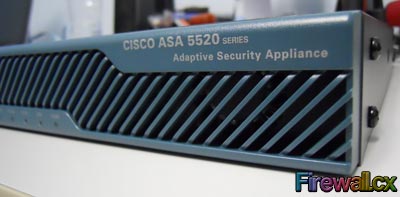
Introducing the Cisco ASA 5500 Series Firewall Appliance
The Cisco ASA 5500 series security appliances have been around for quite some time and are amongst the most popular hardware firewalls available in the market. Today Firewall.cx takes a look at how to easily setup a Cisco ASA5500 series firewall to perform basic functions, more than enough to provide secure & restricted access to the Internet, securely access and manage the ASA Firewall and more.
While many consider the Cisco ASA Firewalls complex and difficult to configure devices, Firewall.cx aims to break that myth and show how easy you can setup an ASA Firewall to deliver basic and advanced functionality. We’ve done it with other Cisco technologies and devices, and we’ll do it again :)
The table below provides a brief comparison between the different ASA5500 series security appliances:
Feature
Cisco ASA 5505
Cisco ASA 5510
Cisco ASA 5520
Cisco ASA 5540
Cisco ASA 5550
Users/Nodes
10, 50, or unlimited
Unlimited
Unlimited
Unlimited
Unlimited
Firewall Throughput
Up to 150 Mbps
Up to 300 Mbps
Up to 450 Mbps
Up to 650 Mbps
Up to 1.2 Gbps
Maximum Firewall and IPS Throughput
• Up to 150 Mbps with AIP-SSC-5
• Up to 150 Mbps with AIP-SSM-10 • Up to 300 Mbps with AIP-SSM-20
• Up to 225 Mbps with AIP-SSM-10 • Up to 375 Mbps with AIP-SSM-20 • Up to 450 Mbps with AIP-SSM-40
• Up to 500 Mbps with AIP-SSM-20 • Up to 650 Mbps with AIP-SSM-40
Perhaps one of the most important points, especially for an engineer with limited experience, is that configuring the smaller ASA 5505 Firewall does not really differ from configuring the larger ASA5520 Firewall. The same steps are required to setup pretty much all ASA 5500 series Firewalls – which is Great News!
The main differences besides the licenses, which enable or disable features, are the physical interfaces of each ASA model (mainly between the ASA 5505 and the larger 5510/5520) and possibly modules that might be installed. In any case, we should keep in mind that if we are able to configure a small ASA5505 then configuring the larger models won’t be an issue.
At the time of writing of this article Firewall.cx came across a Cisco ASA5505, so we decided to put it to good use for this article, however, do note that all commands and configuration philosophy is the same across all ASA5500 series security appliances.
Note: ASA software version 8.3.0 and above use different NAT configuration commands. This article provides both old style (up to v8.2.5) and new style (v8.3 onwards) NAT configuration commands.
ASA5500 Series Configuration Check-List
We’ve created a simple configuration check-list that will help us keep track of the configured services on our ASA Firewall. Here is the list of items that will be covered in this article:
This first step is optional as it will erase the firewall’s configuration. If the firewall has been previously configured or used it is a good idea to start off with the factory defaults. If we are not certain, we prefer to wipe it clean and start from scratch. Once the configuration is deleted we need to force a reboot, however, take note that it’s important not to save the system config to ensure the running-config is not copied to the startup-config otherwise we’ll have to start this process again:
ciscoasa(config)# write erase
Erase configuration in flash memory? [confirm]
[OK]
ciscoasa(config)# reload
System config has been modified. Save? [Y]es/[N]o: N
Next, we need to configure the Enable password, required for privileged exec mode access, and then user accounts that will have access to the firewall.
The ASA Firewall won’t ask for a username/password when logging in next, however, the default enable password of ‘cisco’, will be required to gain access to privileged mode:
Help to improve the ASA platform by enabling anonymous reporting,
which allows Cisco to securely receive minimal error and health
information from the device. To learn more about this feature,
please visit: http://www.cisco.com/go/smartcall
Would you like to enable anonymous error reporting to help improve
the product? [Y]es, [N]o, [A]sk later: N
In the future, if you would like to enable this feature,
issue the command "call-home reporting anonymous".
Please remember to save your configuration.
At this point we need to note that when starting off with the factory default configuration, as soon as we enter the ‘configure terminal’ command, the system will ask if we would like to enable Cisco’s call-home reporting feature. We declined the offer and continued with our setup:
The privilege 15 parameter at the end of the command line ensures the system is aware that this is an account with full privileges and has access to all configuration commands including erasing the configuration and files on the device’s flash disk, such as the operating system.
Configure Interface IP addresses / VLAN IP Addresses & Descriptions
Depending on the ASA appliance we have, we can configure physical interfaces (inside/outside) with IP addresses, usually done with ASA5510 and larger models, or create VLANs (inside/outside) and configure them with IP addresses, usually with the smaller ASA5505 models.
In many cases network engineers use VLAN interfaces on the larger ASA5500 models, however, this depends on the licensing capabilities of the device, existing network setup and more.
In the case of the ASA5505 we must use VLAN interfaces, which are configured with their appropriate IP addresses and then (next step) characterised as inside (private) or outside (public) interfaces:
ASA5505(config)# interface vlan 1
ASA5505(config)# description Private-Interface
ASA5505(config-if)# ip address 10.71.0.1 255.255.255.0
ASA5505(config-if)# no shutdown
!
ASA5505(config)# interface vlan 2
ASA5505(config)# description Public-Interface
ASA5505(config-if)# ip address 192.168.3.50 255.255.255.0
ASA5505(config-if)# no shutdown
!
ASA5505(config)# interface ethernet 0/0
ASA5505(config-if)# switchport access vlan 2
ASA5505(config-if)# no shutdown
Alternatively, the Public interface (VLAN2) can be configured to obtain its IP address automatically via DHCP with the following command:
ASA5505(config)# interface vlan 2
ASA5505(config)# description Public-Interface
ASA5505(config-if)# ip address dhcp setroute
ASA5505(config-if)# no shutdown
The setrouteparameter at the end of the command will ensure the ASA Firewall sets its default route (gateway) using the default gateway parameter the DHCP server provides.
After configuring VLAN1 & VLAN2 with the appropriate IP addresses, we configured ethernet 0/0 as an access link for VLAN2 so we can use it as a physical public interface. Out of the 8 total Ethernet interfaces the ASA5505 has, at least one must be set with the switchport access vlan 2 otherwise there won’t be any physical public interface on the ASA for our frontend router to connect to. Ethernet ports 0/1 to 0/7 must also be configured with the no shutdown command in order make them operational. All of these ports are, by default, access links for VLAN1. Provided are the configuration commands for the first two ethernet interface as the configuration is identical for all:
Next, we must designate the Inside (private) and Outside (public) interfaces. This step is essential and will help the ASA Firewall understand which interface is connected to the trusted (private) and untrusted (public) network:
ASA5505(config)# interface vlan 1
ASA5505(config-if)# nameif inside
INFO: Security level for "inside" set to 100 by default. !
ASA5505(config)# interface vlan 2
ASA5505(config-if)# nameif outside INFO: Security level for "outside" set to 0 by default.
The ASA Firewall will automatically set the security level to 100 for inside interfaces and 0 to outside interfaces. Traffic can flow from higher security levels to lower (private to public), but not the other way around (public to private) unless stated by an access-lists.
To change the security-level of an interface use the security-level xxx command by substituting xxx with a number from 0 to 100. The higher the number, the higher the security level. DMZ interfaces are usually configured with a security level of 50.
It is extremely important the necessary caution is taken when selecting and applying the inside/outside interfaces on any ASA Firewall.
The default route configuration command is necessary for the ASA Firewall to route packets outside the network via the next hop, usually a router. In case the public interface (VLAN2) is configured using the ip address dhcp setroute command, configuration of the default gateway is not required.
At this point, it’s a good idea to try testing the next-hop router and confirm the ASA Firewall can reach it:
ASA5505(config)# ping 192.168.3.1
Type escape sequence to abort.
Sending 5, 100-byte ICMP Echos to 192.168.3.1, timeout is 2 seconds:
!!!!!
Success rate is 100 percent (5/5), round-trip min/avg/max = 1/1/1 ms
For networks with multiple internal VLANs, it is necessary to configure static routes to ensure the ASA Firewall knows how to reach them. Usually these networks can be reached via a Layer3 switch or an internal router. For our example, we’ll assume we have two networks: 10.75.0.0/24 & 10.76.0.0/24 which we need to provide Internet access to. These additional networks are contactable via a Layer3 device with IP address 10.71.0.100:
Configure Network Address Translation (NAT) for Internal Networks
This is the last step required to successfully provide Internet access to our internal networks. Network Address Translation is essential to masquerade our internal network using the single IP address our Public interface has been configured with. Network Address Translation, along with all its variations (Static, Dynamic etc), is covered in great depth in our popular Network Address Translation section.
We should note at this point that NAT configuration has slightly changed with ASA software version 8.3 and above. We will provide both commands to cover installations with software version up to v8.2.5 and from v8.3 and above.
The following commands apply to ASA appliances with software version up to 8.2.5:
In the above configuration, the ASA Firewall is instructed to NAT all internal networks using the NAT Group 1. The number ‘1’ is used to identify the NAT groups for the NAT process between the inside and outside interfaces.
The global (outside) 1 interface command instructs the ASA Firewall to perform NAT using the IP address assigned to the outside interface.
Another method of configuring NAT is with the use of access lists. In this case, we define the internal IP addresses to be NAT’ed with the use of access lists:
ASA5505(config)# access-list NAT-ACLs extended permit ip 10.71.0.0 255.255.255.0 any
ASA5505(config)# access-list NAT-ACLs extended permit ip 10.75.0.0 255.255.255.0 any
ASA5505(config)# access-list NAT-ACLs extended permit ip 10.76.0.0 255.255.255.0 any
The existence of a DHCP server is necessary in most cases as it helps manage the assignment of IP address to our internal hosts. The ASA Firewall can be configured to provide DHCP services to our internal network, a very handy and welcome feature.
Again, there are some limitations with the DHCP service configuration which vary with the ASA model used. In our ASA5505, the maximum assigned IP addreses for the DHCP pool was just 128!
Note that the DHCP service can run on all ASA interfaces so it is necessary to specify which interface the DHCP configuration parameters are for:
ASA5505(config)# dhcpd dns 8.8.8.8 interface inside
Once configured, the DHCP service will begin working and assigning IP addresses to the clients. The Gateway IP address parameter is automatically provided to client and is not required to be configured on the ASA Firewall appliance.
We can verify the DHCP service is working using the show dhcpd statistics command:
ASA5505(config)# show dhcpd statistics
DHCP UDP Unreachable Errors: 0
DHCP Other UDP Errors: 0
Address pools 1
Automatic bindings 1
Expired bindings 0
Malformed messages 0
Message Received
BOOTREQUEST 0
DHCPDISCOVER 1
DHCPREQUEST 1
DHCPDECLINE 0
DHCPRELEASE 0
DHCPINFORM 1
If required, we can clear the DHCP bindings (assigned IP addresses) using the clear dhcpd bindingcommand.
Configure AAA Authentication for Local Database User Authentication
Configuring AAA authentication is always a good idea as it instructs the ASA Firewall to use the local user database for the various services it's running. For example, we can tell the ASA Firewall to use a radius server for VPN user authentication, but use its local database for telnet, ssh or HTTP (ASDM) management access to the Firewall appliance.
As mentioned, our example instructs the ASA Firewall to use its local database:
ASA5505(config)# aaa authentication telnet console LOCAL
ASA5505(config)# aaa authentication http console LOCAL
ASA5505(config)# aaa authentication ssh console LOCAL
Enable HTTP Management for Inside Interface
We now turn to the management settings of our ASA Firewall to enable and configure HTTP management. This will allow access to the Firewall’s management via the popular ASDM management application:
WARNING: http server is not yet enabled to allow ASDM access.
ASA5505(config)# http server enable
The above commands enable HTTP management on the ASA Firewall only for the network 10.71.0.0/24.
Enable SSH & Telnet Management for Inside and Outside Interfaces
Enabling SSH and Telnet access to the Cisco Firewall is pretty straightforward. While we always recommend the use of SSH, especially when accessing the Firewall from public IPs, telnet is also an option, however, we must keep in mind that telnet management methods do not provide any security as all data (including username, passwords and configurations) are sent in clear text.
Before enabling SSH, we must generate RSA key pairs for identity certificates. Telnet does not require any such step as it does not provide any encryption or security:
Note that the ASA Firewall appliance will only accept SSH connections from host 200.200.90.5 arriving on its public interface, while SSH and telnet connections are permitted from network 10.71.0.0/24 on the inside interface.
Create, Configure and Apply TCP/UDP Object-Groups
An essential part of any firewall configure is to define the Internet services our users will have access to. This is done by either creating a number of lengthy access lists for each protocol/service and then applying them to the appropriate interfaces, or utilising the ASA Firewall Object-Groups which are then applied to the interfaces. Using Object-groups is easy and recommended as they provide a great deal of flexibility and ease of management.
The logic is simple: Create your Object-Groups, insert the protocols and services required, and then reference them in the firewall access -lists. As a last step, we apply them to the interfaces we need.
Let’s use an example to help visualise the concept. Our needs require us to create two Object-Groups, one for TCP and one for UDP services:
ASA5505(config)#object-group service Internet-udp udp
ASA5505(config-service)# description UDP Standard Internet Services
ASA5505(config-service)# port-object eq domain
ASA5505(config-service)# port-object eq ntp
ASA5505(config-service)# port-object eq isakmp
ASA5505(config-service)# port-object eq 4500 !
ASA5505(config-service)#object-group service Internet-tcp tcp
ASA5505(config-service)# description TCP Standard Internet Services
ASA5505(config-service)# port-object eq www
ASA5505(config-service)# port-object eq https
ASA5505(config-service)# port-object eq smtp
ASA5505(config-service)# port-object eq 465
ASA5505(config-service)# port-object eq pop3
ASA5505(config-service)# port-object eq 995
ASA5505(config-service)# port-object eq ftp
ASA5505(config-service)# port-object eq ftp-data
ASA5505(config-service)# port-object eq domain
ASA5505(config-service)# port-object eq ssh
ASA5505(config-service)# port-object eq telnet
Now we need to reference our two Object-groups using the firewall access lists. Here we can also define which networks will have access to the services listed in each Object-group:
ASA5505(config)# access-list inside-in remark -=[Access Lists For Outgoing Packets from Inside interface]=-
Note that the 10.71.0.0/25 network has access to both Object-groups services, our other networks are restricted to only the services defined in the TCP Object-group. To understand how Object-groups help simplify access list management: without them, we would require 37 access lists commands instead of just 4!
Configuration of Access-Lists for ICMP Packets to the Internet
To complete our access list configuration we configure our ASA Firewall to allow ICMP echo packets (ping) to any destination, and their replies (echo-reply):
ASA5505(config)# access-list inside-in extended permit icmp 10.71.0.0 255.255.255.0 any
ASA5505(config)# access-list outside-in remark -=[Access Lists For Incoming Packets on OUTSIDE interface]=-
ASA5505(config)# access-list outside-in extended permit icmp any any echo-reply
Appling Firewall Access-Lists to ‘inside’ and ‘outside’ Interfaces
The last step in configuring our firewall rules involves applying the two access lists, inside-in & outside-in, to the appropriate interfaces. Once this step is complete the firewall rules are in effect immediately:
ASA5505(config)# access-group inside-in in interface inside ASA5505(config)# access-group outside-in in interface outside
Configure Logging/Debugging of Events & Errors
This last step in our ASA Firewall configuration guide will enable logging and debugging so that we can easily trace events and errors. It is highly recommended to enable logging because it will certainly help troubleshooting the ASA Firewall when problems occur.
ASA5505(config)# logging buffered 7
ASA5505(config)# logging buffer-size 30000
ASA5505(config)# logging enable
The commands used above enable log in the debugging level (7) and sets the buffer size in RAM to 30,000 bytes (~30Kbytes).
Issuing the show log command will reveal a number of important logs including any packets that are processed or denied due to access-lists:
This article serves as an introduction configuration guide for the ASA5500 series Firewall appliances. We covered all necessary commands required to get any ASA5500 Firewall working and servicing network clients, while also explaining in detail all commands used during the configuration process.
Blogger template( or theme) has a great value in the growth of a blog. It is the first thing that visitors notice about. A better blogger template is essential for a blog.
If the template that is used is an ordinary or it uses the default template with no modification at all, blog visitors will judge the blog to be less professional. On the other hand, if your blog has a unique template, it usually helps to remember about your blog in visitors mind. It helps to attract your visitors to your blog and also helps them to navigate through your blog easily and fast.
Today, I have listed 15+ blogger templateswebsites/blogs, where you can select a better blogger template for your blog. Most of these blogger templates are free, but when you use these template, make sure to keep the footer links intact which provides due credit to its developers.